Print jobs and offline printers
Print jobs shows every automatic print, whether it worked, and lets you send a failed one again. This page also explains what happens when a printer is off.
Print jobs
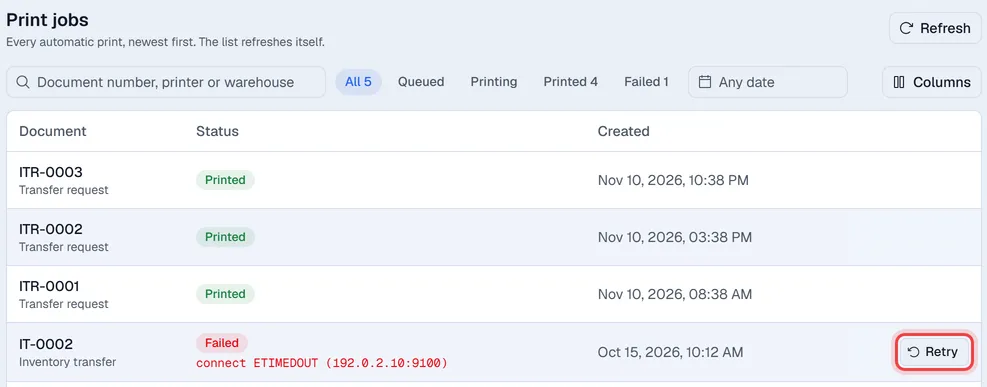
Open Automations → Print jobs. Each row is one print of one document on one printer.
| Column | Shows |
|---|---|
| Document | The document type and number. |
| Warehouse | The warehouse the rule was for. |
| Printer | Where it was sent. |
| Status | Queued (waiting), Printing, Printed or Failed. |
| Attempts | How many times Voltix has tried. |
| Created / Printed | When the job was made and when it printed. |
When a job has a problem, the reason is shown in red under its status; click the row to see the whole message. Use the chips above the list (All, Queued, Printing, Printed, Failed, each with its count) to see, for example, only failed jobs, the search box to find a document number or printer, and the date box to pick the days the jobs were created. The list refreshes every 15 seconds while it is open; Refresh updates it straight away.
On a narrow screen the Retry buttons sit at the far right of the list; use Columns to hide columns you do not need (here Warehouse and Printer).
When the printer is off
Nothing is lost and nobody has to wait:
- 1The document is saved as normal. Printing never stops a transfer, request or goods issue from being created.
- 2Voltix keeps trying in the background, waiting longer each time: after about 1, 2, 4, 8, 16 and 30 minutes, roughly an hour in total.
- 3If the printer comes back during that time, the document prints by itself.
- 4After the last try the job is marked Failed.
Print a failed job again
Fix the printer (switch it on, add paper, check the network), then click Retry on the failed row (or open the row and click Retry there). The job goes back in the queue and is sent within about a minute.
A retry prints the document as it is now, so changes made since then are on the page.
Questions and problems
Nothing printed and there is no job. Check that a rule exists for that document type and the right warehouse, and that both the rule and the printer are switched on. What Automations does lists which warehouse counts for each document.
A transfer request did not print. If it needs approval, it prints when it is approved, not when it is created.
The job says Printed but there is no paper. The printer accepted the file but did not print it. Check that it supports PDF Direct Print and that raw printing on port 9100 is on in the printer's settings.
Can other documents print automatically, like invoices? Not yet. Automations prints inventory transfers, transfer requests and goods issues.