Submitting your week
When your company uses weekly approval, you submit your week when it is complete and a manager approves it.
Note. This page only applies when your company has switched on Require weekly approval. Without it there is no Submit week button and your hours simply stay editable.
Submit the week
- 1Open Timesheets and go to the week (use the arrows if it is not the current week).
- 2Check the hours and the Total.
- 3Click Submit week.
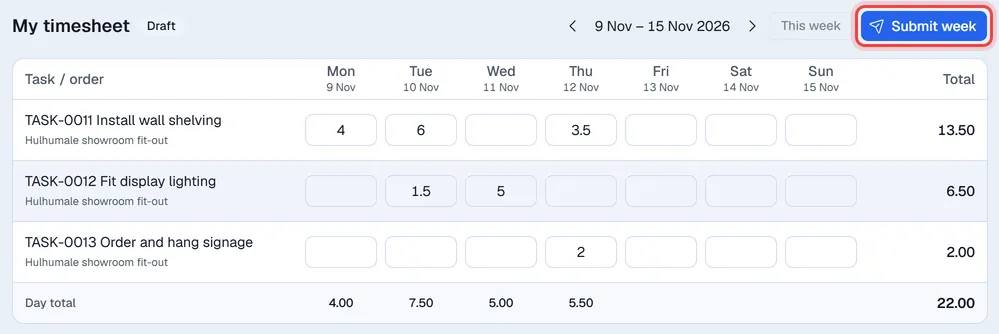
A message tells you how many entries were submitted, and the badge changes to Submitted. Only entries that are still drafts are sent; other weeks are not touched.
What each status means
| Status | Meaning |
|---|---|
| Draft | Your own work in progress. You can change it freely. |
| Submitted | Waiting for your manager. |
| Approved | Accepted by a manager. The hours are locked. |
Changing hours after submitting
You can still change a submitted entry. Changing it turns that entry back into a draft, so the Submit week button appears again: submit the week once more when you are done.
If your manager rejects the week, all its submitted entries go back to drafts. Correct them and submit again.
An approved week
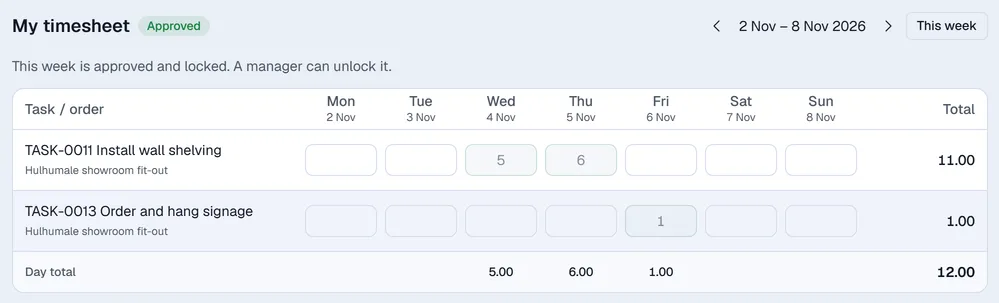
Once every entry of the week is approved, the hours are locked and you cannot add rows. If something must change, ask a manager to Unlock the week. See Approving timesheets.