Your profile and how Voltix looks
Choose Light, Dark or AMOLED, your accent colour, the text size and the font, and keep your name, phone and password up to date.
Open your profile
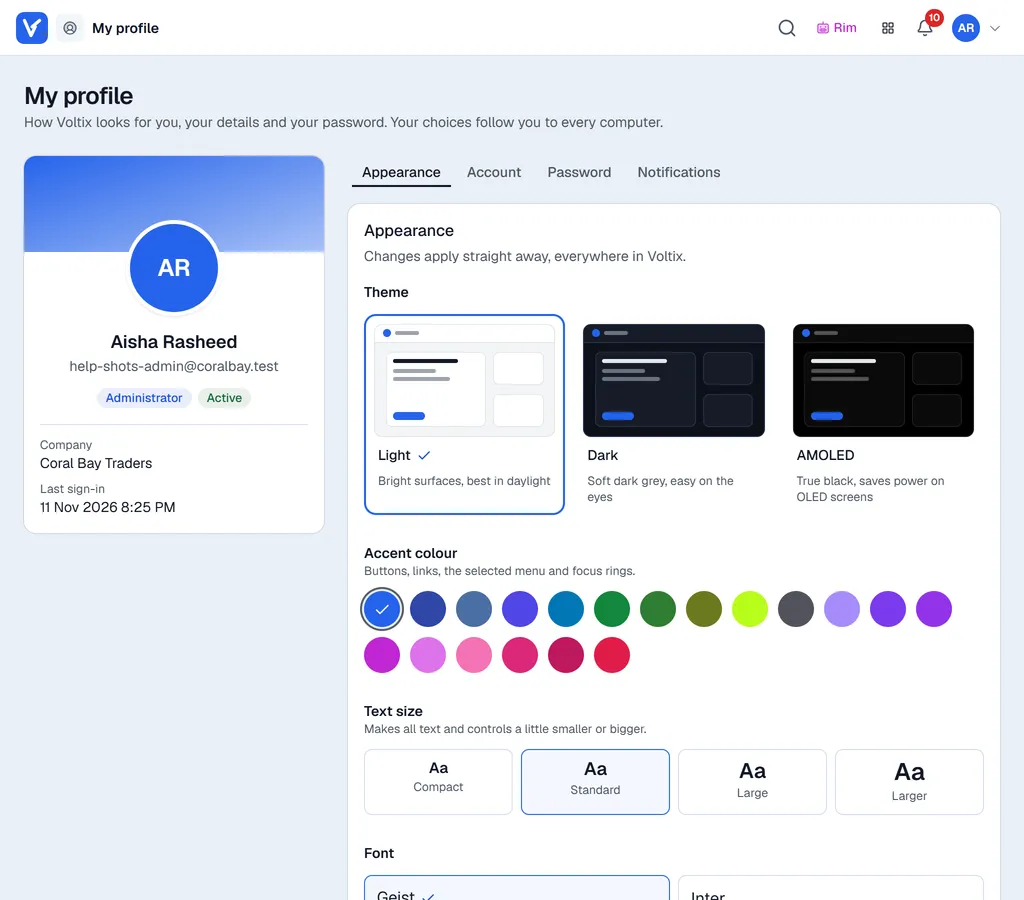
Click your initials (or photo) at the top right and choose My Profile. The page has four tabs: Appearance, Account, Password and Notifications (see Notifications). On the left you see your details: your role, your company and when you last signed in.
Change how Voltix looks
Everything on the Appearance tab applies straight away to the whole of Voltix, on this computer and on every other one you sign in to. The Preview next to the choices shows a small copy of Voltix with your settings.
| Choice | What it does |
|---|---|
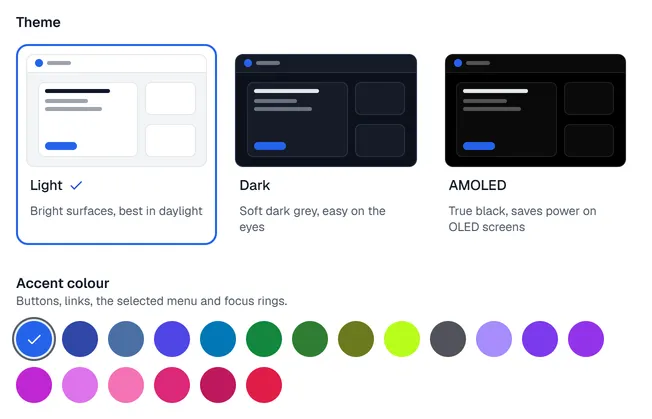
| Theme | Light for bright rooms. Dark is a soft dark grey that takes a hint of your accent colour. AMOLED is true black, which saves power on phones and laptops with OLED screens. |
| Accent colour | The colour of buttons, links, the selected menu and focus rings. In Light and Dark, the page background and lines take a light touch of it too. |
| Text size | Compact, Standard, Large or Larger. All text and controls grow or shrink together, so screens keep their layout. |
| Font | Geist (standard), Inter, Atkinson Hyperlegible (made for low vision: I, l and 1 never look alike) or IBM Plex Sans. |
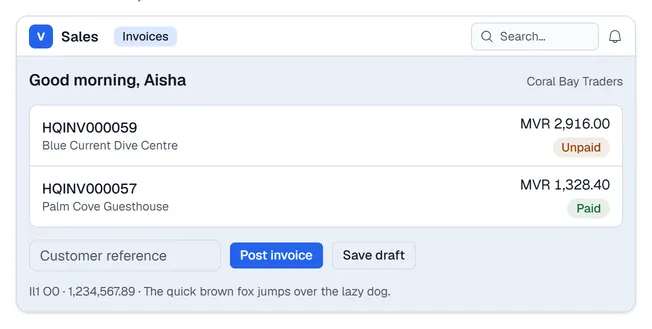
Click Back to the standard colour, size and font to undo your colour, size and font choices in one go.
Change your name or phone
- 1Open the Account tab.
- 2Change your First name, Last name or Phone.
- 3Click Save. Undo puts back what was saved.
Your name shows on documents you prepare and in the top bar. Your sign-in e-mail is changed by your administrator.
Change your password
- 1Open the Password tab.
- 2Enter your Current password, then the new one twice. Use at least 8 characters. The eye button shows what you typed.
- 3Click Change password. You stay signed in on this computer.
Forgot your password? On the sign-in page, click Forgot password? to get a link by e-mail.