Stock adjustments
Correct the on-hand quantity or the average cost of an item, with a reason, an approval when the company wants one, and a full history.
Show the steps for
Stock and cost corrections are made in SAP Business One (for example with a goods receipt, a goods issue or an inventory posting there). Voltix reads the result at the next sync. The Stock adjustments menu is not shown on a company that runs on SAP.
Before you start
You need the Inventory: adjust stock permission to make adjustments. Approving someone else's adjustment needs Inventory: approve stock adjustments. Administrators have both.
Every adjustment is a numbered document (ADJ-00001, ADJ-00002, …) with the person, the reason, the quantity before and after and the cost before and after. Nothing changes stock without one.
Adjust one item quickly
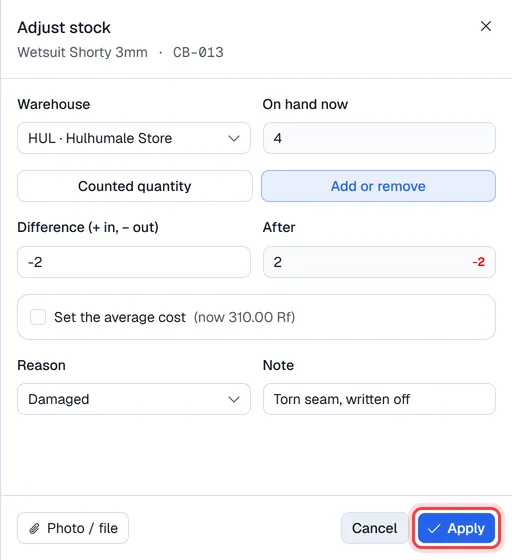
- 1In Inventory → Products, open the … menu on the product row and choose Adjust stock.
- 2Pick the Warehouse. On hand now shows the current quantity there.
- 3Choose Counted quantity (type the new total) or Add or remove (type the difference, plus for in and minus for out). After shows the result.
- 4When stock comes in, you may give the Cost per unit of what came in. It moves the item's average cost, like a purchase would.
- 5Tick Set the average cost to give the item a new average cost directly, with or without a quantity change.
- 6Pick a Reason, add a Note or a Photo / file, and click Apply.
Adjust several items at once
Open Stock adjustments and click New → New adjustment. Pick the Warehouse for new lines and add Notes for the whole document, then add items with the Add an item box. On each line choose the Mode (Counted for the new total or ± Difference), type the Qty, and optionally the Cost in (cost per unit of stock coming in) or a New avg cost. Each line has its own Reason and Note. Add files with Attach and click Post adjustment.
Import opening stock
Click New → Import opening stock and then Choose CSV. The file has the columns code, warehouse, quantity and (optional) cost. The code is the item's SKU, barcode or item code; an empty warehouse means the default warehouse. Voltix shows every row with the current quantity, the new one, the difference and any problem (unknown item, unknown warehouse, bad number) before anything is written. Pick the Reason, then fix the file or click Import … rows to go ahead with the good rows.
Approvals
With approval switched on, an adjustment that crosses the limit waits as Waiting for approval. An approver opens it from the Stock adjustments list and clicks Approve and post or Reject (with a reason). A waiting adjustment can also be withdrawn with … → Cancel adjustment. When it is posted, counted quantities are compared with the stock at that moment, so sales made while it waited are not undone.
History
Every item keeps its movements: open the item's details (click the product row) and look at the Movements tab. Each row shows the type (sale, purchase, adjustment, count, transfer, receipt, issue), the quantity before and after in that warehouse, the cost and who did it. The Average cost card shows the current cost and when it last changed.
Settings
Settings → Inventory → Stock adjustments:
| Setting | Meaning |
|---|---|
| Adjustments need approval | Never, when one line changes more than N units, or when the document moves more than N in value. |
| Reasons | The list offered on every adjustment (count correction, damaged, expired, found, opening stock, …). Switch off the ones you do not use; add your own. |