Receive a payment
Pick the customer, select the invoices they are paying, then collect and record the payment.
Show the steps for
Before you start
- Your register must be open on your terminal.
- The customer must have at least one open invoice: a sale on credit, or an invoice that was only partly paid.
Receiving a payment takes two steps, shown at the top right of the screen:
- 1Select invoices: the customers on the left, the chosen customer's open invoices on the right.
- 2Collect payment: the invoices you selected on the left, the payment and the totals on the right.
1. Pick the customer
- 1In Customers on the left, type part of the customer's name, code or e-mail.
- 2Click the customer. (On a phone the list folds away; Change customer brings it back.)
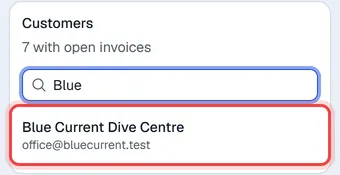
While the invoices load, grey placeholder rows show where they will appear.
The invoices are read live from SAP Business One, which can take a few seconds for a customer with many invoices: the screen says Getting open invoices from SAP… while it waits. If they cannot be read, click Try again.
2. Select the invoices
Open invoices lists every invoice the customer still owes money on, with its Date, Customer ref (their own reference, for example a PO number), Total, what is still Open, and an Apply box for the amount being paid on it. An invoice past its due date is marked Overdue.
Credit invoices from the POS and from Sales are listed until they are fully paid, including invoices that show as pending in the Orders list. An invoice counts as Overdue once the customer's payment terms have passed (30 days when the customer has none).
The list is read live from SAP Business One, so it also shows invoices that were made directly in SAP.
- 1To find invoices in a long list, type part of the number, customer ref or amount in the search box, pick All, Selected or Overdue, and change the order (Oldest first, Newest first, By number, Largest open amount, Most overdue).
- 2Tick each invoice the customer pays in full (the open amount goes into Apply), or type a smaller amount in Apply for a part payment. An invoice never takes more than it owes.
- 3Select all ticks every invoice in the list (only the ones shown when you have searched or filtered), Select overdue ticks the overdue invoices only, and Clear empties every Apply box.
- 4The bar at the bottom of the screen stays in view while you scroll: it shows how many invoices are selected and the total to pay. Click Next.
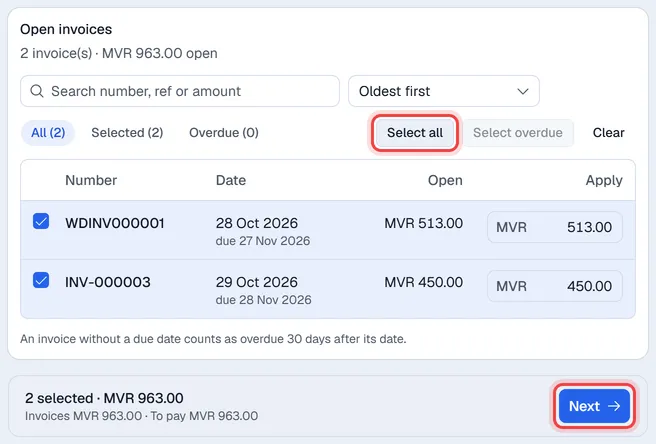
Next stays off until at least one invoice has an amount; the bar says what is missing. If the customer owes nothing, the screen says so.
3. Collect the payment
The invoices you selected are listed on the left with the amount applied to each and the Total. Click Back to change the selection: your ticks and amounts are kept. (On a phone the list is folded into one line above the payment; tap it to open it.)
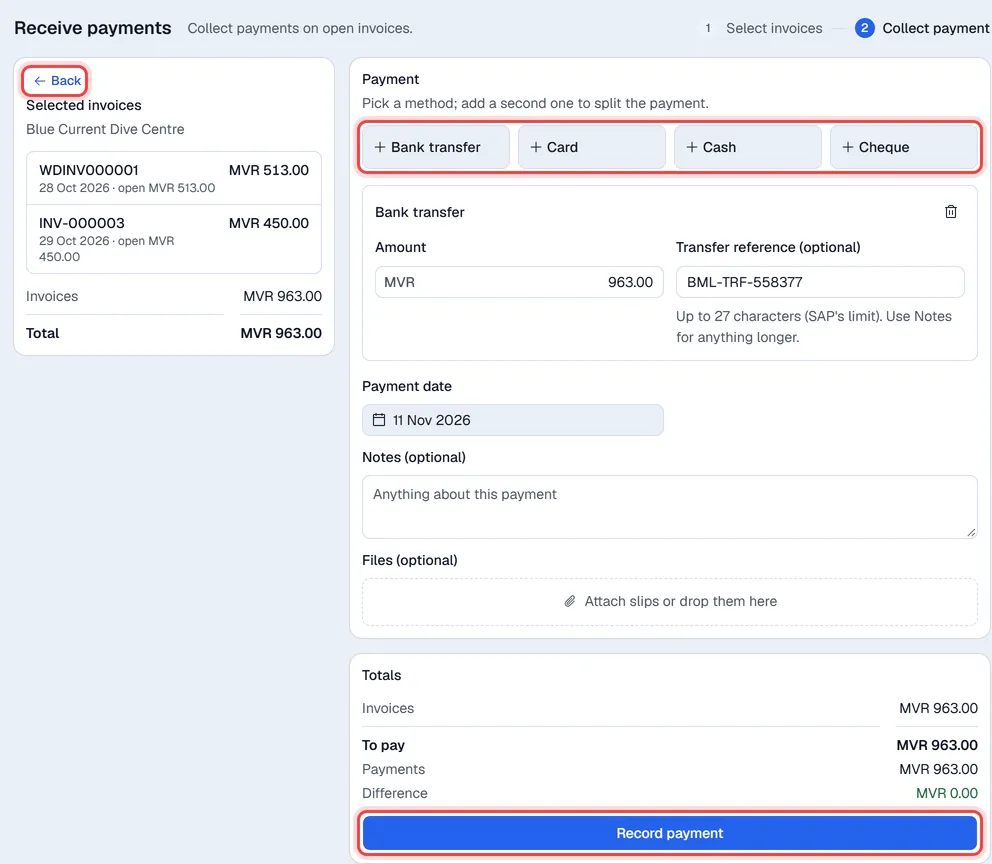
- 1Under Payment, click the method the customer used. Nothing is chosen for you. Its Amount follows To pay until you type another figure.
- 2To split the payment (for example part cash, part transfer), click a second method and share the amount between them. They must add up to To pay.
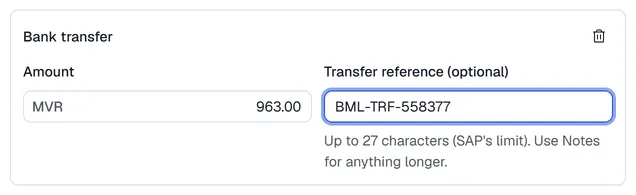
- 3Fill in the extra fields for each method (see below).
- 4Check the Payment date. It is today unless you change it.
- 5Add Notes if needed. They print on the receipt under Remarks.
- 6Check Totals: Invoices, To pay, Payments and the Difference, which must be zero. If the customer hands over a different amount, type it in the method's Amount and click Share … over the oldest invoices: Voltix spreads it over the invoices, oldest first.
- 7Click Record payment.
With a split, the button reads Record 2 payments.
With a split, the button reads Record 2 payments.
Extra fields by payment method
| Payment method | Extra fields |
|---|---|
| Cash | None. |
| Bank transfer | Transfer reference (optional). |
| Card | Authorization code (optional). |
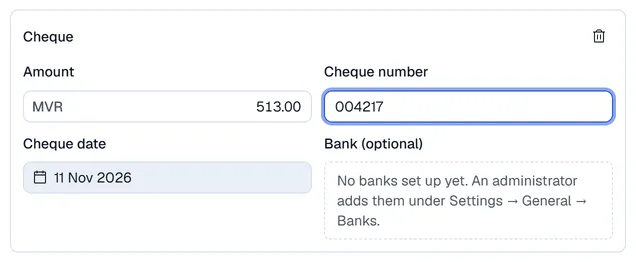
| Cheque | Cheque number (required), Bank (required once your company has banks set up) and Cheque date. When no banks are set up yet, the field reads Bank (optional) and the screen says so. |
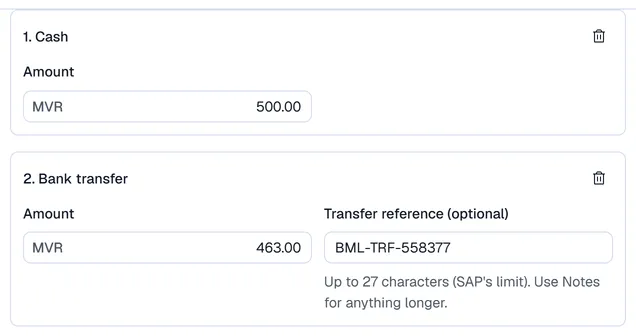
A split payment is recorded as one payment receipt that lists every method with its amount and reference. The methods are shared over the invoices oldest first, in the order you added them (an invoice may be paid partly by each). Either the whole payment is recorded or nothing is: if anything is wrong, nothing is saved and the screen says why. Clicking Record payment twice never records it twice.
A split payment is recorded as one payment receipt per method: the invoices are shared out between them, oldest first (an invoice may be paid partly by each). If one of them is refused, the ones before it stay recorded and the screen says which; the invoices then show what is still open.
A split payment is recorded as one payment receipt per method: the invoices are shared out between them, oldest first (an invoice may be paid partly by each). If one of them is refused, the ones before it stay recorded and the screen says which; the invoices then show what is still open.
The On account payment method is never offered here, because paying an invoice "on account" would not settle it.
Attachments
If your company has document attachments switched on, a Files (optional) box appears under the payment. Add a photo of the cheque or the bank transfer slip. The files are attached to the payment receipt after the payment is recorded (on a company with SAP or QuickBooks, a split payment's files go to its first receipt).
4. Print the receipt
After Record payment, the screen goes back to Select invoices with the customer's invoices that are still open, and shows Payment recorded with the receipt number (one per method on a company with SAP or QuickBooks) and its Print and Download buttons (the arrow next to each picks A4 or A5). The first print is marked ORIGINAL, later prints COPY. You can also reprint later from Completed payments.
What happens when you record a payment
The payment is saved in Voltix with the next payment receipt number of your terminal. Each invoice's paid and outstanding amounts are updated, and an invoice that is now fully paid is closed. If your company uses the Finance app, one journal entry is made for the whole receipt: the account of each payment method against receivables.
The payment is sent to SAP Business One first as an incoming payment against the invoices. Only when SAP accepts it is it saved in Voltix with the payment receipt number. If SAP refuses it, nothing is saved and SAP's message is shown. Cheques post as cheques and bank transfers as transfers, with the reference you typed.
The payment is saved in Voltix with the next payment receipt number of your terminal, and the invoices' outstanding amounts are updated in Voltix. Received payments are not sent to QuickBooks: record the payment in QuickBooks as well.
The payment appears under Received Payments in the register'