Deposits
Take the cash, cheques and card payments received in the shop to the bank with a deposit slip, so the money moves from the till accounts into the bank account.
For companies without sap or with sap business one.
Show the steps for
What can be deposited
The Deposits tab offers receipts from the POS and Receive Payments that are not yet on a slip. Cash and card receipts are grouped per day and terminal; cheques are listed one by one. The Overview tab shows the totals waiting.
Make a deposit slip
- 1Open Banking → Deposits.
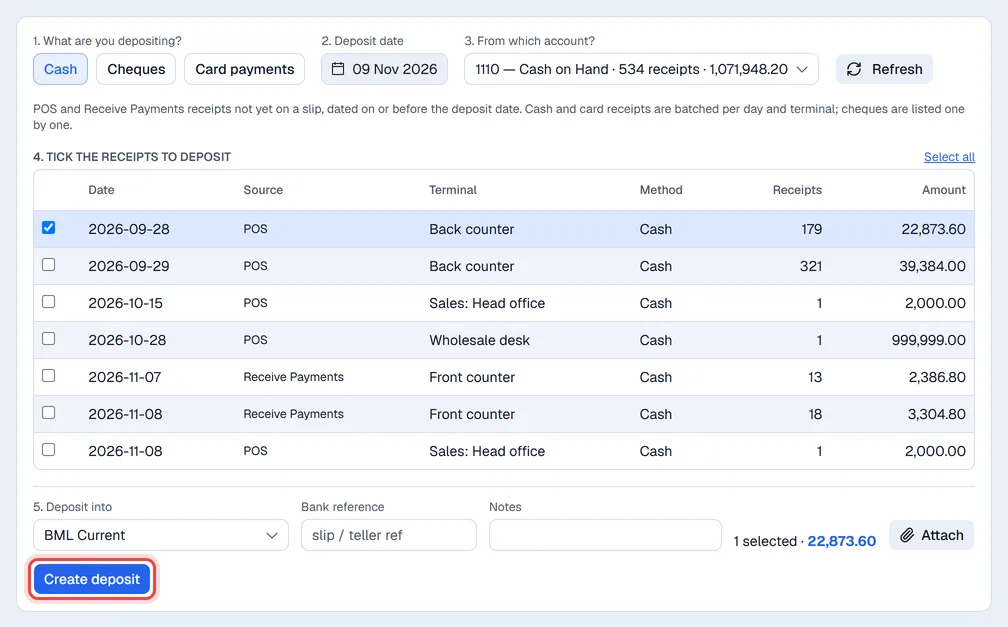
- 21. What are you depositing? Choose Cash, Cheques or Card payments.
- 32. Deposit date. Only receipts dated on or before this date are offered.
- 43. From which account? Pick the account the receipts are held in, for example 1110 — Cash on Hand. Each choice shows how many receipts it holds and their total.
- 54. Tick the receipts to deposit, or use Select all.
- 65. Deposit into: pick the bank account. Add the Bank reference from the teller's slip and any Notes.
- 7Click Create deposit, check the summary and click Post deposit.
The ticked receipts get the deposit number and leave the list. Click a slip under Deposit slips to open it: Print it, Download the PDF to take to the bank, or Preview it first.
The deposit is posted to the books as one incoming payment that moves the money from the till account into the bank account.
The deposit is posted to SAP as one incoming payment that moves the money from the till account into the bank account.
All slips are listed under Deposit slips at the bottom; click one to open it again.