Incoming payments
Record money received, from a customer against their invoices or on account, or straight to a G/L account.
For companies without sap or with sap business one.
Show the steps for
When to use it
Use an incoming payment when money arrives outside the till: a hotel pays its invoices by transfer, a customer drops off a cheque, the bank pays interest.
Record a customer payment
- 1Open Banking → Incoming Payments and click New Incoming Payment.
- 2Leave Customer selected. Check the Posting date and fill in Reference and Remarks if you want.
- 3Search for the customer by code or name and click them. Their open invoices are listed.
- 4Tick the circle next to each invoice being paid. The full balance due is filled in under Total payment; change it if the customer paid part of it.
- 5If the customer paid more than the invoices, or there are no open invoices, tick Payment on account and enter the amount.
- 6Under Payment means, say how the money came in (see below).
- 7When the totals line says Balanced, click Post Incoming Payment.
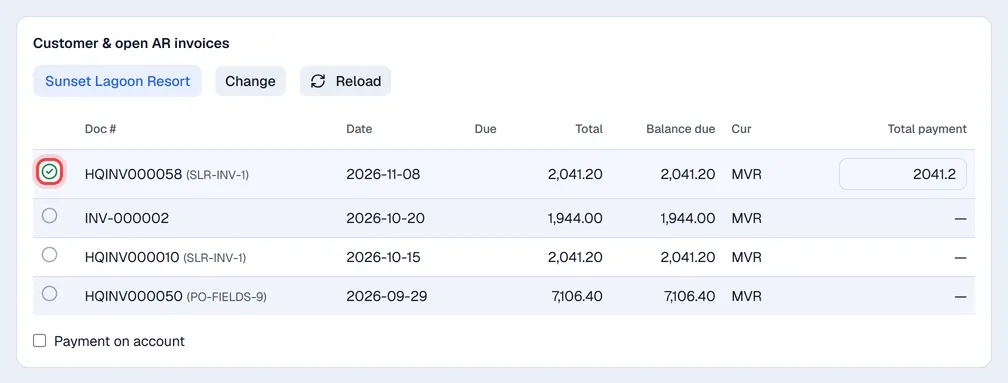
One payment carries one currency: you cannot tick invoices in two different currencies together.
For a payment in a foreign currency, a Rate (MVR per 1 …) box appears. Leave it empty to use the rate from your currency settings.
Payment means
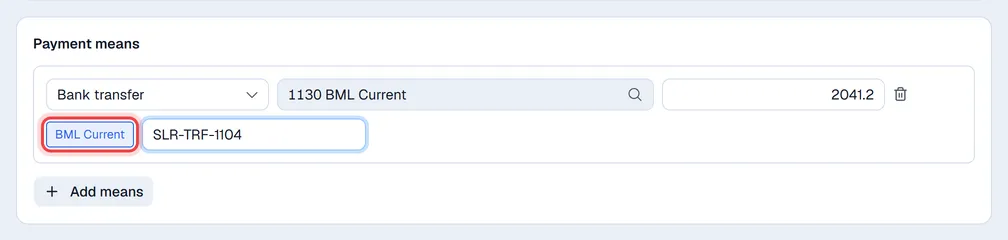
Each line of Payment means is one way the money came in. Use Add means to split a payment, for example part cash and part cheque.
| Type | What to fill in |
|---|---|
| Cash | The cash G/L account and the amount. |
| Bank transfer | The bank account (click one of your bank account buttons to fill it in), the amount and the Transfer reference (up to 27 characters). |
| Check | The check clearing account, the amount, the check number, its date and the bank. |

The totals line shows Applied, On account, Means total and either Balanced or the Difference. Post Incoming Payment stays greyed out until it balances.
When you post, the payment is saved with its number, the invoices it paid show the lower balance, and the journal entry is made in Finance. The Entry column of the list shows the journal entry number.
When you post, the payment is created in SAP and the SAP # column shows SAP's number. If SAP refuses it, nothing is saved.
Payment to a G/L account
Choose Account at the top for money that is not from a customer, such as bank interest. Enter one line per account under G/L account lines (account, line remarks, tax, amount), then the payment means. Outgoing payments shows the same screen in the other direction.
Refunds from a vendor
The Vendor option records money received from a vendor.
On a company without SAP, credit memos are not applied here: record a vendor refund as a Payment on account.
Choosing Vendor lists the vendor's open A/P credit memos so the refund can be applied to them.
View, print or cancel a payment
The list has a search box, the buttons All, Posted and Cancelled, and Any date to narrow it to a period. Click a payment to open it in a panel on the right: Applied shows the invoices it paid and the payment means, Details the journal entry (or SAP number) and the business partner, Attachments keeps the bank advice. Use Print for a voucher, Download for a PDF, Send → By e-mail to e-mail the voucher to the customer or vendor, and … → Preview PDF.
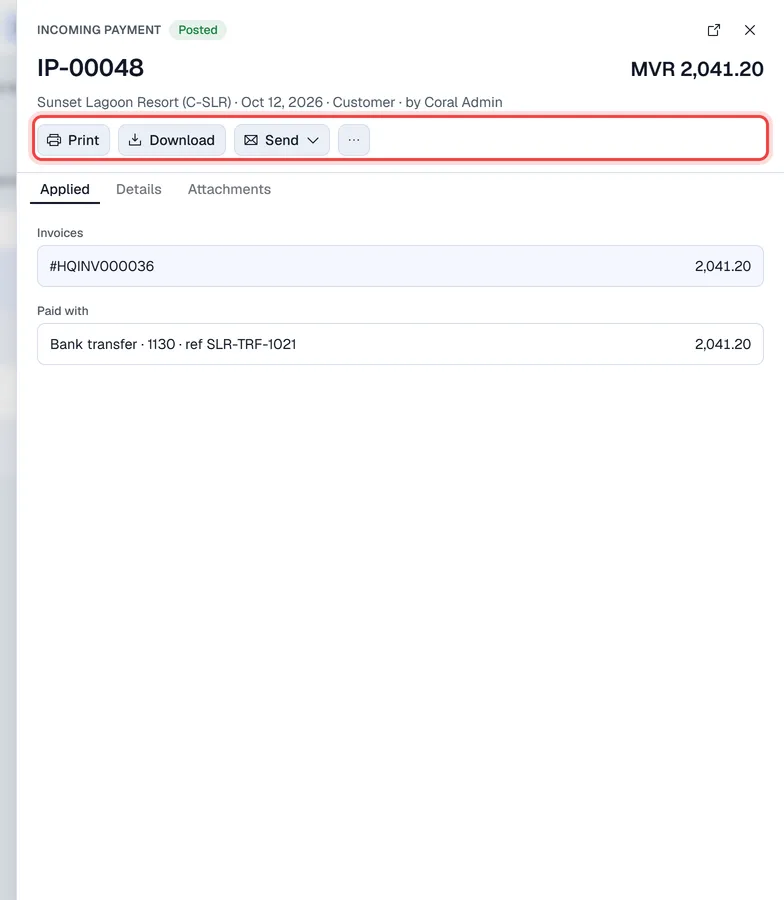
… → Cancel payment undoes a payment: the invoices it paid open again, any deposit slip it was on is undone, matched statement lines are unmatched and its journal entry is reversed. The payment stays in the list marked cancelled.
Payments posted to SAP are cancelled in SAP, not in Voltix.