Edit pages
Add pages and build them from blocks with drag and drop, then set backgrounds, spacing and scroll animations.
Add a page
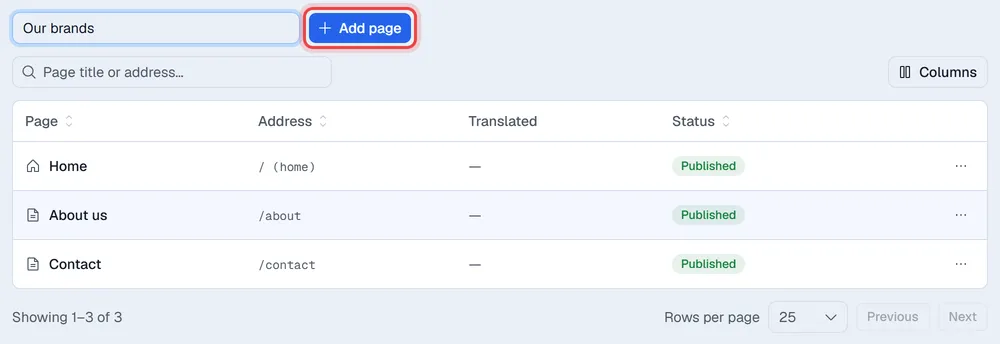
- 1In Pages, type a title in New page title and click Add page.
- 2The page opens in the editor.
Each page in the list shows Draft, Published, or Changes not live (published, with newer edits). Click a page to edit it; its … menu has Edit, Translate, Duplicate (a draft copy) and Delete, which removes it (the home page cannot be deleted). Deleting a published page also needs the Websites: publish permission.
The editor
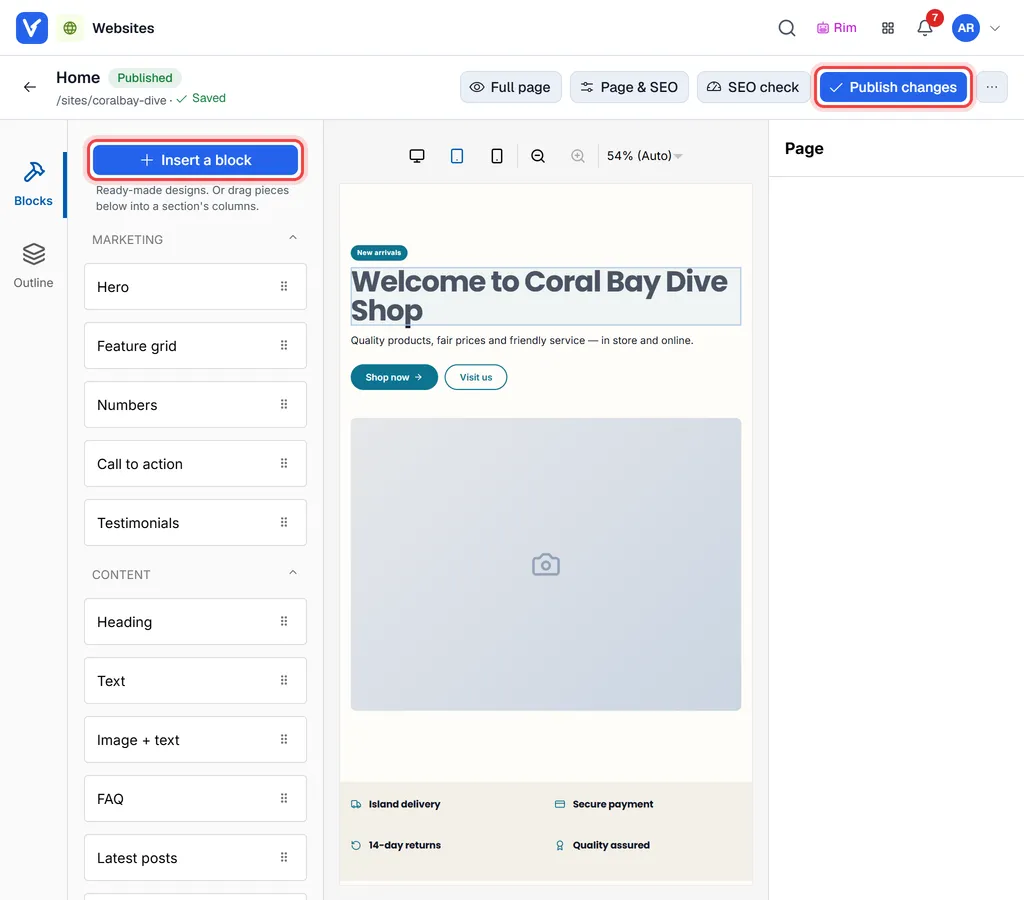
- Left: Insert a block opens ready-made designs. Below it, the basic blocks (Hero, Heading, Text, Image, Products, Contact form…) can be dragged onto the page or into a section's columns. Outline shows the page as a list.
- Middle: the page as visitors see it. The icons above it switch between desktop, tablet and phone width.
- Right: the settings of the block you clicked.
Changes save on their own as a draft. The top bar shows Saved, Saving… or Unsaved changes. Visitors see nothing until you publish.
Insert a ready-made design
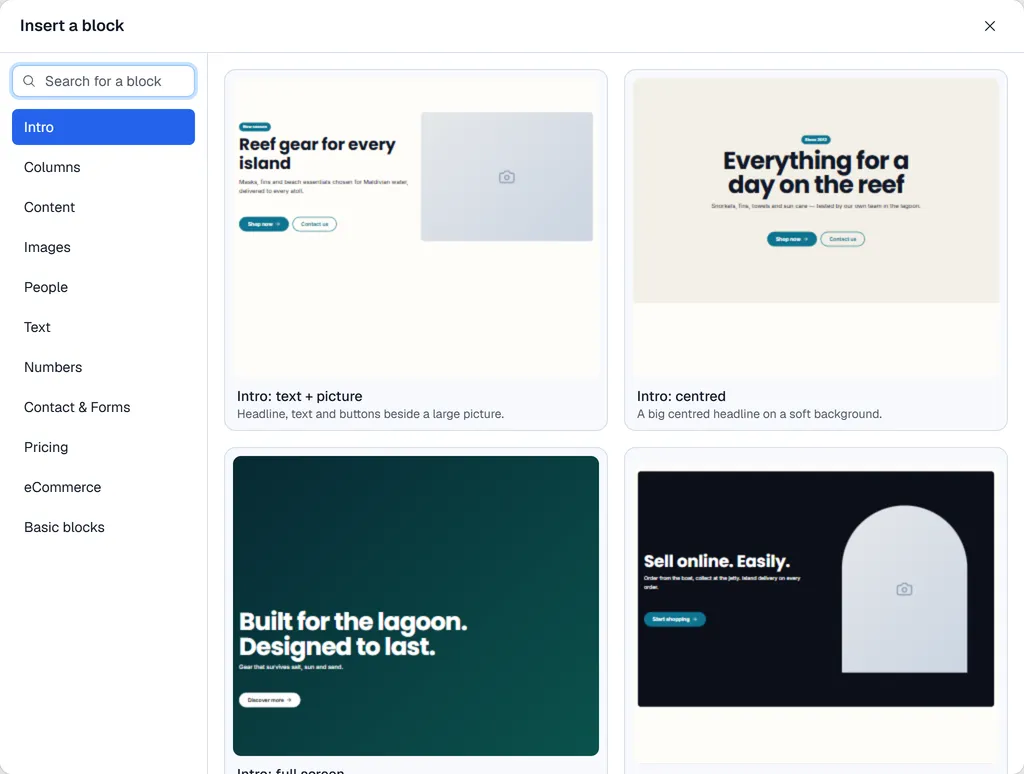
- 1Click Insert a block.
- 2Pick a group on the left (Intro, Columns, Content, Images, People, Text, Numbers, Contact & Forms, Pricing, eCommerce, Basic blocks) or type in Search for a block.
- 3Click a design. It is added after the selected section, or at the end of the page.
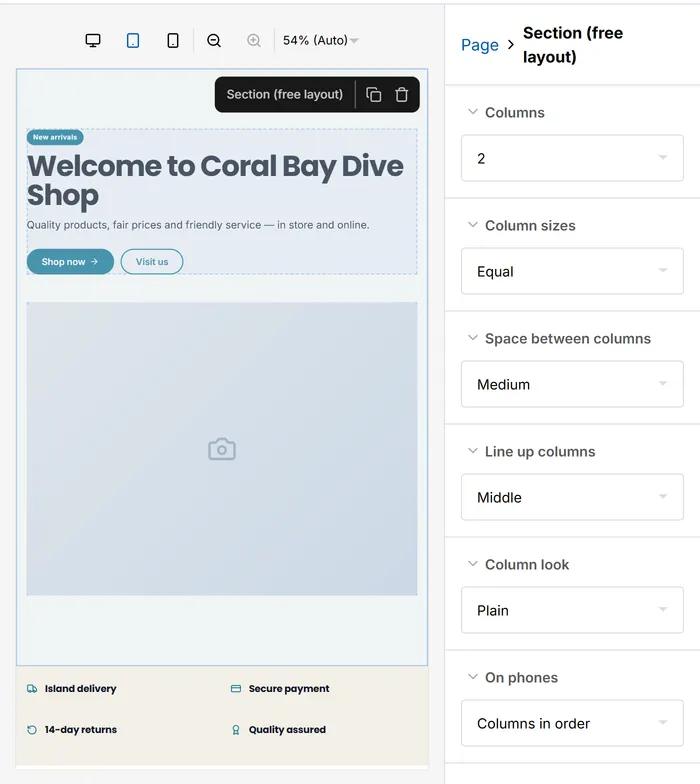
To move a block, drag it on the page or in Outline. The bar above a selected block has copy and delete buttons.
Change a block
Click a block on the page. Its settings open on the right: texts, pictures, links and buttons, and for a section the number of Columns, Column sizes and Space between columns.
Most blocks also have style settings:
- Background: a colour, gradient or Background picture, with an Overlay and Parallax (picture stays while scrolling).
- Height, Space above, Space below, Content width, Boxed (inset with rounded corners) and Corners.
- Shape dividers: a wave, curve or other shape on the Top edge or Bottom edge.
- Visibility: Hide on phones or Hide on computers and tablets.
- Reset style puts them all back.
Scroll animations
Many blocks have a Scroll animation: Fade up, Fade in, Items one by one, Zoom in or None. It plays when the section scrolls into view, and is turned off for visitors whose device asks for reduced motion. You see the animations in Full page (see Preview, SEO and publish).
Pictures
Pictures come from the Images library, shared by all your websites. Choose one in a block's picture field, or upload a new one there. Uploaded pictures are resized for the web automatically.