Setting up Banking
What an administrator sets up before Banking is used, the bank accounts, the reconciliation defaults and the document numbers.
For companies without sap or with sap business one.
Show the steps for
Before you start
- The Banking app has to be switched on for your company. Ask your Voltix provider if you do not see the Banking tile on your home page.
- Banking is open to managers and administrators.
- Your company needs the Finance app, because payments are posted to its books. Make sure your chart of accounts has an asset account for each bank account (for example 1130 Bank - Main Account) and an expense account for bank charges.
- Your company needs an active connection to SAP Business One. Bank accounts, G/L accounts, customers and vendors come from SAP.
1. Bank accounts
Add your bank accounts (or bring them in from SAP) on the Bank Accounts tab. See Bank accounts.
2. Settings → Banking
Open Settings → Banking.
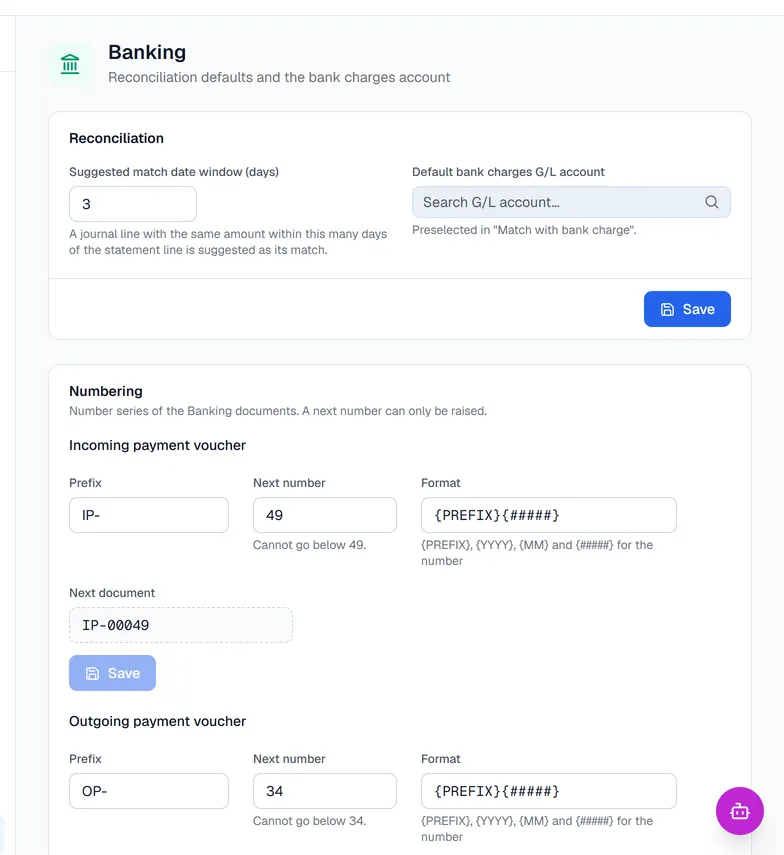
| Setting | What it does |
|---|---|
| Suggested match date window (days) | When you reconcile, a journal line with the same amount within this many days of a statement line is suggested as its match. From 0 to 30 days; the default is 3. |
| Default bank charges G/L account | Filled in for you when you use Match with bank charge during reconciliation. |
Click Save at the bottom of the card.
3. Document numbers
Incoming payment, outgoing payment and deposit slip numbers are set in Settings → Banking under Numbering. A next number can only be raised.
4. Attachments (optional)
If document attachments are switched on for your company, the payment and deposit screens show an Attach button, and each payment has an Attachments section where you can keep the bank advice or remittance.