Purchasing at a glance
The Purchasing app is where you buy from your suppliers. Order goods with a purchase order, receive them into a warehouse with a goods receipt, and record the supplier's bill as a purchase (AP) invoice.
Show the steps for
What Purchasing is for
Use Purchasing for everything you buy: stock for the shop, and services such as freight, repairs or rent. Each purchase is recorded against a vendor (a supplier) from your business partners.
How a purchase flows
- 1Purchase order (PO). You tell the vendor what you want, how many and at what price.
- 2Goods receipt PO (GRPO). The goods arrive. You record what came in and into which warehouse. You can copy the lines from the purchase order, and receive part of an order now and the rest later.
- 3AP invoice. The vendor's bill. It records what you owe the vendor, with tax.
- 4Payment. You pay the vendor. See Paying vendors.
You can start at any step. An AP invoice can be recorded directly, without a purchase order or goods receipt, and service bills (freight, electricity, repairs) usually are.
The Purchasing screen
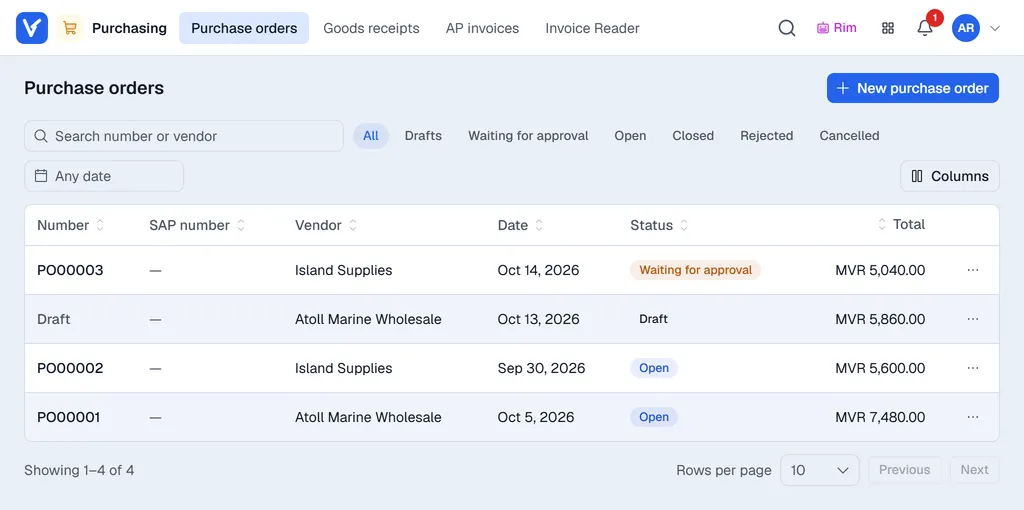
The menus in the bar at the top:
| Menu | What you find there |
|---|---|
| Purchase orders | Your purchase orders. Use New purchase order to start one. |
| Goods receipts | Goods you have received. Use New goods receipt to receive goods. |
| AP invoices | Vendor bills you have recorded. Use New AP invoice to record one. |
| Invoice Reader | Only when your company uses it: upload supplier invoices and let Rim read them. See Invoice Reader. |
Each list has a search box (document number or vendor) and buttons above it to show one status: Drafts, Waiting for approval, Open, Posted and so on. Any date narrows the list to a period: pick a preset such as This month, or click a first and a last day; the cross next to it clears the dates. Click a row to open it. A draft opens in the form so you can finish it; anything else opens in a panel on the right, read-only. The … at the end of a row opens the same, plus Attachments and, for a draft, Delete draft.
An open document has Print and Download at the top (the arrow picks A4 or A5), Send → By e-mail to e-mail it to the vendor with the PDF attached, and … → Preview PDF. Its tabs are Lines, Details and Attachments.
Statuses
| Status | Meaning |
|---|---|
| Draft | Saved but not finished. It has no number yet and can still be changed or deleted. |
| Waiting for approval | Waiting for a manager to approve it. See Approvals. |
| Open | A purchase order that is created and still has goods to receive. |
| Closed | A purchase order whose goods have all been received. |
| Posted | A goods receipt or AP invoice that is created. |
| Rejected | A manager said no. The reason is shown on the document. |
Documents are sent to SAP Business One first. The SAP document number is shown in the SAP number column. If SAP refuses a document, nothing is saved in Voltix and you see SAP's message, so you can correct it and try again.
Documents are saved in Voltix with the next number from Settings → Purchasing → Numbering. A goods receipt adds the stock to the warehouse. With the Finance app, each posted AP invoice creates its journal entry automatically.
Documents are saved in Voltix with the next number from Settings → Purchasing → Numbering, and a goods receipt adds the stock to the warehouse in Voltix. Purchasing documents are not sent to QuickBooks.
Where to go next
- Setting up Purchasing: access, approvals, default tax codes and numbering.
- Create a purchase order: your first purchase, step by step.