Plans and invoice templates
A plan is what a customer subscribes to; its invoice template decides how the invoice is written.
Show the steps for
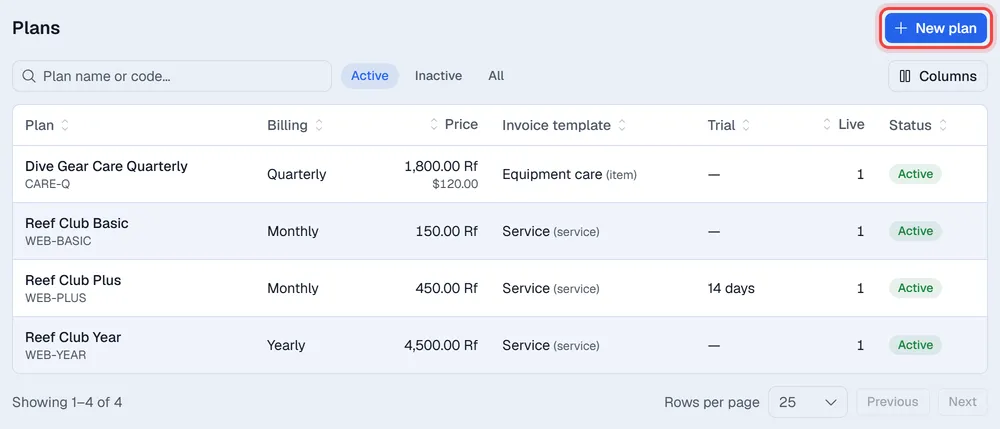
Both live under Plans in the menu bar: Plans → Plans and Plans → Invoice templates. Create an invoice template first: every plan is invoiced through one.
Create an invoice template
- 1Open Plans → Invoice templates and click New template.
- 2Give it a Name and choose the Type: - Item invoice (lines are products / SAP items): pick a Default product, used when the plan and line have none. - Service invoice (lines post to a revenue G/L account): enter the Revenue G/L account code.
- 3Set the Tax %.
- 4Write the Invoice line text. You can use the placeholders {plan}, {period_start}, {period_end} and {subscription}.
- 5Optionally add Invoice remarks, then click Save.
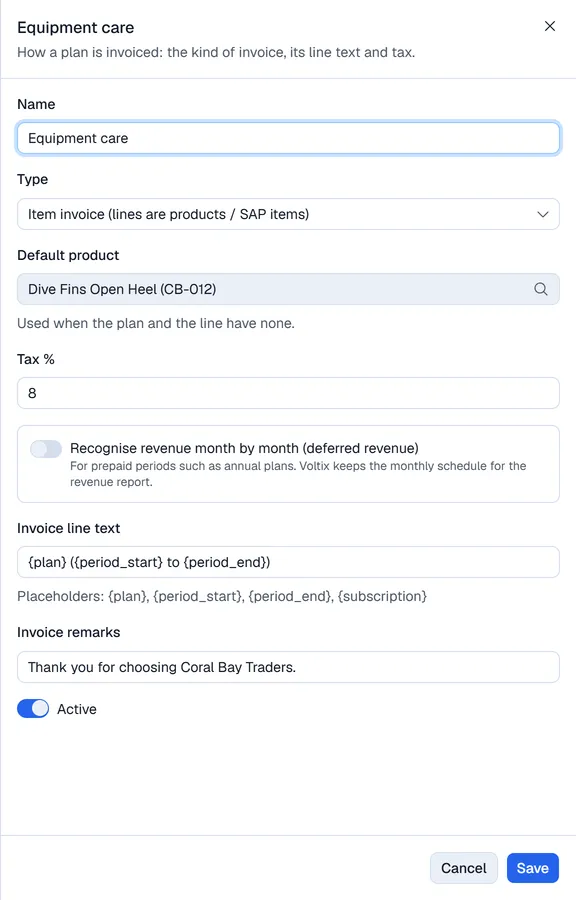
Item templates post an SAP item invoice; service templates post an SAP service invoice to the revenue G/L account. You can enter an SAP tax code; left empty, SAP's default is used. Tax % is then only used for local invoices.
Revenue month by month
Switch on Recognise revenue month by month (deferred revenue) for plans paid in advance for a long period, such as yearly plans. Reports → Revenue then shows what was recognised each month and what is still to come.
The invoice posts to the Deferred revenue G/L account code you enter, and a journal entry in SAP on the last day of each month moves that month's share to revenue. This needs a service template.
Voltix keeps the monthly schedule for the report and marks each month recognised on its last day.
Voltix keeps the monthly schedule for the report and marks each month recognised on its last day.
Create a plan
- 1Open Plans → Plans and click New plan.
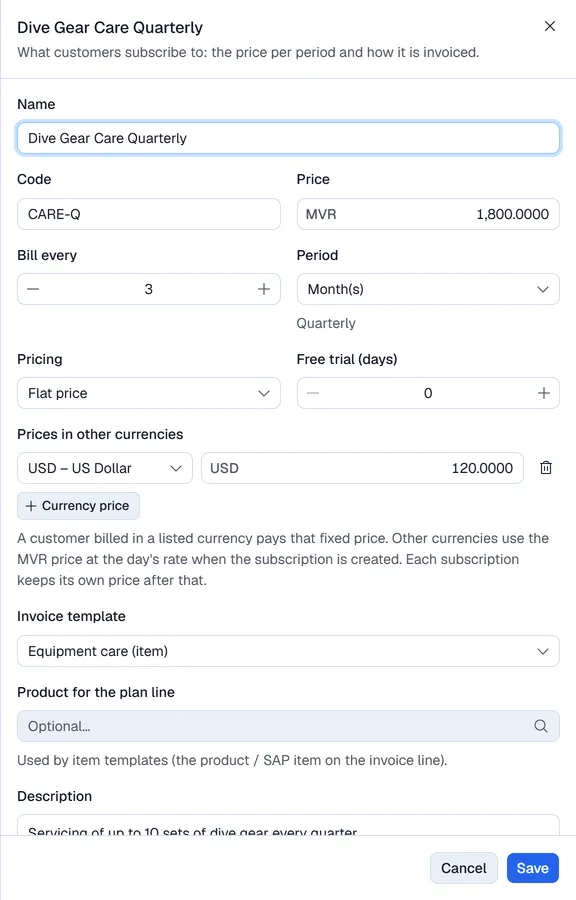
- 2Enter the Name, an optional Code and the Price (in MVR).
- 3Set Bill every and Period, for example 3 and Month(s) for a quarterly plan.
- 4Choose Pricing: Flat price, or Per unit (seats, users…) to charge the price times a quantity.
- 5Optionally add Prices in other currencies with Currency price: pick the currency and enter its price.
- 6Optionally give a Free trial (days).
- 7Choose the Invoice template and, for item templates, the Product for the plan line. Click Save.
Changing a plan later
Click a plan in the list to edit it. A price change applies to new subscriptions only: every subscription keeps the price it was given when it was created. To change the price of an existing subscription, edit its plan line (see Manage a subscription).
Switch off Active to stop offering a plan (the Inactive filter shows it again). Its existing subscriptions carry on.