Contracts
Record each employee's contracts with type, dates, salary and status, and use templates to fill new contracts quickly.
Contracts are only visible to people allowed to see private details.
Contract types and templates
In Settings → Employees → Contracts:
- 1Under Contract types, type a name such as "Permanent" or "Fixed term" and click Add.
- 2For a reusable preset, fill in the New contract template card: Name (required) and, if you like, Job position, Department, Contract type, Wage per month (MVR), Working hours and Notes. Click Add template.
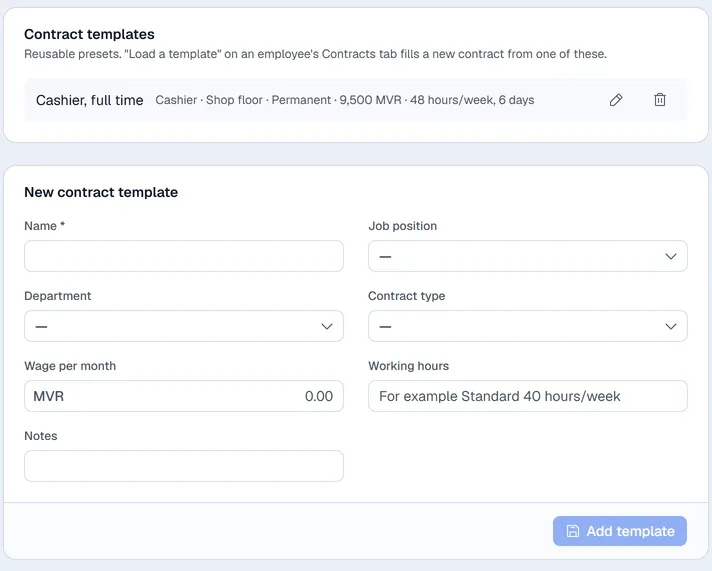
Use the pencil on a template to edit it and the bin to delete it.
Add a contract to an employee
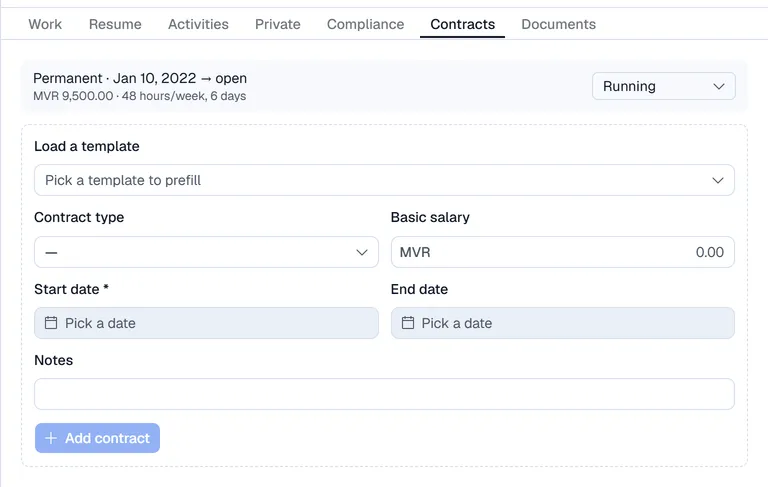
- 1Open the employee and choose Contracts.
- 2To start from a template, choose it under Load a template. It fills the contract type, salary and notes.
- 3Choose the Contract type, enter the Basic salary, the Start date (required) and, for a fixed-term contract, the End date. Add Notes if needed.
- 4Click Add contract.
A new contract starts as Draft. Change the status in the box beside each contract: Draft, Running, Expired or Terminated. The change is saved straight away.
Note. Contracts are a record only. They do not run payroll or post anything to the books.