Invoice a customer
Post an invoice that the customer pays now, or put it on their account to collect later.
Show the steps for
Before you start
You need the Sales: create invoices permission. Without it, Invoice is missing from the New menu and from quotations and sales orders.
Create the invoice
Start it in one of these ways:
- From a quotation or sales order: open it and click Make invoice. Everything is copied over.
- Directly: click New → Invoice and add the customer and lines as for a quotation (see Create a quotation).
Then choose how the customer pays, in the Payment box.
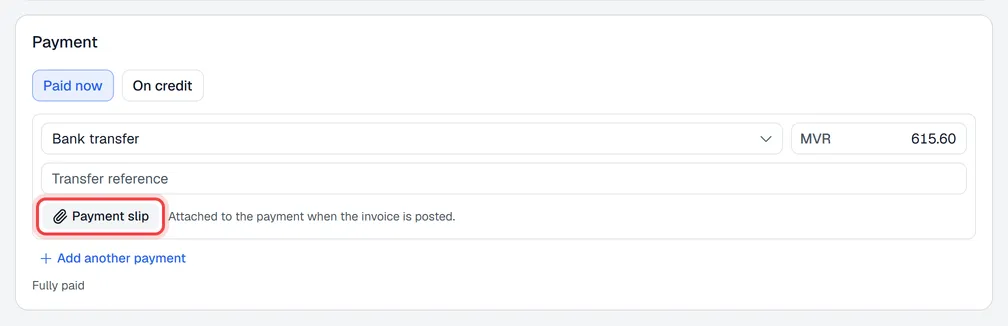
Paid now
- 1Choose Paid now.
- 2Pick the payment method (cash, bank transfer, cheque, card…) and check the amount. It is filled in with the invoice total, in the invoice's currency.
- 3For a bank transfer, enter the Transfer reference. For a cheque, enter the Cheque no., the cheque date and the Bank.
- 4Optional: click Payment slip (or Cheque image) to attach a photo or PDF of the transfer slip or cheque. It is kept with the payment once the invoice is posted. (The button is there when your company keeps document attachments.)
- 5Paying with two methods? Click Add another payment and split the amount.
- 6Click Post invoice.
On credit
- 1Choose On credit. The full amount goes on the customer's account.
- 2Click Post invoice.
The invoice is listed as Unpaid with the amount still owed. Collect the money later in Receive Payments, where the customer's open invoices are listed.

What happens when you post
The invoice is sent to SAP Business One first as an A/R invoice, and any payment taken now as an incoming payment against it. Only when SAP accepts it is the invoice saved in Voltix with its SAP number. If SAP refuses it (for example an item without stock in that warehouse, or a closed posting period), nothing is posted, the invoice stays a draft and SAP's message is shown. Fix the cause and post again.
The invoice is saved with the next invoice number from your Sales profile. If your company uses the Finance app, it also creates two journal entries automatically: one for the invoice (receivables against sales and tax) and one for each payment taken (cash or bank against receivables).
The invoice is saved with the next invoice number from your Sales profile and sent to QuickBooks automatically within about five minutes. You do not need to wait for it. Returns are not sent to QuickBooks.
After posting
The invoice opens in the panel. From here you can Print or Download it, Send it by e-mail or SMS, or take a Return. The Payments tab lists the payments and their slips.
| What you see | Meaning |
|---|---|
| Paid | Fully paid. |
| Unpaid · amount open | Nothing paid yet. Collect it in Receive Payments. |
| Partly paid · amount open | Part of it is paid; the rest is still owed. |
Change a posted invoice
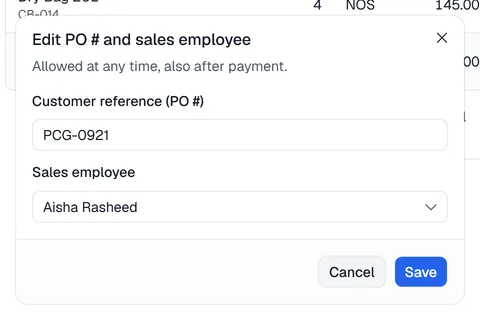
- Reference or salesperson. At any time, even after payment, click … → Edit PO # and sales employee. This needs the Edit document fields permission.
- Lines, prices, customer details. As long as no payment has been taken on the invoice (an on-credit invoice that nobody has paid yet), click Edit. This also needs the Edit document fields permission. Change it and click Update invoice; it keeps its number, stock and the journal entries are corrected. Once anything is paid, take a return of the wrong lines and post a new invoice instead.
- Lines and prices cannot be changed once the invoice is in SAP. Take a return of the wrong lines and post a new invoice.
- Lines and prices cannot be changed once the invoice is posted. Take a return of the wrong lines and post a new invoice.