Transfers
Send the stock that was requested from one warehouse to another, in full or in part.
Show the steps for
Fulfil a request
- 1Open Transfers → Transfer requests. The To fulfil chip lists the open requests.
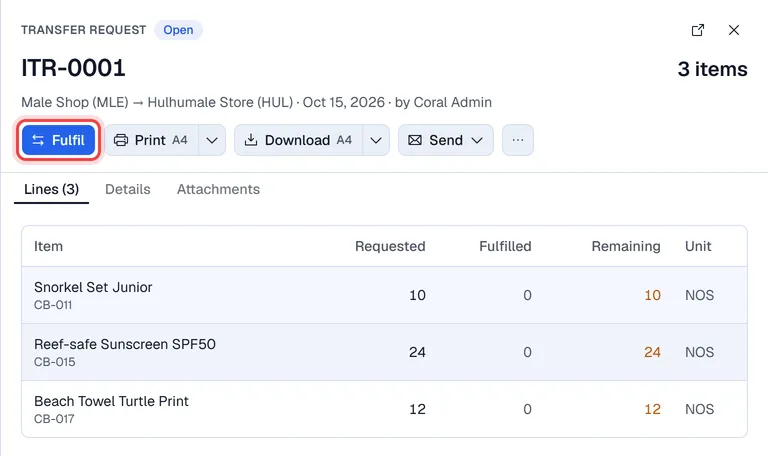
- 2Open the request you are sending and click Fulfil (or choose Fulfil in the row's … menu).
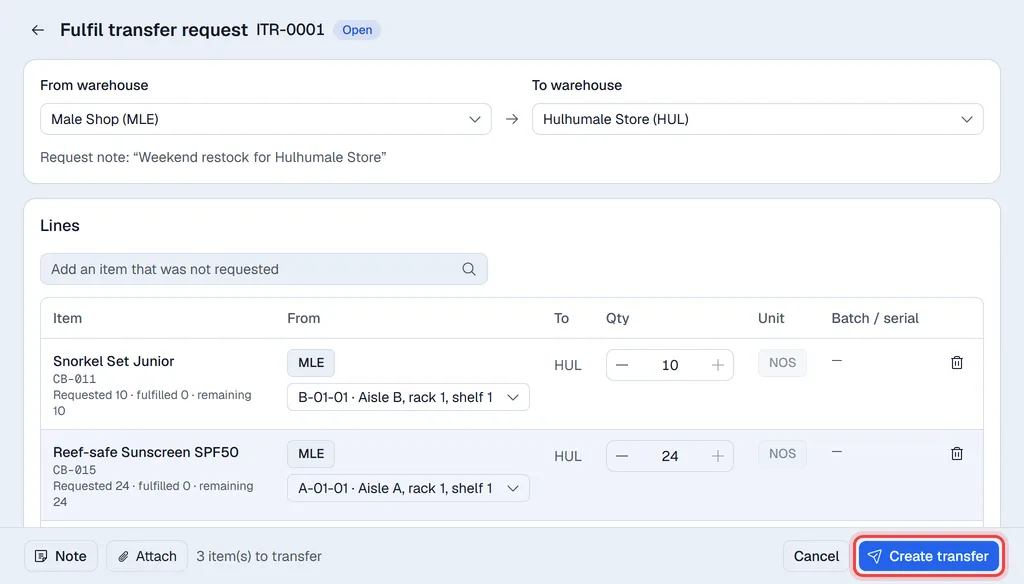
- 1The lines are filled with what is still to send. Change a quantity if you are sending less, or remove a line you are not sending now.
- 2To take a line from another warehouse, click its warehouse button in the From column: the stock in each warehouse is shown and you can choose.
- 3Use the Add an item box to send something that was not on the request.
- 4Optionally add a Note or Attach files, then click Create transfer. The transfer opens, ready to print.
You need Create / Fulfill on transfer requests and Create on transfers.
The request becomes Partly fulfilled when only part was sent and leaves the To fulfil list once everything has been sent.
The transfer is posted to SAP Business One first as a stock transfer linked to the request. If SAP refuses it, nothing is saved in Voltix and you see SAP's message. Stock in SAP moves at once.
The transfer moves the stock in Voltix straight away: the From warehouse goes down and the To warehouse goes up. The total stock of the product does not change.
For batch or serial tracked products you pick the batches or serial numbers on each line under Batch / serial; see Batches and serial numbers.
Move stock without a request
On Transfers → Transfers, click New direct transfer. Pick the From warehouse and the To warehouse, add the items with the Add an item box, set the quantities and click Create transfer.
Earlier transfers
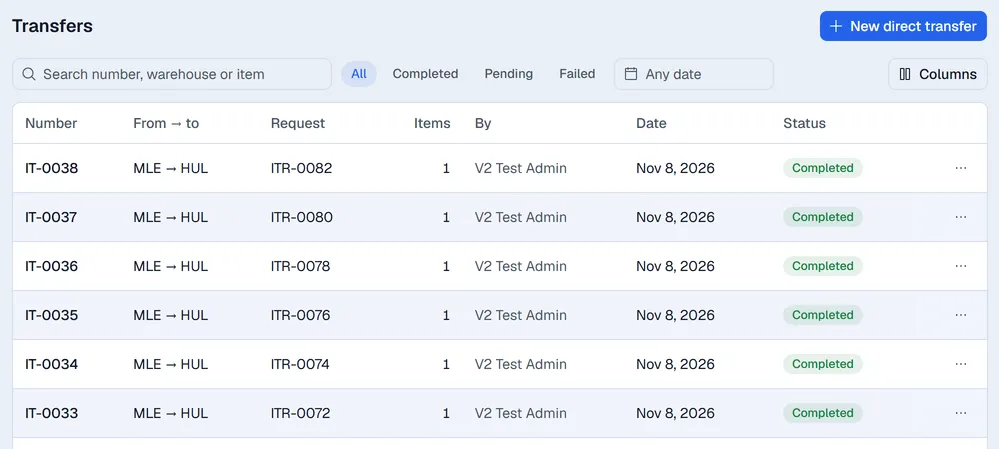
Transfers → Transfers lists every transfer that was made, with the request it came from (or Direct). Search by number or warehouse, filter by status or date, and click a transfer to see its lines, print it, download it or send it. Choose … → Duplicate as a direct transfer to send the same goods again without a request.