Add and edit employees
Create an employee record, fill in the job details, mark salespeople, link the person to their Voltix login, and archive them when they leave.
Show the steps for
Add an employee
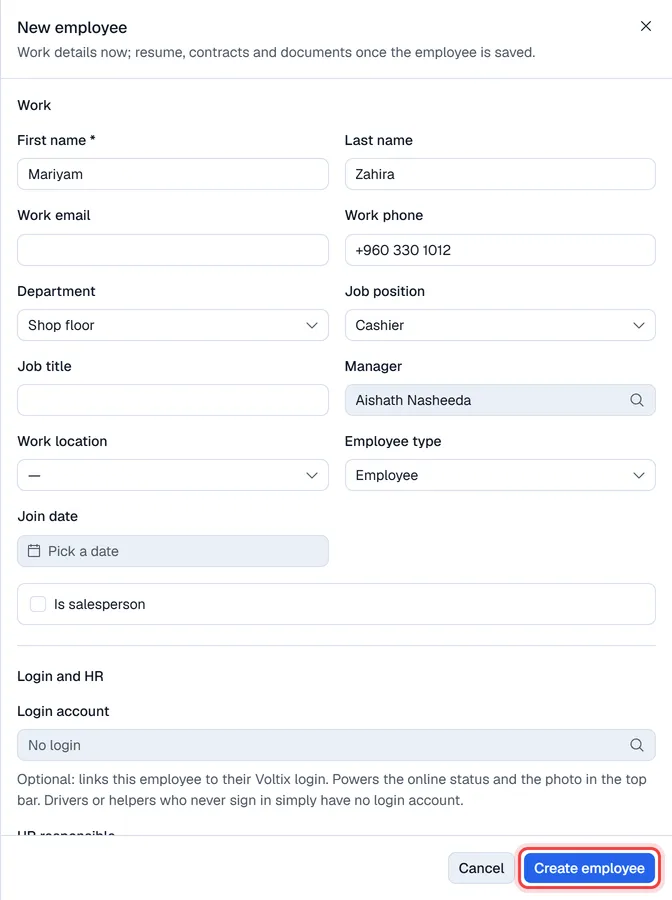
- 1In Employees, click New employee.
- 2Fill in First name (required) and Last name.
- 3Add Work email and Work phone if you have them.
- 4Choose the Department, Job position and Manager. The manager decides where the person sits on the org chart.
- 5If you like, fill in Job title (shown in the list instead of the position), Work location, Employee type (Employee, Contractor, Trainee or Freelancer) and Join date.
- 6Click Create employee. The next employee number is given now and the new record opens.
If you may see private details, the form also has the Private and Compliance sections, so you can fill them in before creating. Resume, Activities, Contracts and Documents appear once the record exists.
The employee record
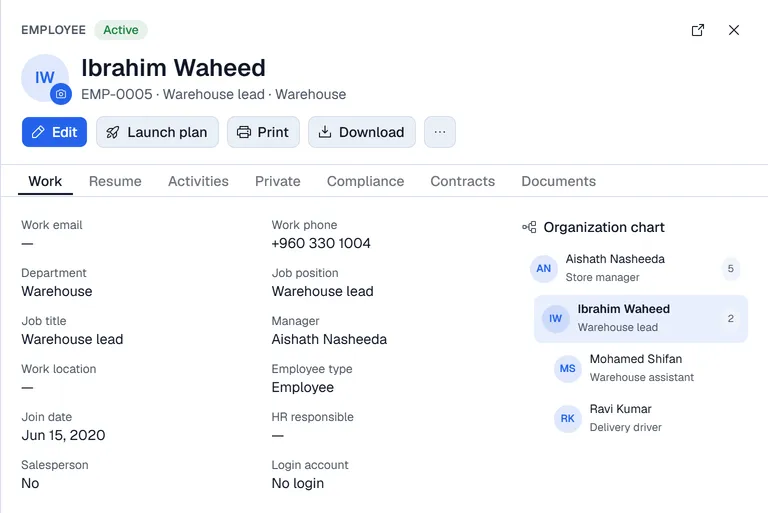
Click a person in the list to open the record beside the list. The arrow at the top right opens it as a full page. Along the top: Edit, Launch plan, Print and Download (the employee record as a PDF, work details only) and … for Preview PDF, Change photo and Archive. The tabs:
| Tab | What it holds |
|---|---|
| Work | Job details, the salesperson setting, the login account, the HR responsible and the person's place in the organization chart. |
| Resume | Work history, education, skills and certifications. See Skills and resume. |
| Activities | To-dos from launched plans. See Plans and activities. |
| Private, Compliance, Contracts, Documents | Personal details, ID and permit dates, contracts and uploaded files. Only for people allowed to see private details. See Private details and documents. |
To change the details, click Edit, change what you need and click Save changes. To change the photo, click the small camera on the picture at the top left and choose an image.
Salesperson
Click Edit and tick Is salesperson when the person sells and should be selectable as the salesperson on POS and Sales documents.
A matching sales employee is created and kept up to date automatically, so the person appears in the cart's salesperson list. Untick it and they leave the list; documents already made keep their name.
A matching sales employee is created and kept up to date automatically, so the person appears in the cart's salesperson list. Untick it and they leave the list; documents already made keep their name.
Sales employees come from SAP Business One. After ticking Is salesperson, choose the matching person under Linked SAP sales employee. The record cannot be saved without it.
Login account and HR responsible
Click Edit; under Login and HR:
- Login account links the employee to the Voltix user they sign in with. It is optional: drivers or helpers who never sign in have none. One login can belong to one employee only. The link gives the green online dot and the photo in the top bar.
- HR responsible is the colleague who handles this person's HR matters. Plan steps for "HR responsible" are labelled with this person.
Click Save changes.
When someone leaves
Employees are archived, never deleted, so their history stays.
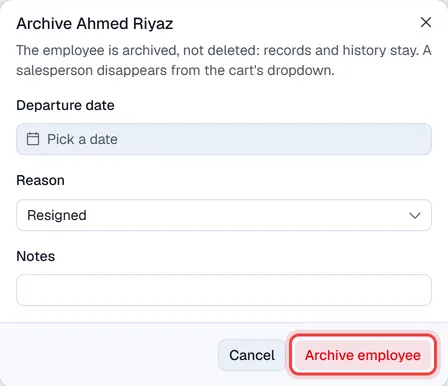
- 1Open the record, click … at the top and choose Archive.
- 2Enter the Departure date, a Reason (Resigned, Fired, Retired, Contract ended or Other) and any Notes.
- 3Click Archive employee.
The person leaves the list (choose Archived above the list to see them) and, if they were a salesperson, the salesperson list. To bring someone back, open the archived record, click … and choose Restore.