Work on a ticket
Reply to the customer, add internal notes, move the ticket through its stages, assign it, attach files and link a service order.
The ticket panel
Click a ticket in the list or on the board to open it. It opens in a panel at the side of the screen; the arrow next to the close button opens it as a full page (Back to the list returns).
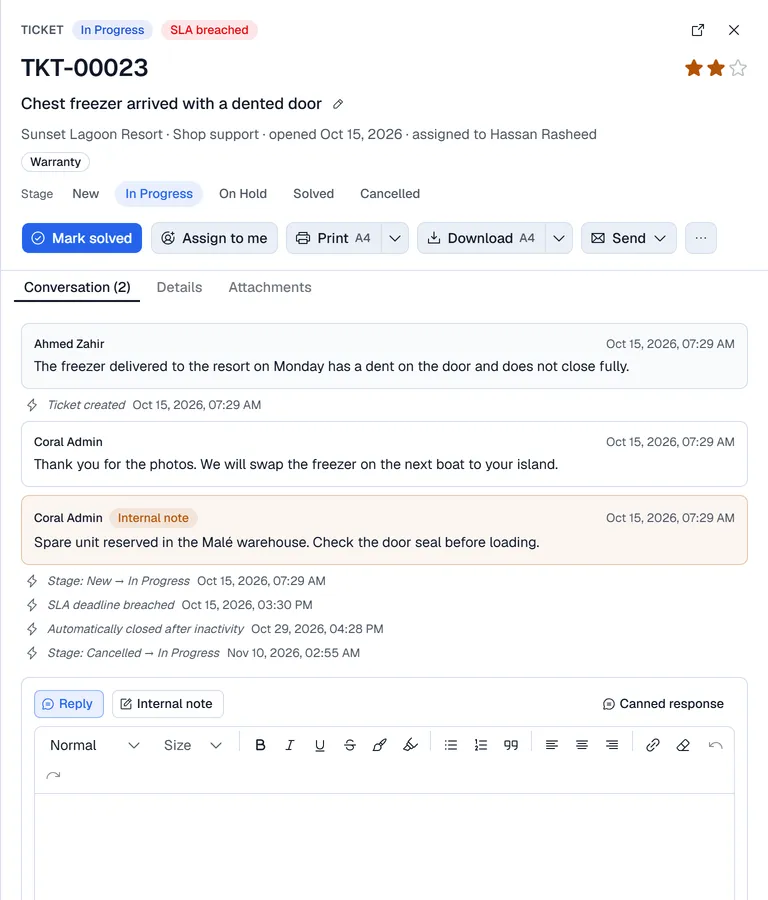
The header shows the stage, the SLA clock, the number, the priority stars, the subject, the customer, the team, when it was opened, who it is assigned to and the tags. Click the pencil next to the subject to change it.
The buttons under it:
| Button | What it does |
|---|---|
| Mark solved | Moves an open ticket to the team's solved stage. |
| Assign to me | Takes the ticket yourself. It only works when your login is linked to an employee record. |
| Print / Download | A PDF of the ticket with the conversation the customer has seen (internal notes are left out). The arrow next to each picks A4 or A5. |
| Send | Reply to the customer jumps to the reply box; Ticket summary by e-mail e-mails the PDF to the contact. |
| … | Preview PDF, Edit the subject, and for admins Delete ticket. |
Move the ticket through its stages
The Stage row under the subject shows where the ticket is. Click another stage to move it there.
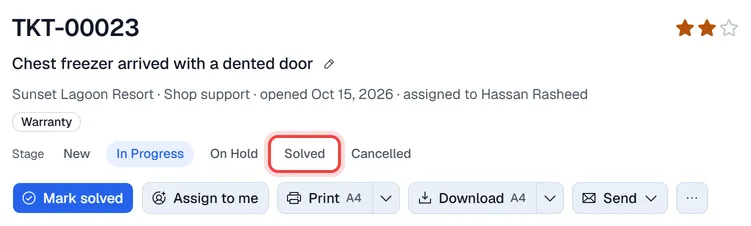
- Each move is written in the conversation, for example "Stage: New → In Progress".
- Moving to a solved stage records the solved date. If E-mail the customer is on, the contact is told the ticket is solved.
- Reaching the stage named in the SLA policy (or any solved stage) closes the SLA clock as SLA met or SLA breached.
Reply or add an internal note
The Conversation tab lists everything that happened on the ticket:
| Entry | Looks like | Who sees it |
|---|---|---|
| Reply | A box with the author's name | Your staff. Also e-mailed to the customer when e-mails are on, then marked E-mailed. |
| Internal note | A yellow-tinted box marked Internal note | Your staff only. Never sent to the customer. |
| System entry | A small italic line | Created, assigned, stage changes, SLA breaches. |
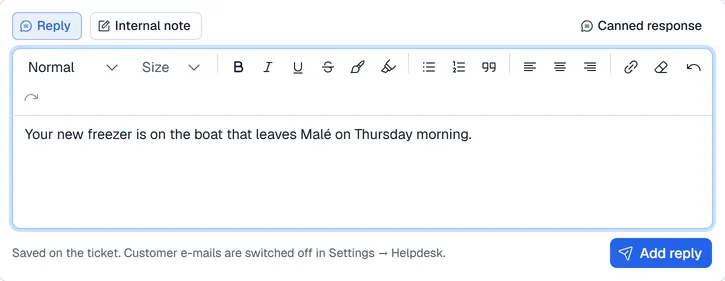
- 1Choose Reply or Internal note above the box.
- 2Write in the box. The bar above it formats the text: bold, italic, lists, colours, links and so on. The customer's e-mail keeps the formatting.
- 3Click Send reply (the reply is e-mailed to the contact), Add reply (saved on the ticket only, when the ticket has no e-mail address or customer e-mails are off) or Add note. The line under the box says which will happen.
Canned responses
Click Canned response above the reply box, find the response by its name or text, and click it. Its text goes into the box, where you can change it before sending. Managers set up canned responses in Settings → Helpdesk (see Set up the Helpdesk).
Assign, customer and tags
The Details tab:
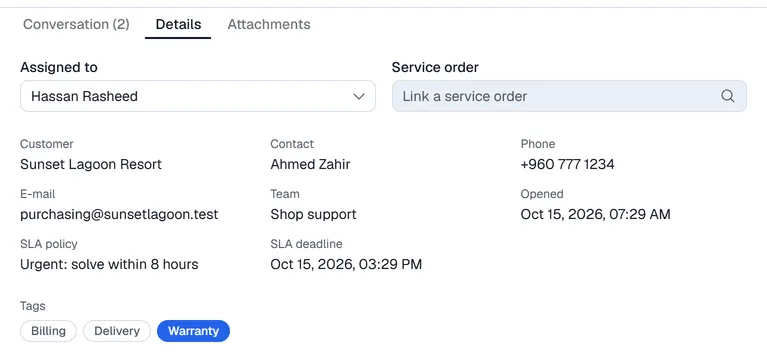
- Assigned to lists the members of the ticket's team. Choose Unassigned to release it.
- Service order: click Link a service order, type a number or customer and click a result to link a repair or field job to the ticket. Choose None in the same list to unlink it. If Solve when the linked service order completes is on, the ticket is solved automatically once that service order is closed.
- The customer or contact with their phone and e-mail, the team, the dates and the SLA policy with its deadline.
- Click a tag to add it to the ticket or remove it.
Attachments and time
- Attachments tab: upload photos or PDFs, for example a picture of the damage. Only images and PDF files are accepted.
- Time tab: shown when timesheets on tickets is on for the company. Set the Hours today, type a Note if you like and click Log time. The entries logged so far are listed under it.
Delete a ticket
Admins find Delete ticket under …. It deletes the ticket and its conversation for good; everyone else should move the ticket to a Cancelled stage instead.