Point of Sale at a glance
How a day at the counter works in Voltix, from opening the register to the end-of-day report.
Show the steps for
The Point of Sale (POS) is where you sell at the counter. Each counter is a terminal. A cashier picks a terminal, opens its register with the cash in the drawer, sells, and closes the register at the end of the shift.
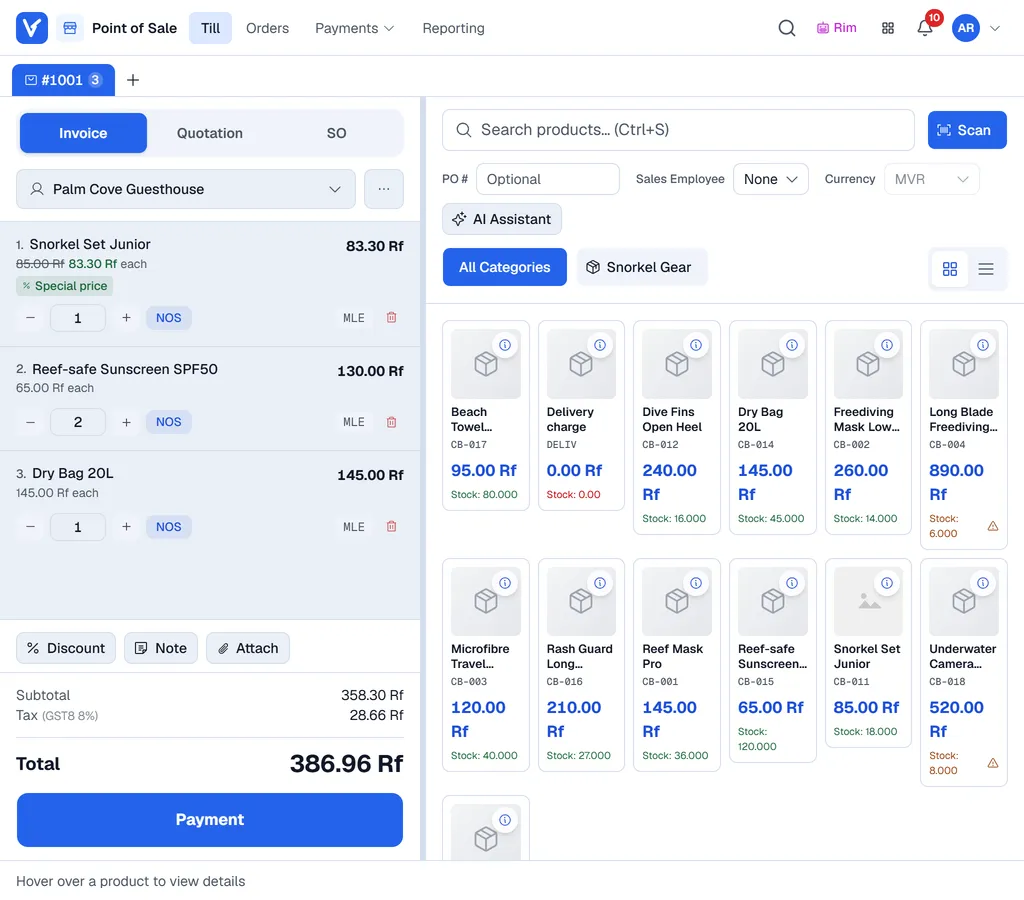
A day at the counter
- 1Pick your terminal and open the register: count the cash in the drawer. See Open the register.
- 2Sell: add products, choose the customer, take payment and hand over the receipt. See Make a sale and Take payment.
- 3During the day, record cash you take out of or put into the drawer. See Cash in and out, and closing.
- 4Close the register: count the cash again. Voltix shows the difference and downloads the session report.
What else you can do at the counter
- Give discounts and change prices, within your limits. See Discounts, prices and notes.
- Make quotations and sales orders, and turn them into invoices later. See Quotations and sales orders.
- Take returns and exchanges against earlier invoices. See Returns and exchanges.
- Look up, reprint and follow up earlier sales in Orders. See The Orders screen.
- Show the order to the customer on a second screen. See Customer display.
Retail and wholesale terminals
A terminal works in one of two layouts, set by your administrator:
| Layout | Best for |
|---|---|
| Retail | Quick counter sales. The cart sits on the left and products are shown as tiles you tap. |
| Wholesale | Larger orders. The order is a full-width table with item codes, warehouse, unit, discounts per line and batches, and products are searched in a side panel. |
Everything else works the same way. See Wholesale terminals.
The bar at the top
The POS uses the same top bar as the other apps. The Voltix logo on the far left takes you back to the home page (your register stays open and your carts are kept).
| Item | What it does |
|---|---|
| Till | The selling screen. |
| Orders | Earlier invoices, quotations and sales orders. |
| Payments | Receive payments collects payments on open invoices; Completed payments lists the ones already taken. It has its own guide. |
| Reporting | Sales figures and, for managers, the shift reports. See POS reports. |
| Your initials (top right) | My Profile, Customer Screen, Install App, Cash In/Out, Reload Data, Create Product, Backend, Close Register, Full screen and Logout. |
On a phone these menus fold into one Menu button.
The badge next to the search icon reads SAP Live: your documents go to SAP Business One.
The badge next to the search icon reads Local Mode: your documents are kept in Voltix.
The badge next to the search icon reads QB Live: your sales are sent to QuickBooks Desktop.