Create a purchase order
A purchase order tells a vendor what you want to buy, how many and at what price. Later you receive the goods against it.
Show the steps for
Start the purchase order
- 1Open Purchasing. Purchase orders is open.
- 2Click New purchase order.
- 3Click Pick a vendor, type part of the vendor's name, code, phone or city, and pick the vendor.
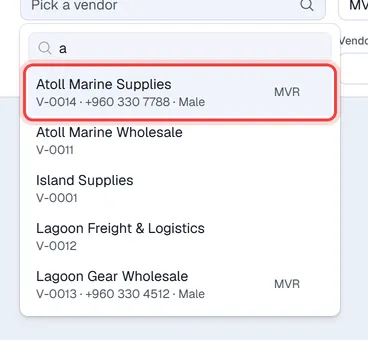
When the vendor has its own currency, the purchase order switches to it and fills in the Exchange rate for that currency. You can change both.
Fill in the header
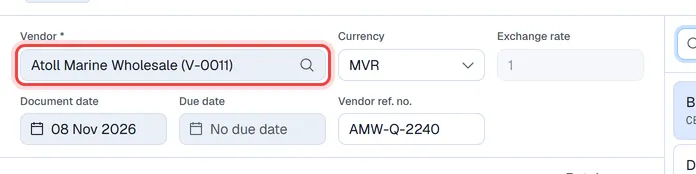
| Field | What to enter |
|---|---|
| Vendor | The supplier you are buying from. Required. |
| Currency / Exchange rate | The currency of the order. The rate is only used for foreign currencies. |
| Document date | The date of the order. Today by default. |
| Due date | When you expect the goods. Optional. |
| Vendor ref. no. | The vendor's quotation or reference number, so you can match their paperwork. |
Add the items
- 1In the search box on the right, type part of a product's name, code or barcode, or browse by category.
- 2Click a product to add it. Clicking it again adds one more.
- 3On the line, set the Quantity, the Unit price and the Warehouse the goods will go to.
- 4To buy in another unit, for example a carton instead of single pieces, click the unit button in the Unit column and pick the unit.
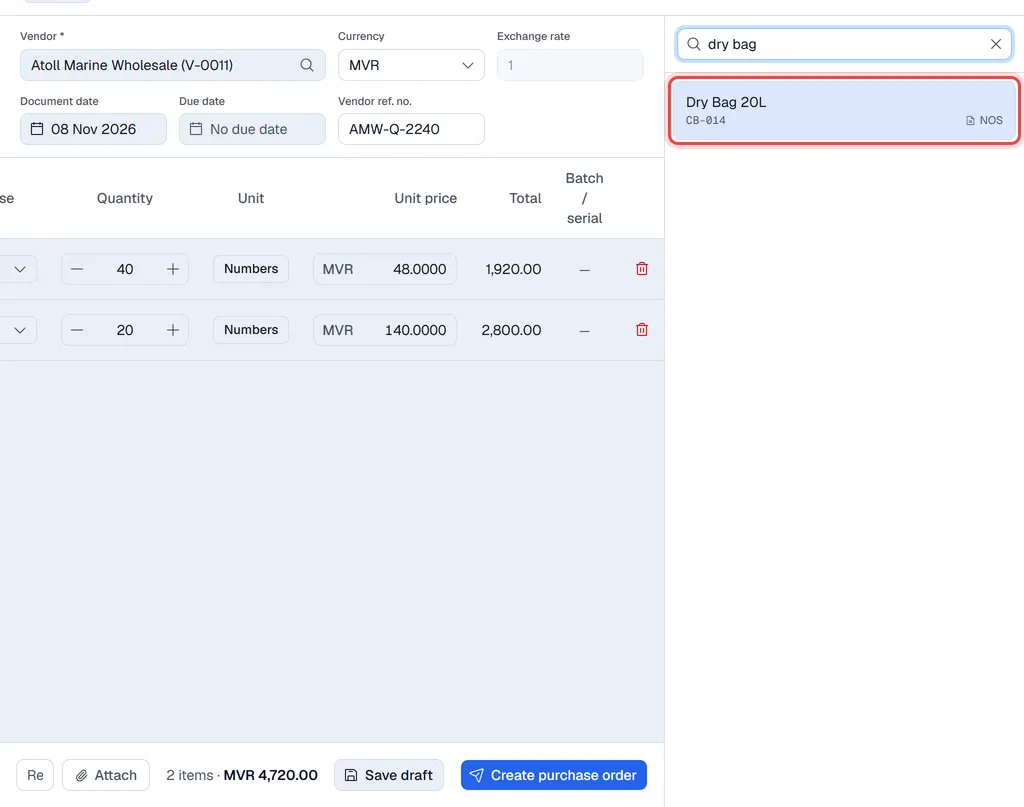
When you have bought the item before, Voltix shows last with the last price you paid under the price box. When the last purchase was in the same currency, that price is filled in for you. Click it to use it.
To remove a line, click the bin at the end of it, or set its quantity to 0.
Create it

- 1Add Remarks if the vendor or your team should know something, for example where to deliver.
- 2Click Create purchase order.
The purchase order gets its number and the status Open. If your company requires approval for purchase orders, the button says Submit for approval instead and the order waits for a manager: see Approvals.
The purchase order is sent to SAP Business One first. If SAP refuses it, nothing is saved and you see SAP's message.
Not finished yet? Click Save draft instead. See Drafts and attachments.
Follow up a purchase order
Click a purchase order in the list to open it. The Recv column shows how much of each line has been received so far.
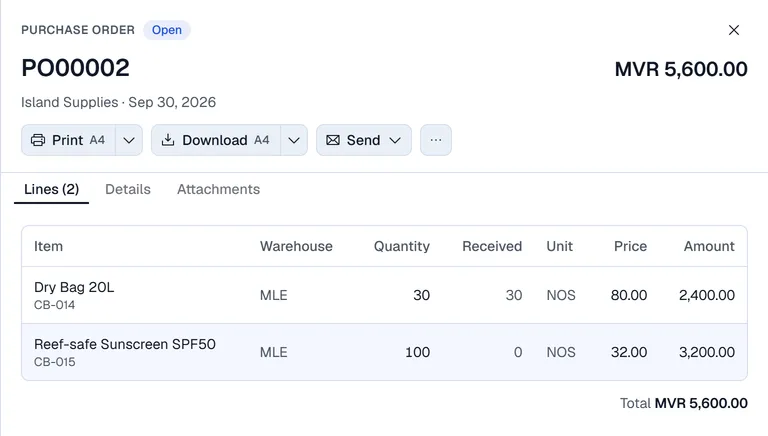
When every line has been fully received, the purchase order changes to Closed by itself. Next step: receive the goods.