E-mail a report on a schedule
Send a saved report by e-mail every day, week or month, as Excel, PDF or both.
Set up a schedule
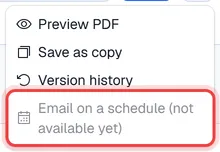
Note. Scheduled e-mails are switched off for now while the e-mail setup is being adjusted: the menu shows Email on a schedule (not available yet). The steps below apply once it is back.
- 1Open a saved report and choose its parameters (for example Period: Last month).
- 2Open the … menu, click Email on a schedule, then New schedule.
- 3Choose the Frequency: Daily, Weekly (pick the Day) or Monthly (pick the Day of month).
- 4Set the Time. It is your company's time zone.
- 5Choose the Format: Excel, PDF or Excel + PDF.
- 6Type the Recipients, separated by commas (1 to 20 addresses, any e-mail address).
- 7Click Save schedule.
The report runs with the parameters chosen on screen when you saved the schedule. Relative periods such as Last month move with each run.
Manage schedules
The same panel lists the report's schedules with the next and last send time. For each one you can:
- send it at once with the paper-plane button,
- Edit it (you can also pause it there),
- delete it with the bin button.
If the last send failed, the reason is shown under the schedule in red.
Note. You need the Reports: schedule permission. A scheduled report runs with the access of the person who made the schedule.