Stock counts
Count a warehouse, or a slice of it, with several people at once on their phones, review the differences, and post them in one go.
Show the steps for
How a count works
- 1Someone starts a count: a warehouse and what to count. Voltix takes a snapshot of the expected quantities at that moment.
- 2Counters count on their phones or at a desk: scan or search an item, type what they see. Several people can count at the same time, in one of two ways (see When several people count below).
- 3A reviewer reviews the differences, asks for recounts, approves lines.
- 4The reviewer posts the count. Only the lines with a difference change the stock.
Selling may go on while a count is open. The review compares what was counted with the stock right now, so a sale made during the count is not treated as a missing item.
Who may do what
| Permission | Lets you |
|---|---|
| Inventory: count stock | Enter quantities in an open count. On a blind count you never see the expected quantity. |
| Inventory: start stock counts | Start, cancel and schedule counts (includes counting). |
| Inventory: review and post counts | See expected quantities and differences, ask for recounts, approve lines and post. |
Administrators have all three.
Start a count
- 1In Inventory, open Counting → Stock counts and click New count.
- 2Give it a name if you like, pick the Warehouse and What to count: the whole warehouse, some categories, a list of items, items not counted in the last N days, or the top N items by stock value.
- 3Choose Blind (counters do not see the expected quantity; the honest default) or Guided.
- 4Under When several people count, choose Split the work or Double-check (see below).
- 5Decide whether counters may add items that are not on the list.
- 6Click Start counting, or Save as draft to start it later.
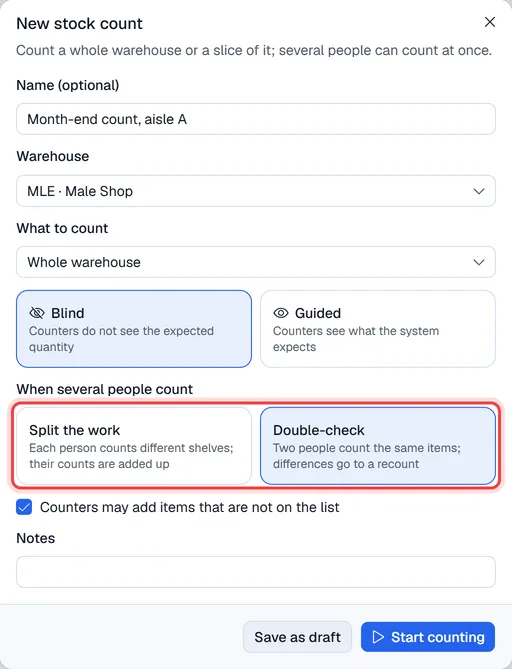
When several people count
| Method | Use it when | What Voltix does with two people's counts of one item |
|---|---|---|
| Split the work | Each person counts different shelves or areas of the same warehouse. | Adds them up: 8 on one shelf + 4 on another = 12. |
| Double-check | You want every item counted twice by different people, for example expensive or easily stolen goods, or a year-end stocktake. | Compares them. If they agree, the line is counted. If they differ, the line goes to Recount. |
On a Double-check count:
- A line counted by one person waits for the second count. On the review page it shows Waiting for a second count.
- Counters never see each other's figures, only their own.
- When the counts differ, the review page shows each counter's figure. The reviewer can keep one of them (Keep 8), or click Recount to clear the counts so the line is counted again from zero. The cleared entries stay in the history.
- A reviewer can also Approve a line counted only once.
Count
Open the count from Counting → Stock counts and click Count. The screen is made for a phone:
- Scan a barcode with the camera button or a scanner, or type a code or part of a name.
- The item card shows what you have counted so far on it. Type the quantity on the keypad, or tap +1, +5, +10.
- Your last entries are listed below with an undo arrow; a wrong tap is withdrawn, never silently overwritten.
- The left button shows which items on the list still have nothing counted.
Every entry is kept with who made it and when. Nothing is ever overwritten: on a Split the work count the entries add up, on a Double-check count each person's total is compared, and the reviewer sees all the names.
Review and post
Open the count from the list. Its Lines tab shows the figures at the top (items, counted, not counted, recount, with difference, difference value) and every line with its status, the quantity counted, who counted it and (for reviewers) the expected quantity, the difference, its value and how much the stock moved since the count started. Pick With difference and type a minimum value to look at what matters first.
- Recount sends a line back to the counters.
- Approve marks a line as checked (Approve all shown does it for the whole list while reviewing). Zero marks an item that was not found. Exclude leaves a line out of the posting; Include brings it back.
- … → Close counting stops new entries; … → Reopen counting allows them again.
- … → Count sheet prints a paper sheet for counting by hand, and … → Print labels prints labels for the items.
- Print, Download and Send make the count document with the counted figures.
Click Post and choose Which lines to post (every counted line, or only the approved ones) and what to do with Items not counted (leave their stock, or set it to zero because they were not found).
The differences become one stock adjustment on the ledger, posted at once (no second approval), with the reason you pick. Each item's movement history shows it as a count.
Voltix creates an Inventory Counting document in SAP Business One with the counted quantities, then an Inventory Posting for the differences. SAP goes first: if SAP refuses, nothing is changed and you see SAP's message.
Scheduled counts
Counting → Count schedules lets a count start by itself every week or every month (for example the fast-moving items every Monday, the whole warehouse on the 1st). Click New schedule, or a schedule to change it. When one starts, the people who may count are told through the bell.