Setting up Employees
Before adding staff, create your departments and job positions, check the employee numbering, choose how early expiring documents are flagged, and decide who may see private details.
Open Settings → Employees. The section has four tabs: General, Contracts, Plans and Skills. Contracts, plans and skills have their own pages; this page covers General.
Departments and job positions
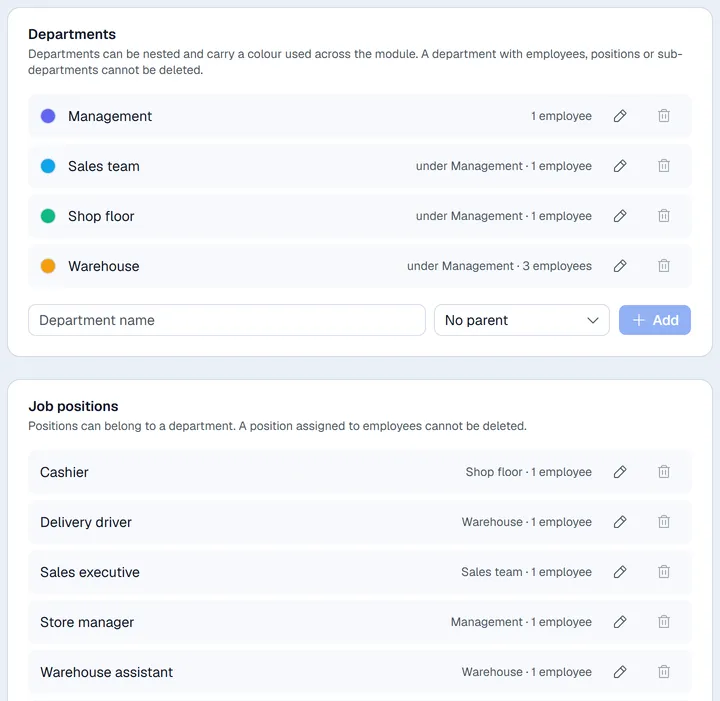
- 1Under Departments, type a Department name. If it sits under another department, choose that one in the next box (otherwise leave No parent). Click Add.
- 2Click the coloured dot in front of a department to pick its colour. The colour shows in the staff list and on the org chart.
- 3Under Job positions, type a Position name, choose its department if it belongs to one, and click Add.
Use the pencil to rename and the bin to delete.
On an employee record, Job position only offers the positions of the chosen department and positions without a department.
Employee numbering
Every new employee gets a number such as EMP-0001. Under Employee numbering, set the Prefix, the Next number and the format, then click Save. A number is given when the employee is created and is never reused.
Expiry alerts
Under Expiry alerts, Alert before expiry (days) sets how far ahead passports, work permits and visas appear in the documents expiring soon banner: 1 to 365 days, 60 to start with. Click Save.
Who may see private details
Private details, compliance dates, contracts and documents are hidden from managers unless their group allows it. An administrator turns this on in Settings → Authorization: open the group's permissions and tick Employees: view private info. Administrators always see them.
Next
- Contracts: contract types and templates.
- Plans and activities: onboarding and offboarding checklists.
- Skills and resume: skill types and levels.