Create a quotation
A quotation offers prices to a customer for a limited time. Create it, send it, change it while it is open, and turn it into a sales order or an invoice when the customer agrees.
Show the steps for
Before you start
You need the Sales: use permission and a Sales profile (see Setting up Sales).
Create the quotation
- 1In Sales, click New at the top right and choose Quotation. (While the document is new, the Quotation / Sales order / Invoice switch at the top right changes its type.)
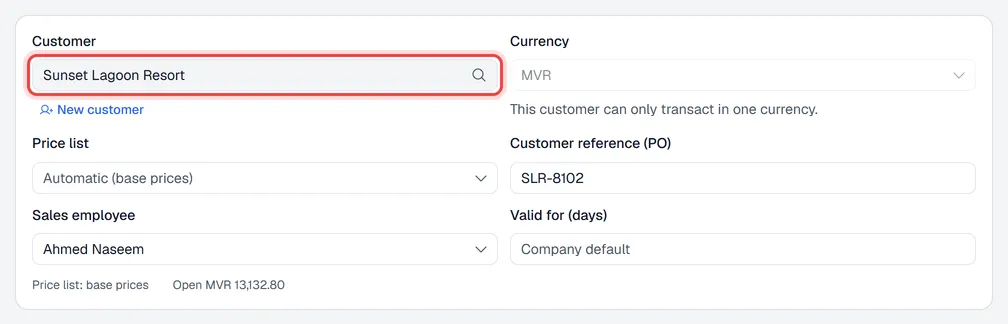
- 2Click Customer, type part of the customer's name, code, phone number or e-mail and pick the customer from the list. Their price list, currency and payment terms are applied automatically.
- 3Optional: fill in Customer reference (PO) with the customer's own order or reference number, pick the Sales employee, and set Valid for (days). Leave the validity empty to use the company default.
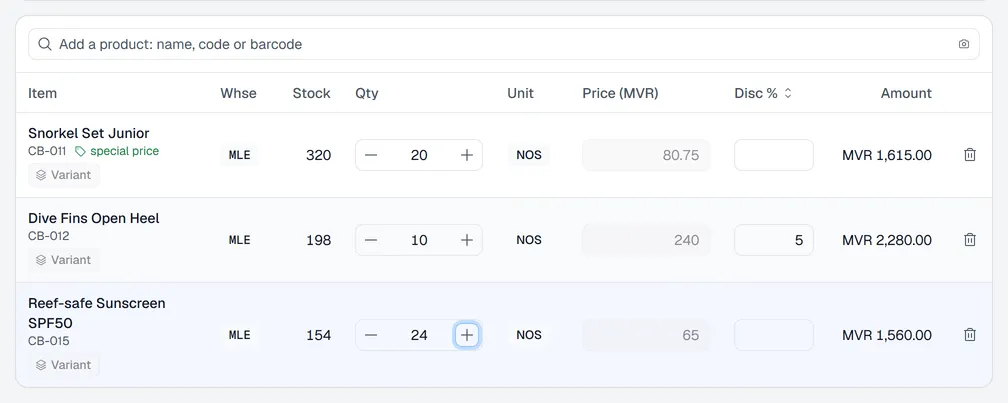
- 4In Add a product, type a product name, code or barcode and pick the product. It is added as a new line. To scan with your phone or tablet camera, click the camera at the end of the box.
- 5On each line, set the quantity with − and + or by typing it, change the unit if you sell in boxes or cartons, and enter a discount if needed.
- 6Check the Totals on the right and click Create quotation at the bottom right.
The quotation gets its number and opens. From here you can print it, e-mail it, change it, or turn it into a sales order or an invoice.
Not ready yet? Save a draft
Click Save draft to keep your work without creating the quotation. The draft is listed under Drafts → My drafts and only you can see it. Open it later to carry on, or click Cancel draft to throw it away.
Prices, discounts and currency
- Prices come from the customer's price list, or from the profile's price list. If your company uses special prices or quantity breaks, they are applied as you change the quantity.
- Price list. To quote from another list (a trade list, for example), pick it in Price list. Every line that is not on an agreed price is re-priced from the new list; Voltix asks first. Automatic goes back to the customer's own list.
- Changing a price by hand needs the change prices permission on your auth group. Without it, the price box cannot be edited.
- Discounts as % or as an amount. Click the Disc % heading of the lines to switch between a percentage and an amount, for example MVR 50 off this line. Under the totals, Discount on the whole document has the same % / MVR switch.
- Discount limit. Every user has a maximum discount. If a line or the whole document goes above it, Voltix tells you before you create the document; depending on your company's rule it asks an approver or blocks the discount. See Approvals and credit control.
- Currency. A customer who is billed in a foreign currency gets their quotation in that currency; prices are converted at today's rate. For a customer who may be billed in any currency, pick the currency in Currency.
More options on the quotation
| Field | What it does |
|---|---|
| Sales employee | The salesperson credited with the sale. If the list is empty, an administrator adds sales employees in Settings → Point of Sale → Sales employees. |
| Variant (under the item name) | Swaps the line to another variant of the same item, for example another size. |
| Note (button at the bottom) | Text printed on the quotation, plus an optional bill-to address and GST / Tax ID that replace the customer's for this document. |
| Attachments (button at the bottom) | Files that belong to the document, such as the customer's request. |
| New customer | Under the customer box. Adds a customer on the spot, if your company allows it and you have the Sales: create customers permission. |
Change an open quotation
While a quotation is Open, you can still change it:
- 1Open it from Sales → Quotations (the Open filter lists only open ones).
- 2Click Edit. The quotation opens in the editor with editing quotation … at the top.
- 3Change what you need and click Update quotation. It keeps its number.
The change is sent to SAP Business One as well, so both show the same quotation.
When the customer agrees
Open the quotation and click:
- Make sales order when you will deliver later. See Sales orders.
- Make invoice when the customer pays or takes the goods now. See Invoice a customer.
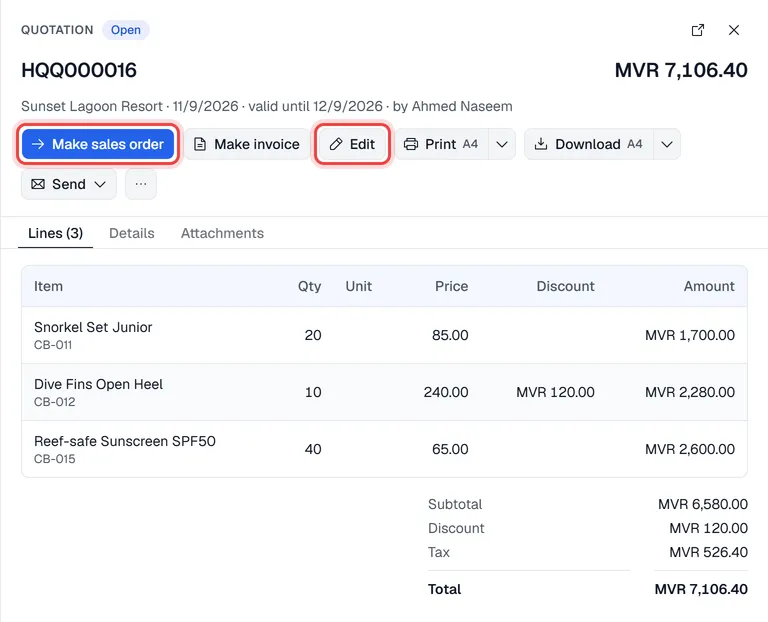
Both open a new draft with the quotation's customer, lines and discounts already filled in. Check it and create it. The quotation is then marked as converted, and the new document shows the quotation in its chain at the top.
Find a quotation again
Sales → Quotations lists every quotation you may see, newest first. Search by number or customer name, or use the quick filters and the date range (see Sales at a glance). Quotations made in Sales can also be loaded in the Point of Sale.