Customers and vendors at a glance
Business Partners is the one list of everyone you sell to and buy from. The POS, Sales, Purchasing and Receive Payments all pick customers and vendors from here.
Show the steps for
What a business partner is
A business partner is a customer or a vendor. Customers are picked on POS sales, quotations, sales orders and invoices. Vendors are picked on purchase orders, goods receipts and purchase invoices.
Open it from the Business Partners tile on your home page.
The Business Partners screen
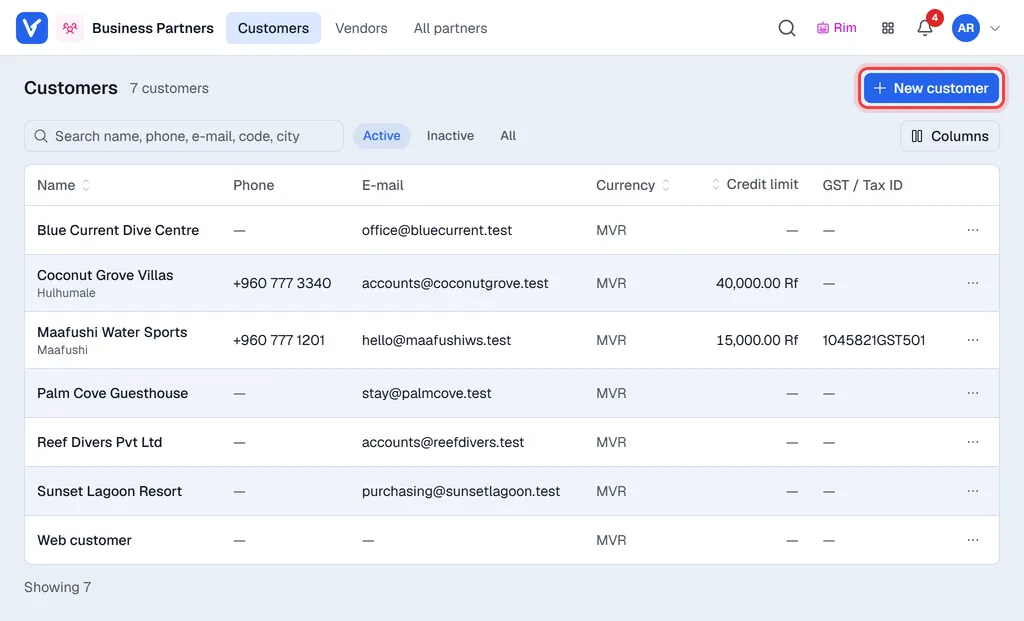
| Part of the screen | What it does |
|---|---|
| Customers / Vendors / All partners (top bar) | Shows only customers, only vendors, or everyone. The number next to the title is how many match. |
| Search box | Finds partners by name, email, phone, city or (with SAP) SAP code. |
| Active / Inactive / All | Shows the partners in use, the switched-off ones, or both. |
| New customer / New vendor | Creates a new customer or vendor. See Add and edit partners. |
| … at the end of a row | Open, open as a full page, edit or delete the partner. |
The list shows 50 partners at a time; click Load more under the table for the next 50.

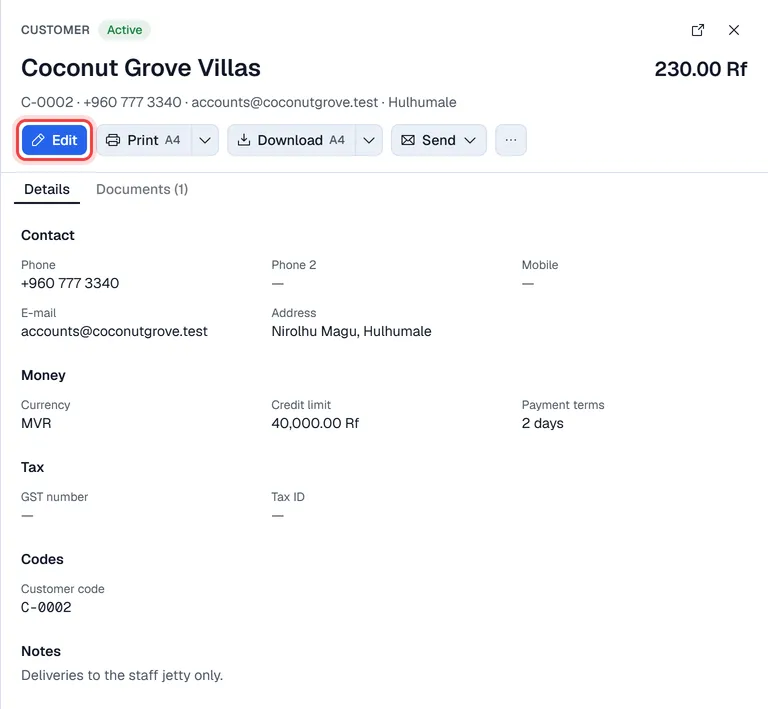
Click a row to open the partner in a panel on the right: Details (contact, currency, credit limit, payment terms, tax and notes) and, for a customer, Documents (its sales invoices and returns with what is still open). Click Edit there to change the partner, or the arrow at the top to open it as a full page.
Statements
Print and Download in the partner panel make a statement: the customer's details, its sales documents and the open balance. A vendor prints its details only. Send → By e-mail sends the same PDF to the partner's e-mail address (you can change the address and the message first).
With SAP Business One
The list is read live from SAP and a Live from SAP badge sits next to the title. An extra SAP code column shows each partner's SAP card code. If SAP cannot be reached, a yellow message says Voltix is showing saved data that may not be current.
Who can do what
| What | Needed |
|---|---|
| Open Business Partners | Business Partners switched on under App Access in Settings → Users. |
| Add customers | The Add customers permission on your auth group. |
| Add vendors | The Add vendors permission (granted separately, because vendors feed Purchasing). |
| Change partners | The Edit customers/vendors permission. |
| Delete partners | An admin or manager user. |
Users with none of the add or edit permissions see a View only badge and can only look. The Documents tab and statements list documents for managers and admins only.