Transfer requests
Ask for stock to be moved from one warehouse to another. The request is fulfilled later with a transfer.
Show the steps for
When to use a request
A shop that runs low asks the store holding the stock with a transfer request (ITR). The other side then sends the goods with a transfer, all at once or in parts. The request shows what is still to come.
You need the Create / Fulfill permission for transfer requests.
Create a request
- 1In Inventory, open Transfers → Transfer requests and click New transfer request.
- 2Choose the From warehouse (where the stock is now) and the To warehouse (where it should go). They must be different.
- 3Type in the Add an item box (name, code or barcode) and pick a product to add it. Change the quantity with + and − or by typing, and use the unit button to choose another unit of measure. A new line starts in the unit you last chose for that product (on a goods issue, transfer request or direct transfer); before that, in the product's purchasing unit when SAP has one, otherwise its default unit.
- 4Optionally add a Note and, if your company stores attachments, files with Attach.
- 5Click Submit transfer request.
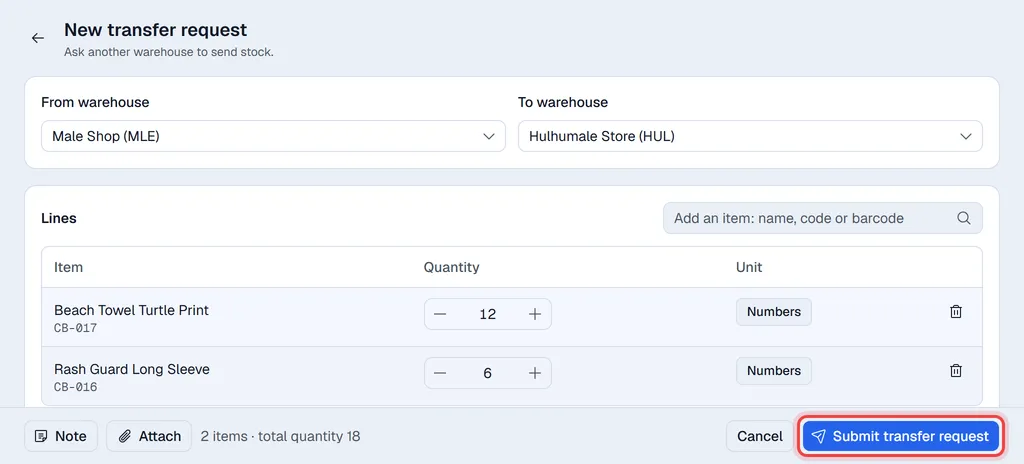
The request gets its number (for example ITR-0004) and opens, ready to print.
The request is created in SAP Business One first. If SAP refuses it, nothing is saved and you see SAP's message. When your company requires approval, the request is saved in SAP as a draft and shows Waiting for approval until it is approved in SAP; it cannot be fulfilled before that.
The request is saved in Voltix. Stock does not move until the request is fulfilled.
Follow up a request
Transfers → Transfer requests lists the requests. The To fulfil chip (shown first) holds the open ones; other chips show those Waiting for approval, Fulfilled, Closed, Cancelled or All. Click a request to see per line what was Requested, Fulfilled and what is Remaining.
| Status | Meaning |
|---|---|
| Open | Nothing sent yet. |
| Partly fulfilled | Some of the goods have been sent. |
| Waiting for approval | Waiting for approval in SAP. |
An open request has a Fulfil button (see Transfers). Under … you find Duplicate (start a new request with the same lines) and Close request. The request also shows the transfers made from it; click one to open it.
Close a request
If the rest of a request will never be sent, open it, choose … → Close request and confirm. Any quantities not yet sent are dropped. This cannot be undone. You need the Close permission.