Special prices
Automatic discounts by quantity and date, for a price list, one customer or everyone. The cart applies them on its own.
Show the steps for
A special price is a discount the POS and Sales apply by themselves. It belongs to one product and is for:
- one price list (everyone whose sale uses that list),
- one customer (on any price list), or
- all lists and customers.
A customer's own special price wins over the price list's.
Each special price has one or more periods (dates it applies, or "Always") and, in each period, an optional discount at any quantity plus quantity tiers: bigger discounts from a minimum quantity, for example 8% off from 10 pieces, or 100.00 per case from 5 cases.
Note. You need the Pricing: special prices permission (Settings → Authorization), or be an administrator, to see and change special prices.
Important. Special prices are managed in Voltix, not in SAP. An administrator imports them from SAP once under Settings → Integrations → Special prices → Import special prices from SAP. Until then they are shown read-only. After the import, changes made in Voltix are not sent to SAP, and changes in SAP no longer reach Voltix.
Add or change a product's special prices
- 1Open Inventory and choose Special prices in the … menu on the product row.
- 2Click Add special price, or Edit on an existing one.
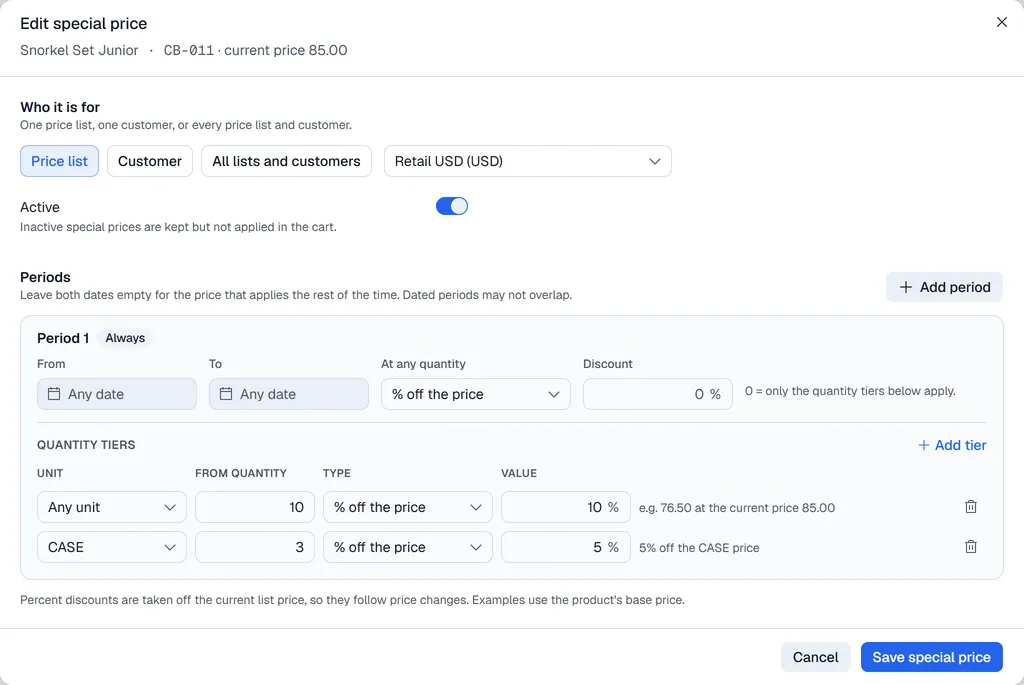
- 3Under Who it is for, choose Price list (and pick the list), Customer (and search for them) or All lists and customers.
- 4Keep Active on. Inactive special prices are kept but not applied.
- 5Fill in the period: - Leave From and To empty for the price that applies the rest of the time, or enter dates for a promotion. - At any quantity: % off the price or Special price, and the value. Leave the discount at 0 if only the quantity tiers should apply.
- 6Click Add tier for each quantity break: the Unit (or Any unit), From quantity, the Type (% off the price or Special price) and the Value. The example next to each tier shows what it means at today's price.
- 7Click Save special price.
Tip. Prefer % off the price. A percentage is taken off the price that applies at the moment of the sale, so it stays right when you change the price list. A Special price is a fixed amount and does not move with the list.
Periods
- Only one period may be without dates.
- Dated periods may not overlap.
- On any day, the period whose dates include that day is used; the period without dates applies when none does.
See every special price of a price list or customer
- 1Open Settings → Inventory → Price lists and click Special prices.
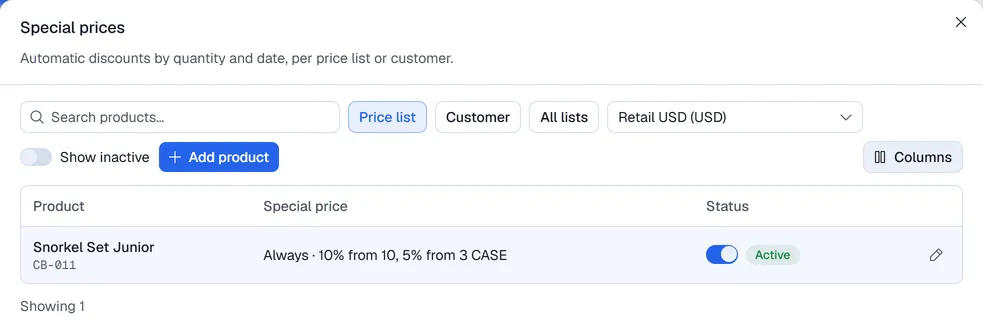
- 2Choose Price list, Customer or All lists at the top, and pick the list (or Pick a customer).
- 3Search for a product, switch special prices on or off in the Status column, or click the pencil to edit one.
- 4Click Add product, then Pick a product and search by name or code, to give another product a special price for the same list or customer.
Turn on Show inactive to see the special prices that are switched off.
In the cart
- The line shows the discounted price, the original price struck through, and a badge: Qty 10+ for a quantity tier, Special price for the discount at any quantity.
- Changing the quantity, the unit or the customer re-checks the special price straight away.
- A price you change by hand on a line replaces the special price on that line.
Note. Special prices are never deleted, so the history of past sales stays clear. Switch one off instead.