Setting up CRM
Stages, quotation sync, option lists, activity plans and sales teams, and who sees what.
Everything here is in Settings → CRM. Only administrators and managers can change it.
Pipeline stages
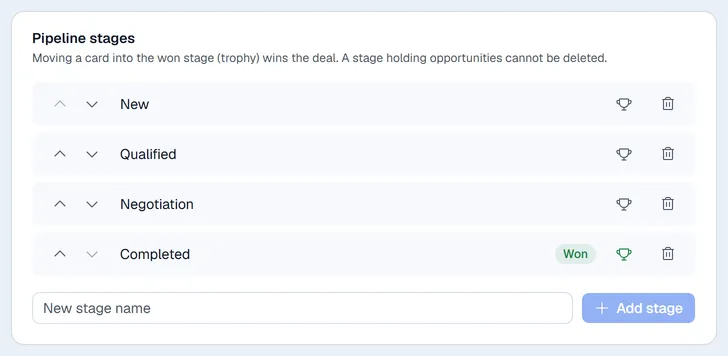
A new company starts with New, Qualified, Negotiation and Completed.
- 1Type a name under the list and click Add stage.
- 2Use the up and down arrows to change the order. The pipeline shows the columns in this order.
- 3Click the trophy on the stage that means "won". Moving a card into a won stage marks the deal won.
- 4Click the bin to delete a stage. A stage that still holds opportunities cannot be deleted: move them first.
Note. Lost is not a stage. A lost deal keeps its stage and is marked lost (see Work the pipeline).
Quotation sync
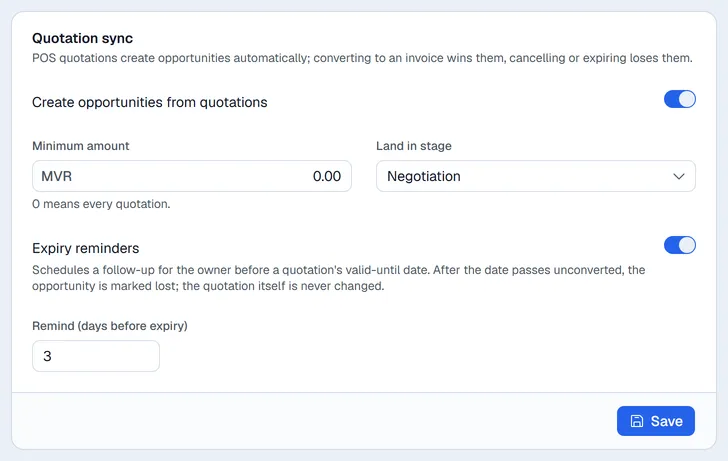
On the Quotation sync tab:
| Setting | What it does |
|---|---|
| Create opportunities from quotations | Every new quotation becomes an opportunity. On by default. |
| Minimum amount | Only quotations of at least this amount. 0 means every quotation. |
| Land in stage | The stage the new card goes to. Default Negotiation. |
| Expiry reminders | Plans a follow-up for the card's owner before the quotation's valid-until date. |
| Remind (days before expiry) | How many days before (0 to 60, default 3). |
Click Save. See Quotations and the pipeline for what happens next.
Lists
The Lists tab holds four short lists. Type a name and click Add, or click the bin to remove one.
| List | Used for |
|---|---|
| Tags | Labels shown on cards. |
| Lost reasons | The choices in "Why was it lost?". |
| Lead sources | The Source field on new leads and opportunities (Walk-in, Phone, Referral...). |
| Activity types | Call, Meeting, To-Do and Email are there to start with. |
Activity plans
An activity plan is a ready-made list of follow-ups, for example "intro call today, send the catalogue tomorrow, visit after a week".
- 1On the Activity plans tab, enter a Plan name.
- 2Click Add step for each follow-up: pick the type, write a summary and the number of days after the start.
- 3Click Create plan.
On an opportunity, choose the plan from Apply plan… to schedule all its steps at once.
Sales teams
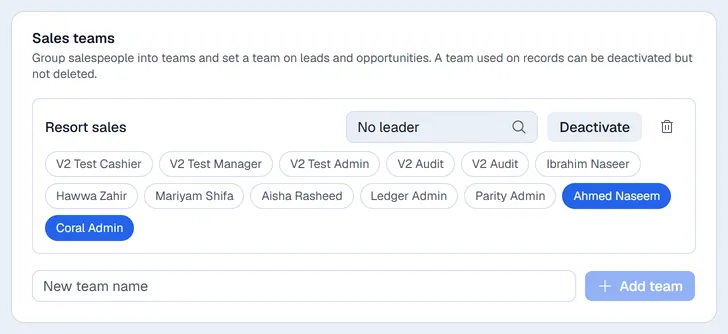
- 1Type a name and click Add team.
- 2Choose the team leader and click user names to add or remove members.
- 3Deactivate hides a team you no longer use. A team used on records cannot be deleted.
Who sees what
- Administrators and managers see every lead and opportunity.
- Other users see only the records assigned to them or created by them.
- To let a user see the whole pipeline, tick CRM: view whole pipeline on their auth group in Settings → Authorization.
Users also need CRM in their app access to open the app.