What Automations does
Automations prints warehouse documents by itself on your network printers the moment they are created, so the warehouse team has the paper in hand without anyone pressing Print.
What it prints
Three warehouse documents can print automatically:
| Document | Which warehouse decides where it prints |
|---|---|
| Inventory transfer | Both the warehouse the goods leave and the warehouse they go to. Either side, or both, can have a printer rule. |
| Transfer request | The warehouse the goods are requested from (the one that has to pick them). A request waiting for approval prints once it is approved. |
| Goods issue | The warehouse the goods are issued from. |
Voltix sends the document straight to the printer over the network. There is no print dialog and no computer in between.
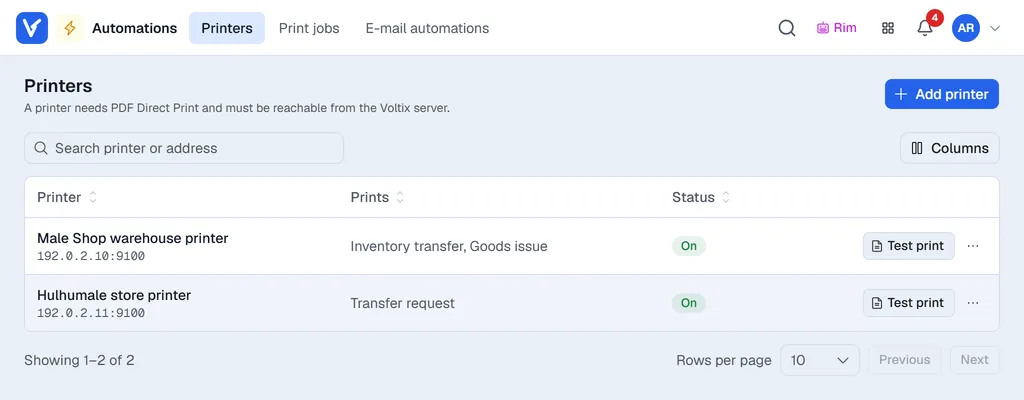
The screen
Open Automations from the home page. Its menu at the top has:
- Printers: your printers, a Test print button for each, and the rules that say which documents print where (open a printer to see them).
- Print jobs: every print Voltix has sent or tried to send, with its status. See Print jobs and offline printers.
- E-mail automations: not available yet.
Who can use it
Managers and administrators who have Automations switched on under App access in Settings → Users (see Users and access). If there is no Automations tile at all, the app is not switched on for your company: ask your Voltix contact.
Note. Printing never holds up your work. The transfer, request or goods issue is saved first and printed in the background. If the printer is off, the document is still saved and the print is retried. See Print jobs and offline printers.
Next steps
- 1Set up a printer and its rules.
- 2Create a warehouse document and check it under Print jobs.