Goods issues
Take stock out of a warehouse for a reason other than a sale, such as damage, samples or own use.
Show the steps for
Before you start
You need the Allow goods issue permission; without it Goods issues does not appear in the Inventory menus.
Issue types (the reasons, such as Damaged or Own use) come from SAP Business One. If the Issue Type list is empty, ask your administrator to sync the goods issue types.
Issue types (the reasons) are ready to use: Damaged or expired, Samples and giveaways, Internal use, Other. Rename them, switch them off or add your own under Settings → Inventory → Document types.
Make a goods issue
- 1In Inventory, open Goods issues and click New goods issue.
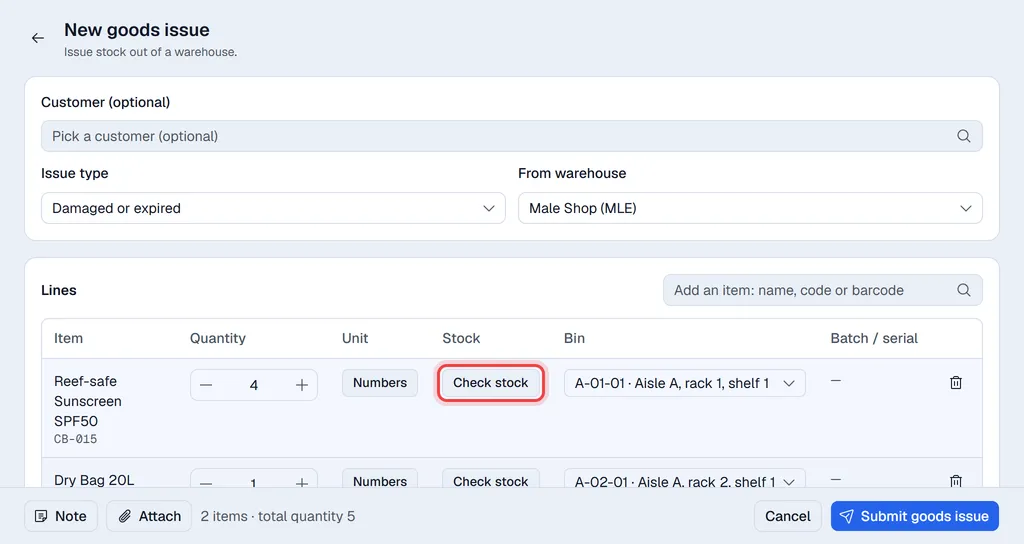
- 2Choose the Issue type and the From warehouse.
- 3Optionally pick a Customer, for example when goods are given as a sample.
- 4Type in the Add an item box (name, code or barcode) and pick the product to add it. Set the quantity and unit on each line.
- 5Click Check stock on a line to see the product's stock in every warehouse you may see. Picking a warehouse there makes it the From warehouse of the goods issue.
- 6For batch or serial tracked products, choose the batches or serial numbers under Batch / serial.
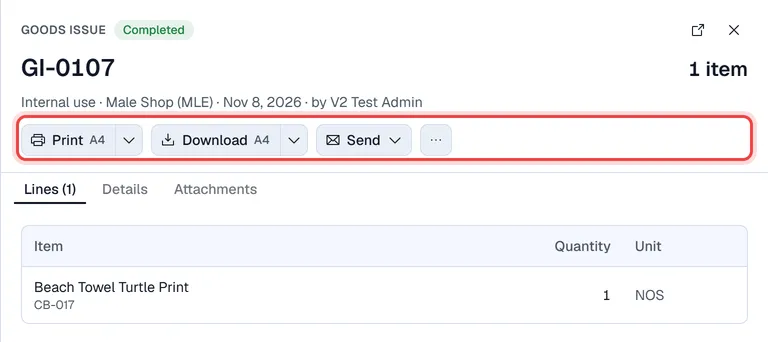
- 7Optionally add a Note or files with Attach, then click Submit goods issue. The goods issue opens, ready to print.
The goods issue is posted to SAP Business One first. If SAP refuses it, nothing is saved in Voltix and you see SAP's message. The stock leaves the warehouse in SAP straight away.
The goods issue gets a number (for example GI-0001) and the stock leaves the warehouse at once, at the item's average cost. The item's Movements tab shows it as an issue.
Earlier goods issues
Goods issues lists every goods issue with its number, issue type, warehouse, customer, items, who prepared it, the date and the status. Search by number or warehouse, filter by status or date, and click a row to open it, print it again, download it or send it by e-mail.