Preview, SEO and publish
See the draft as visitors will, set the page address and search-engine text, publish, and go back to an earlier version.
Preview
In the editor, click Full page. The draft opens with the header, footer and scroll animations as visitors will see them. Switch between computer and phone with the icons at the top.
Page settings and SEO
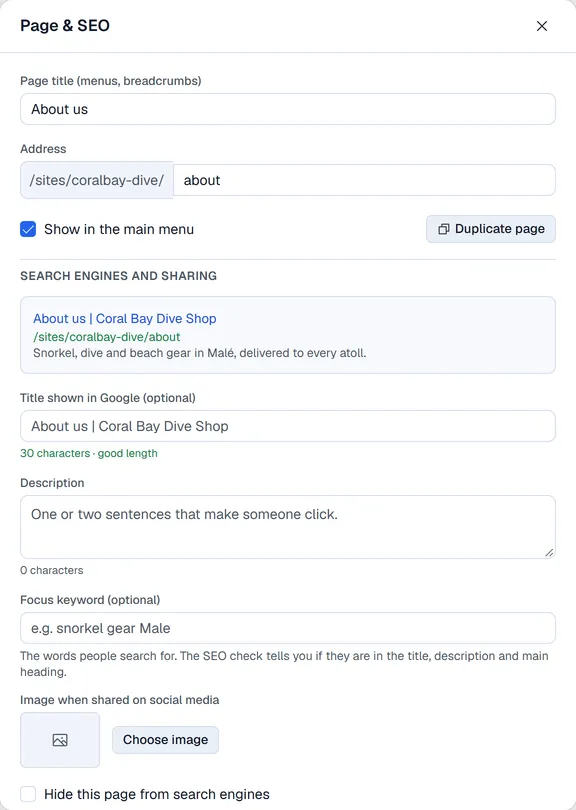
Click Page & SEO:
- Page title (menus, breadcrumbs) and Address (the part after the website address).
- Show in the main menu adds the page to the main menu or removes it.
- Duplicate page makes a draft copy.
- Under Search engines and sharing: a preview of the Google result, Title shown in Google (optional), Description, Focus keyword (optional) and the Image when shared on social media. The counters tell you when the length is good.
- Hide this page from search engines.
Click Save.
If you change the address of a published page, Voltix asks first and sends visitors from the old address to the new one automatically (listed in Site settings → Redirects).
SEO check in the editor lists what to improve on this page. Site settings → SEO does the same for every page.
Publish
Click Publish (or Publish changes for a page that is already live). You need the Websites: publish permission. The page is live straight away; View live opens it.
Unpublish takes a page offline: visitors get "page not found" until you publish it again. The home page cannot be unpublished.
Versions
Each time you publish, Voltix keeps a version. Click Versions, then Restore next to one. That version comes back into the draft; the live page changes only when you publish again.