Products on the website
Choose which products appear on the website, with prices from the website's price list and a stock badge.
Show the steps for
Products, prices and stock come straight from Voltix. You only choose which products are shown and how.
Put products on the website
- 1Open Catalogue in the menu at the top, Products.
- 2Find products with the search box (name, item code or barcode) and the two filters (All products, On the website, Not on the website, Featured, On the website, no image; and a category).
- 3Tick the products and click Put on website. Take off removes them, Feature / Unfeature marks them as featured, and Brand… + Set brand gives them a brand.
Putting products on or off the website needs the Websites: publish permission.
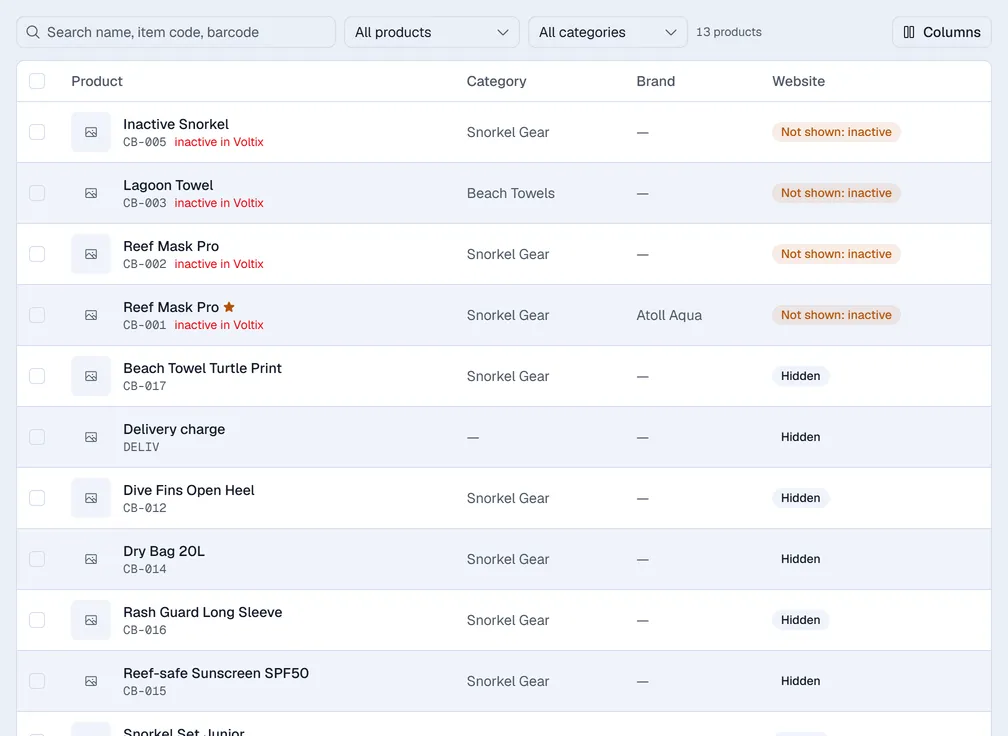
The Website column shows On website, Hidden, or Not shown: inactive (the product is inactive in Voltix, so visitors do not see it).
Product details for the website
Click a product to change, for the website only:
- Show on the website and Featured.
- Name on the website and Description on the website (leave them empty to use the Voltix ones).
- Web address (after /product/) and Brand.
- Pictures: the first one is the main picture; use the arrows to reorder.
- Search engines: title and description for search results, or hide the product from search engines.
Pictures from SAP (with products ticked) copies the SAP item picture of up to 20 products at a time into the website's images. The website never reads pictures from SAP directly.
Categories and brands
- Categories come from Voltix (or the SAP item group when a product has no Voltix category). A category page appears once it has products on the website. Click a category to hide it, change its address, picture, intro and search-engine text.
- Brands are made here (Add brand: name, address, logo, country, order, about the brand). Each brand gets its own page.
How prices and stock show
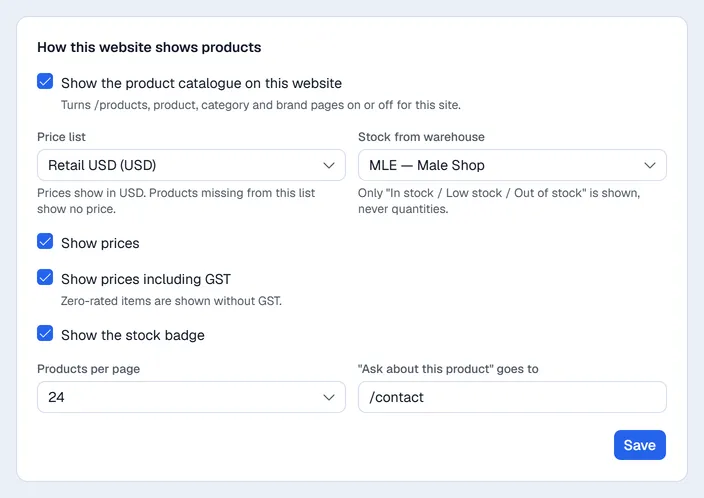
Open Display (needs the Websites: settings permission):
| Setting | What it does |
|---|---|
| Show the product catalogue on this website | Turns the product, category and brand pages on or off for this website. |
| Price list | Where prices come from. Prices show in that list's currency; with a foreign-currency list, products missing from it show no price. Product base price (MVR) uses the product price. |
| Stock from warehouse | Which warehouse the stock badge reads, or All stock (product total). |
| Show prices / Show prices including GST | Zero-rated items are shown without GST. |
| Show the stock badge | Visitors see only In stock, Low stock or Out of stock, never quantities. |
| Products per page and "Ask about this product" goes to | The page size of product lists, and the page the product's question button opens. |
Click Save. The website shows new prices within a few minutes.