Setting up Projects
What an administrator sets in Settings → Projects before the team starts: numbering, default columns, tags, item types, templates and optional features.
Before you start
- 1Make sure the people who will do the work exist in the Employees app. Items are assigned to employees, not to logins.
- 2To use My tasks, each user's login must be linked to their employee record (in the Employees app).
- 3Give each user Projects under App access (this company) in Settings → Users.
Then open Settings → Projects. It has seven tabs.
General
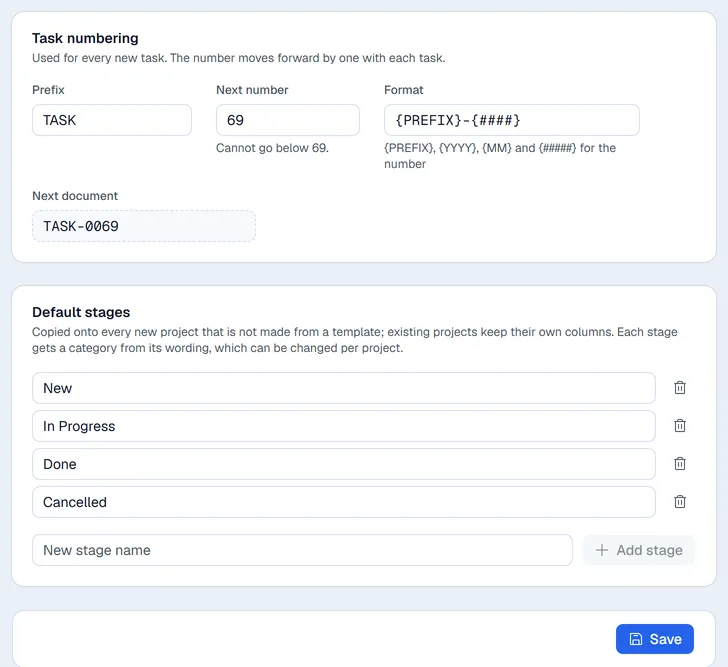
- Task numbering: the Prefix, Next number and Format used for every new item in every project. The number goes up by one with each item.
- Default stages: the columns copied onto every new project that is not made from a template. Type a name and click Add stage; remove one with the bin. Voltix picks each column's category from its wording, and you can change it per project later. Existing projects keep their own columns.
Click Save at the bottom.
Tags
Tags are shared by all projects. Type a Tag name, pick a colour and click Add tag. Admins and managers can also create a tag straight from an item with + new tag.
Task templates
A task template creates an item with its sub-tasks in one click. Give it a Template name, a Task title, a Description and Sub-tasks (one per line). On a project board, the From template button lists your templates.
Features
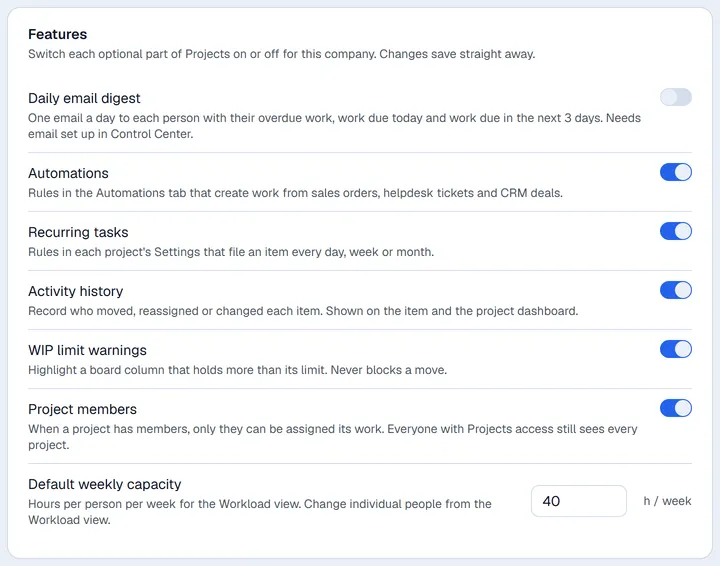
Each optional part of Projects can be switched on or off for the company. Changes save straight away.
| Switch | What it does |
|---|---|
| Daily email digest | One email a day to each person with their overdue work, work due today and work due in the next 3 days. Choose the hour under Send at (company time) and click Send me a test to check it. Email sending must be set up for your company. |
| Automations | Runs the rules on the Automations tab. See Automations. |
| Recurring tasks | Lets each project file an item every day, week or month. See Project settings. |
| Activity history | Records who moved, reassigned or changed each item. Shown on the item's History tab and on the project dashboard. |
| WIP limit warnings | Highlights a board column that holds more items than its limit. It never blocks a move. |
| Project members | When a project has members, only they can be assigned its work. Everyone with Projects access still sees every project. |
E-mail text: Projects daily digest holds the Subject and Message of the digest for your company. Words in double braces are filled in when it is sent: {{name}} the person, {{date}} today, {{tasks_html}} the list of their tasks, and {{overdue_count}}, {{due_today_count}}, {{due_soon_count}}. Click Save; Use the default goes back to the standard text. Managers and administrators can change it.
Default weekly capacity is the hours per person per week used by the Workload view. Default views sets the tabs every project shows, their order, and which one Opens first. A project can override this in its own Settings tab.
Item types
The kinds of work your company tracks (for example Task, Request, Issue). Each type has a Name, an Icon and a Color; one is the Default type for new items. Each project chooses which types it uses.
Project templates
A project template creates a whole project in one click: Columns (with category, WIP limit and the column new work starts in), Item types used, Milestones and Starter work, with dates counted in days from the project start. The easiest way to make one is to set up a real project the way you like it and use Save as template in its Settings tab.
Automations
Rules that create project work when something happens elsewhere in Voltix. See Automations.