Creating a rental
Pick the customer, the pickup and return times and the products. Save it as a quotation, or create and reserve it in one step.
Important. Without an open register you can still click Create quotation; No register is open is shown as a reminder. Create and reserve takes the deposit, so it needs an open register on a Point of Sale terminal when the rental has a deposit.
- 1In the Rental app, click New rental.
- 2Customer: pick one of your customers, or type a Walk-in name. Phone fills in from the customer when they have one.
- 3Set Pickup and Return: a date and a time each. Picking the pickup date sets the return to the next day.
- 4Click Add a rentable item…, search, and pick the item.
- 5For each line, set the Qty. Voltix picks the cheapest priced period for the dates and shows how many Periods are charged. You can change the Rate per period. For an item with variants, pick the Variant.
- 6Optional: Payment terms, Quotation valid until, and at the bottom Note, Address (a bill-to address for this rental only) and Terms (the rental terms and conditions).
Under each item you see how many units are free for those dates. The Totals card shows the Subtotal, tax, Total and the deposit to take when reserving.
If you change the dates after adding lines, click Update rental prices to recalculate the line prices.
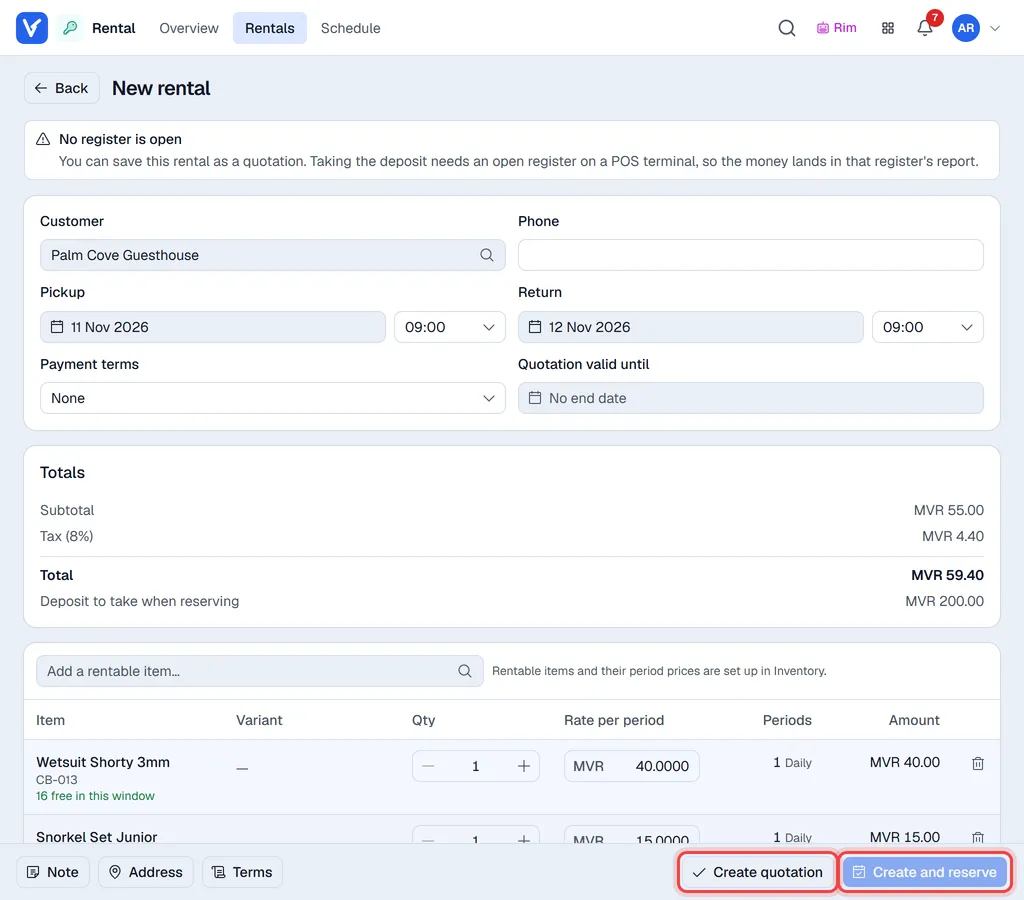
Save it
- Create quotation: saves an offer. No units are held and no money is taken.
- Create and reserve: saves and reserves at once. If there is a deposit, the Collect deposit window opens first (see Reserve and hand over).
Note. If there are not enough free units for the dates, the rental is saved as a quotation with a warning; click Open the rental to see it. You can still reserve it later and confirm the shortage.
Change a quotation
Only quotations can be changed. Once a rental is reserved, cancel it and create a new one.