Boards, lists and other views
The views of an open project (Board, List, Dashboard, Roadmap, Calendar, Workload) and the Portfolio, Workload and My tasks screens.
Your company chooses which views a project shows and which one opens first (see Setting up Projects). A single project can also choose its own (see Project settings).

Board
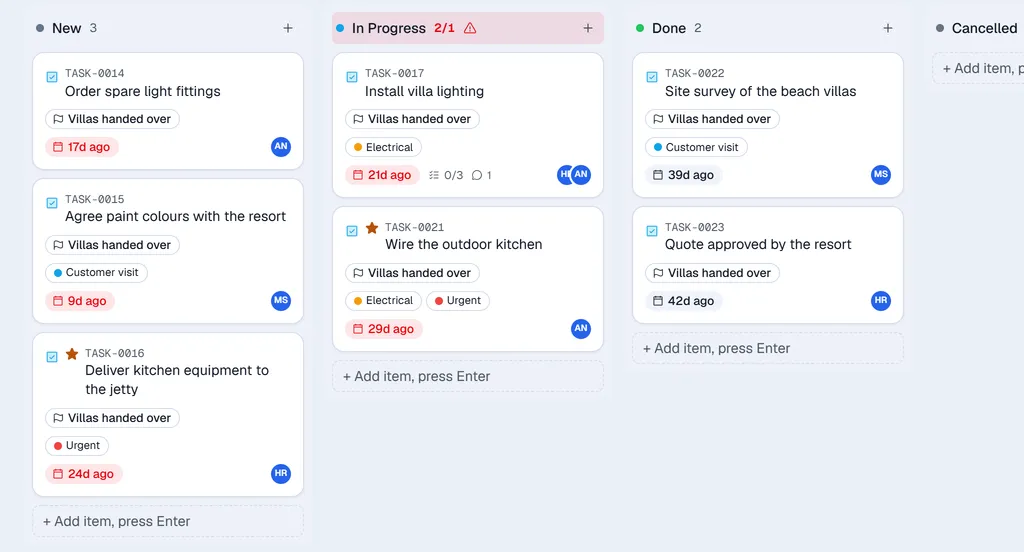
The board has one column per stage. Each card shows the item number, title, milestone, tags, due date, sub-tasks done, comments and the assignees' initials.
- Drag a card to another column to move it.
- Type in + Add item, press Enter to add an item to a column.
- A red due date means the item is overdue. Blocked means it is waiting for another item that is still open.
- When a column holds more items than its WIP limit, its header turns red and shows a warning sign (for example 2/1). This is only a warning: you can still move items into the column.
- Admins and managers see + Add or edit columns at the end of the board.
- On a phone the board shows one column at a time: tap a column name in the row above the board to switch.
List
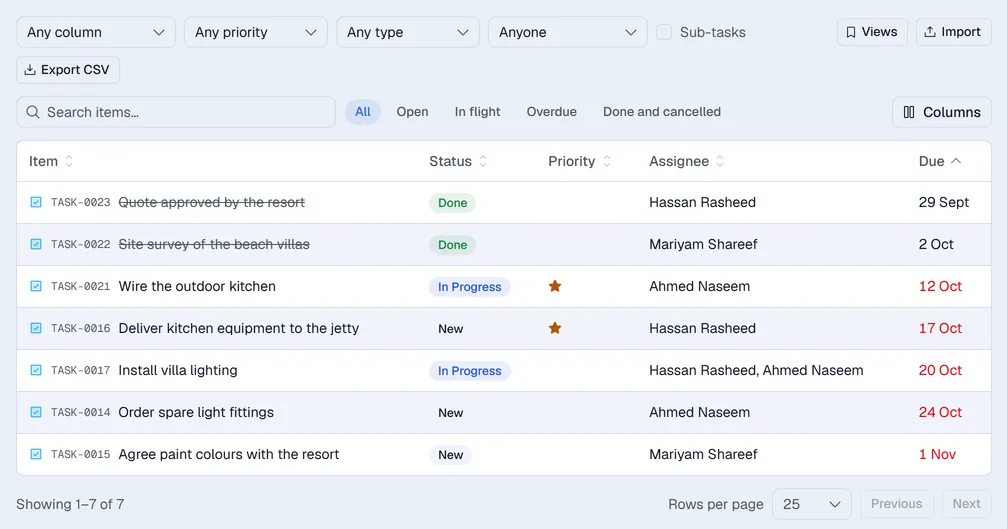
The List view shows all items as a table.
- Use Search items…, the quick filters next to it (All, Open, In flight, Overdue, Done and cancelled) and the column, priority, type and assignee lists above it to narrow the list. Tick Sub-tasks to include sub-tasks.
- Columns chooses which columns you see. Click a column heading to sort by it.
- Views saves the current filters under a name. Tick Share with the team to let everyone use the saved view.
- Export CSV downloads exactly the rows on screen.
- Import (admins and managers only) adds items from a CSV file. The file needs a Title column. Voltix also reads these columns if they are present: Description, Status, Priority, Due, Start, Type, Assignee, Estimate and Milestone.
Dashboard
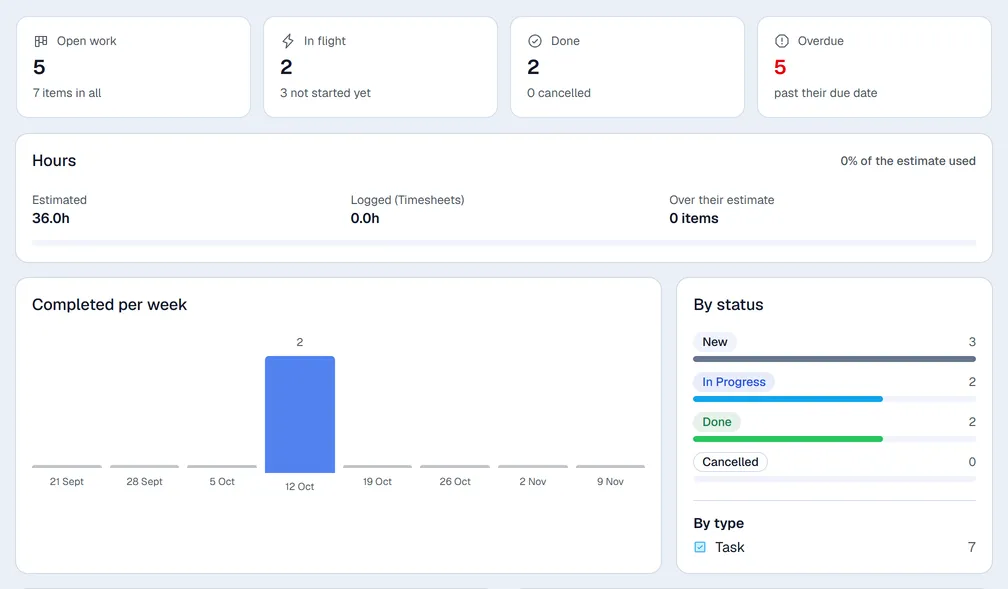
The Dashboard view gives the project's totals:
- Open work, In flight, Done and Overdue
- Hours: hours estimated against hours logged
- items By status and By type, and Completed per week
- Due soon, Load by assignee and Milestones
- Recent activity, when activity history is switched on
Click an item to open it.
Roadmap
The Roadmap view shows milestones and their items on a timeline. Switch between Weeks and Months, and click Today to jump back to today. Admins and managers can add a milestone with New milestone, or click a milestone to change its Start, Target date or Description.
Calendar
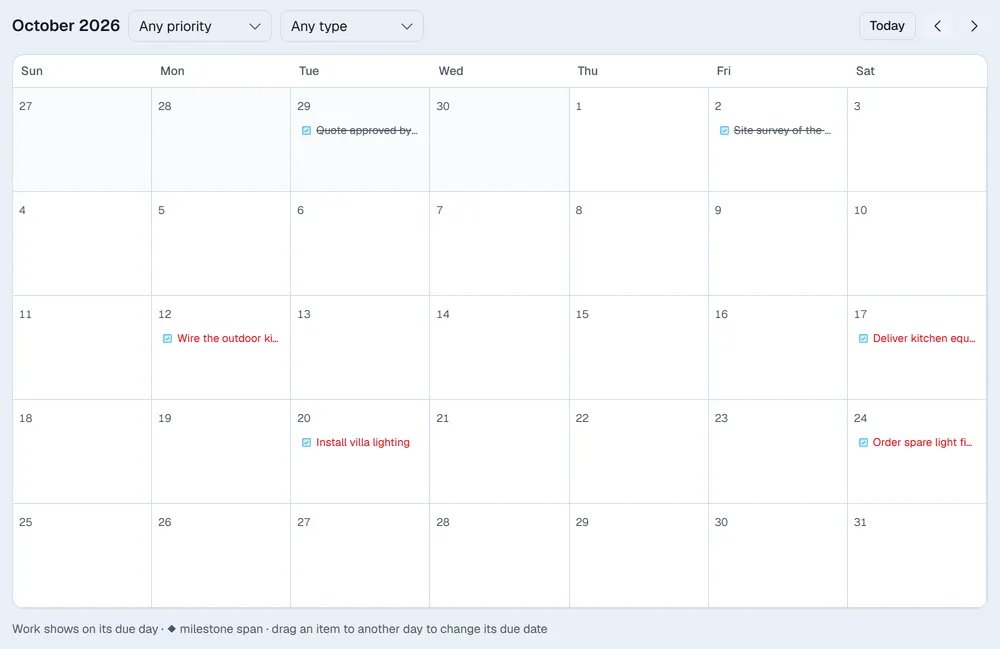
The Calendar view shows a month of items by due date. Drag an item to another day to change its due date, or use the + on a day to add an item due that day. Today jumps back to the current month.
Workload
The Workload view compares each person's planned hours with their weekly capacity over six weeks. Planned hours come from the estimates of open items that have a due date.
- Use the arrows to move six weeks at a time, and This week to come back.
- Admins and managers can click a person's capacity to change it.
- Work without a due date is listed on its own.
The Workload menu on the Projects screen shows the same view for all projects together.
Portfolio
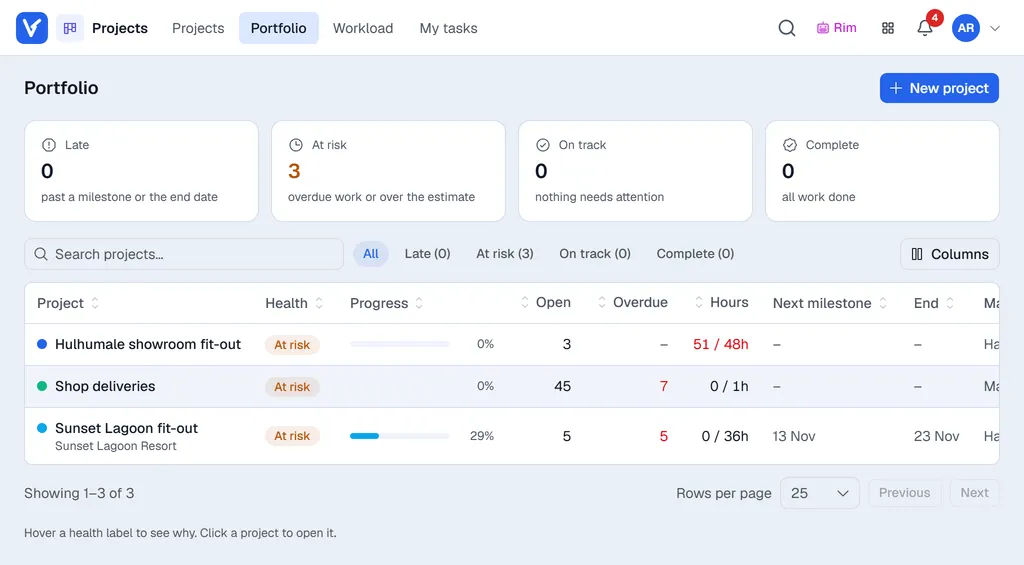
Portfolio, in the menu of the Projects screen, lists every active project with its health. Click a health figure (or the filter of the same name above the list) to show only those projects, hover over a health label to see the reason, and click a project to open it.
| Health | When |
|---|---|
| Late | A milestone is past its target date, or the end date has passed and work is still open. |
| At risk | Items are overdue, more hours are logged than estimated, or the project ends within a week and is less than 80% done. |
| On track | None of the above. |
| Complete | All work is done. |
My tasks
My tasks lists every item assigned to you in all projects, with its column and due date. Click an item to open it. If you see Your sign-in is not linked to an employee, ask an administrator to link your login to your employee record.