The Orders screen
Look up earlier invoices, quotations and sales orders, see their details, reprint them and follow them up.
Show the steps for
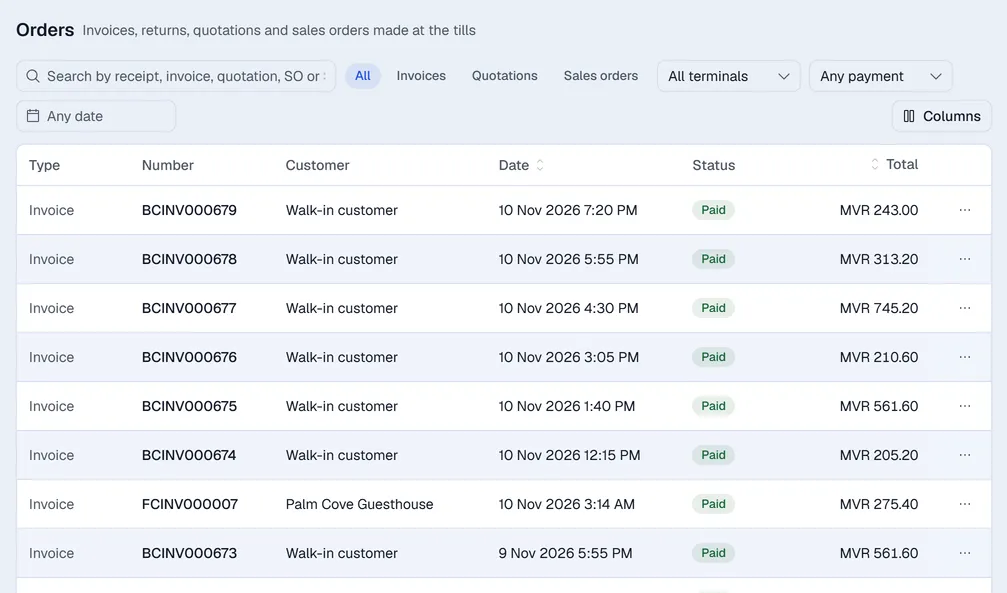
Click Orders in the bar at the top to see your company's invoices, returns, quotations and sales orders.
Find a document
- Pick a type: All, Invoices, Quotations or Sales orders.
- Type in the search box: a receipt, invoice, quotation or SO number, the SAP number, or the customer.
- Narrow the list with the status (once a type is picked), terminal and payment pickers, and the dates.
- Load more at the bottom shows older documents. On a phone each document is a card.
Invoice details
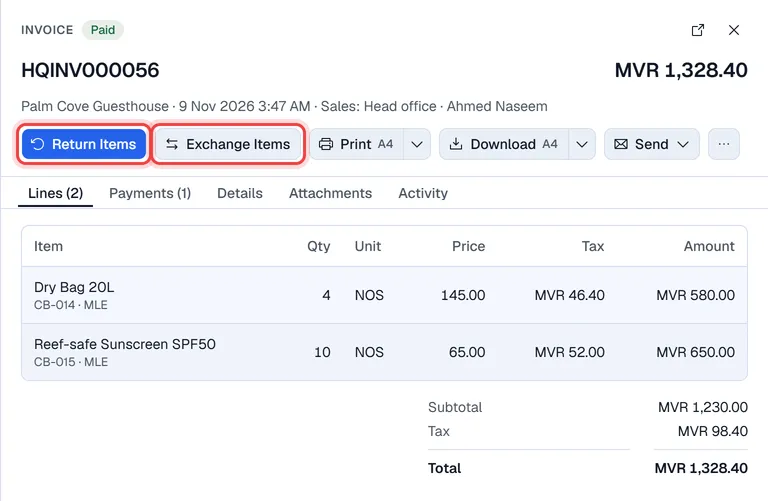
Click an invoice to open it in a panel on the right: customer, date, terminal and cashier at the top, then the tabs Lines, Payments, Details and Attachments. The arrow at the top opens the invoice as a full page; the chips under the number open the quotation it came from, the original invoice of a return, or the returns made from it.
| Button | What it does |
|---|---|
| Return Items | Take items back and refund. See Returns and exchanges. |
| Exchange Items | Swap items for others. |
| Print / Download | Print or download the invoice. The arrow next to each picks A4 or A5. |
| Send | Send it By e-mail (the PDF is attached) or By SMS (a link to the document). |
| … | Preview the PDF, make or open the delivery note, Duplicate (the same customer and lines in a new cart), edit the PO number, sales employee, note and bill-to address, or create a support ticket (when your company uses Helpdesk). |
Lines and amounts cannot be changed on the panel; with permission the PO number, sales employee, note and bill-to address can (… → Edit PO #, sales employee and note).
Details shows whether the invoice reached SAP and its SAP number. A user with permission also has Cancel invoice under … on a posted invoice.
Details shows whether the sale has been sent to QuickBooks Desktop; a failed one can be sent again from ….
Editing an invoice
An invoice with no payment on it can still be changed, under the same invoice number. Open it from Orders and choose … → Edit invoice: the invoice opens in the POS cart exactly as it was saved (lines, units, prices, discounts, customer, note). Change what you need and press Update Invoice. Stock is corrected for the lines you changed and, if your company uses the Finance app, the books get a reversal of the old entry and a new entry for the new amounts.
Invoices posted to SAP Business One cannot be edited in Voltix. Use a return or an exchange, or cancel the invoice and create a new one.
Invoices on a company connected to QuickBooks cannot be edited in Voltix. Use a return or an exchange.
Quotations and sales orders
Click a quotation or sales order to open it in the same panel. Convert to Invoice loads it into the POS cart to take payment, Edit loads it to change it, Print, Download and Send work as for invoices, and … holds Cancel (and Close sales order). See Quotations and sales orders.