Manage a subscription
Change lines and prices, add one-off charges, record usage, change plan, pause or cancel.
Click a subscription in the list to open it in a panel on the right. The arrow next to the close button opens it as a full page.
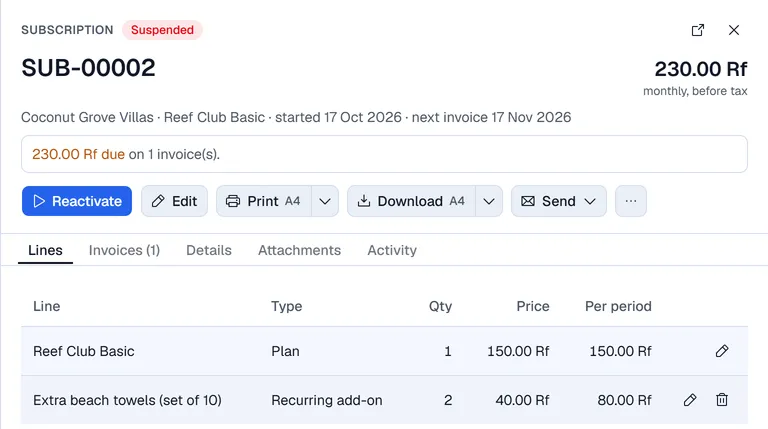
At the top you see the number, the status, the recurring amount per period, the customer, the plan, the start date and the next invoice, and any balance due. Under it are the buttons, then the tabs Lines, Invoices, Usage (only with metered lines), Details, Attachments and Activity.
The buttons
- The first button is the next step: Activate for a draft, Invoice now for an active subscription, Resume or Reactivate for a paused or suspended one, Keep subscription when a cancellation is scheduled.
- Edit changes the billing e-mail, payment terms, end date and notes. On a draft you can also change the customer, currency, start date and billing dates.
- Print and Download make a PDF of the subscription and its lines. The arrow next to them picks the paper size.
- Send → By e-mail opens an e-mail to the customer with the PDF attached.
- … holds Preview PDF, Change plan, Pause, Add a line, One-off charge or credit, Record usage, and Cancel subscription (or Delete draft).
Lines and prices
- On the Lines tab, click the pencil on the Plan line to give a negotiated price or a new quantity. It applies from the next invoice.
- Click … → Add a line for a recurring add-on or a metered line. Use the pencil or bin on a line to change or remove it.
One-off charge or credit
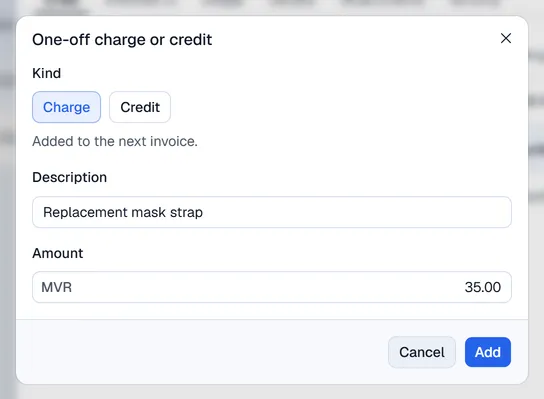
Click … → One-off charge or credit, choose Charge (added to the next invoice) or Credit (discounts the next invoice), enter a description and amount, and click Add. It shows under the lines until it is invoiced.
Record usage
For metered lines, open the Usage tab and click Record usage (or … → Record usage). Choose the line, enter the quantity and date, and click Save. Usage is billed on the next invoice, after the included units.
Invoice now
Invoice now makes the invoice for the next period straight away instead of waiting for its date. It then shows on the Invoices tab; click it to open the invoice.
Change plan
Click … → Change plan. Only plans with the same billing period are listed. The new price applies from the next invoice. Switch on Settle the rest of the current period now to add a prorated charge (upgrade) or credit (downgrade) to the next invoice.
Pause and resume
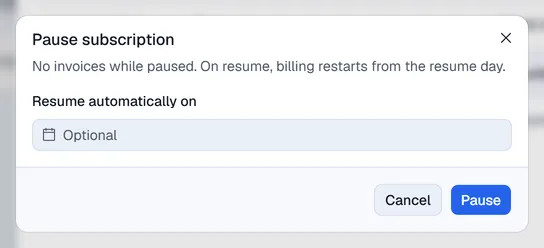
Click … → Pause. No invoices are made while it is paused. Optionally set Resume automatically on. Click Resume to restart; billing restarts from the resume day.
Cancel
- 1Click … → Cancel subscription.
- 2Under When, choose End of the paid period or Now. Cancelling now stops further invoices; nothing is refunded automatically.
- 3Optionally pick a Reason and write a Note, then click Cancel subscription.
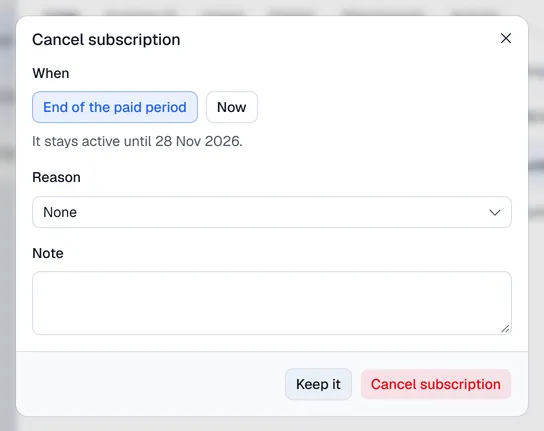
A cancellation at the end of the period can be undone with Keep subscription until that date.
Files and history
The Attachments tab keeps files with the subscription, such as the signed contract (managers add and remove them). The Activity tab lists everything that happened to the subscription, and who did it.