Payment receipts, reprints and cancelling
Find an earlier payment, reprint its receipt, attach slips or cancel it.
Show the steps for
Find a payment
In the POS top bar, open Payments and click Completed payments. The list shows every payment recorded with Receive payments, newest first; Load more shows older ones.
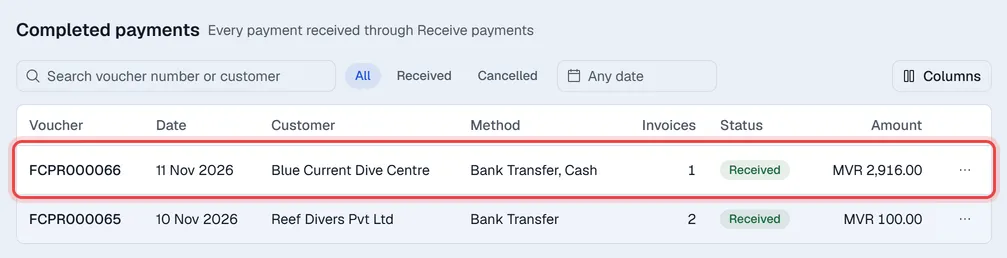
| Column | Meaning |
|---|---|
| Voucher | The payment receipt number, for example RCT-000012 (with the SAP number under it on SAP companies). |
| Method | How the customer paid. |
| Terminal | The terminal the payment was taken on. |
| Invoices | How many invoices it settled. |
| Status | Received, or Cancelled. |
| Amount | The amount received. |
Search by receipt number or customer, pick Received or Cancelled, and narrow the dates with the date box.
Reprint or send a receipt
Click the payment's row: the receipt opens in a panel with the invoices it paid (Invoices), the Details and the Attachments.
- 1Click Print or Download (the arrow next to each picks A4 or A5).
- 2Or click Send → By e-mail to mail the receipt PDF to the customer.
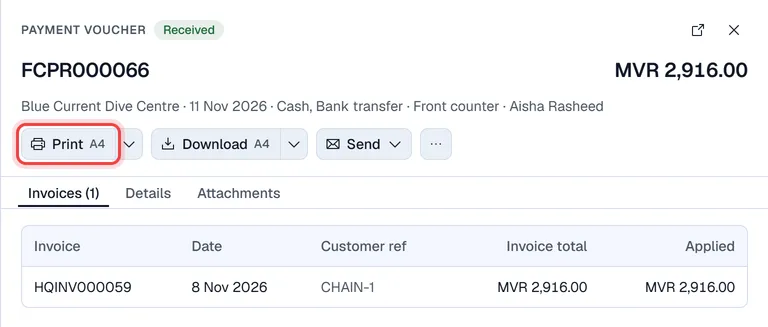
The receipt shows the customer, the payment method (when one receipt holds several methods, each one with its amount and reference, also under Details), each invoice with its total and the Amount Applied, the Total Received, your notes as Remarks, and signature lines for Received By and Customer. The first print is marked ORIGINAL, reprints COPY.
Attach slips later
If your company has document attachments switched on, open the payment and use its Attachments tab, for example to add a cheque photo that failed to upload when the payment was recorded.
Cancel a payment
Cancel a payment that was recorded by mistake (wrong customer, wrong amount, a bounced cheque).
- 1Open the payment and click … → Cancel payment.
- 2Read the message: it names the amount, the customer and how many invoices will open again.
- 3Click Cancel payment, or Keep payment to go back.
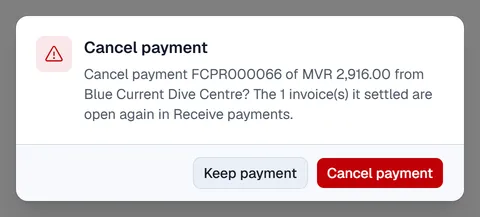
The payment stays in the list marked Cancelled, and the invoices it paid are open again in Receive Payments. A receipt with several methods is cancelled as a whole.
The incoming payment is cancelled in SAP Business One first. If SAP refuses, nothing changes in Voltix and SAP's message is shown.
If your company uses the Finance app, the payment's journal entry is reversed automatically.