Save, share and restore reports
Save a report under your own name, share it with the company, keep a copy of someone else's report and go back to an earlier version.
Save a report
- 1Click Save.
- 2Give the report a name and click Save.
The report is filed in the folder that matches its data (Sales, Inventory, Purchasing and so on).
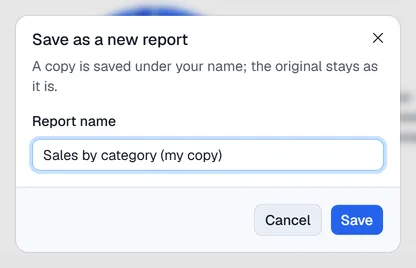
- On your own report, Save updates it.
- Save as copy (in the … menu) saves a new report and leaves the original untouched. Use it for reports shared by others: only the owner (or an administrator) can change or delete a report.
Share with the company
On your own saved report, open the … menu and click Share with the company. Everyone in the company with Reports access then sees the report, with the share mark next to its name. To stop, choose Stop sharing in the same menu.
You need the Reports: share permission. Each person still sees only the data their own access allows.
Go back to an earlier version
Every time a saved report's design is changed, the previous version is kept.
- 1Open the report, then … → Version history.
- 2Find the version you want: it shows the date, who changed it and what it contained.
- 3Click Restore and confirm.
The version you replace is kept in the history too, so a restore can be undone. Only the report's owner can restore.
Delete a report
… → Delete report deletes your own report after a confirmation. This cannot be undone.