Returns and exchanges
Take items back against an earlier invoice and refund the customer, or swap them for other items.
Show the steps for
Returns and exchanges always start from the original invoice, so the customer gets back the price they paid.
Return items
- 1Open Orders and click the invoice.
- 2Click Return Items.
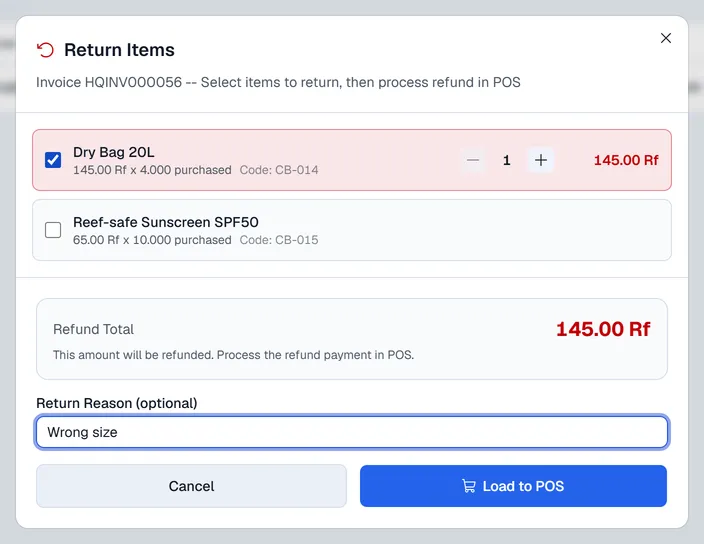
- 3Tick each item the customer brings back and set the quantity with - and +. You cannot return more than was bought.
- 4Optionally type a Return Reason.
- 5Check the Refund Total and click Load to POS.
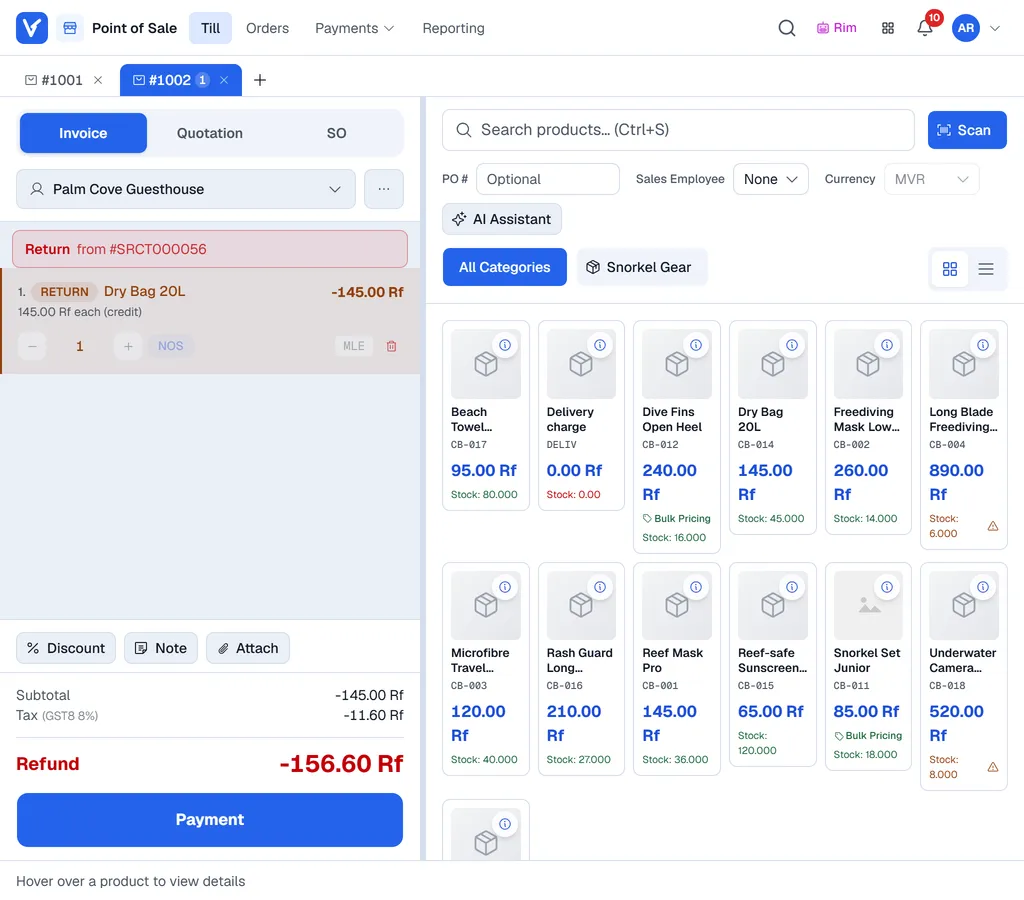
The POS opens with the returned items in the cart. The total reads Refund and is shown as a negative amount.
- 1Click Payment. The screen is titled Return / Refund.
- 2Click the method you are refunding with, for example Cash, and complete it.
Exchange items
An exchange is a return and a new sale in one go.
- 1Open the invoice in Orders and click Exchange Items.
- 2Tick the items coming back and set their quantities. The Return Credit Value is what the customer has to spend.
- 3Click Load to POS.
- 4In the POS, add the new items the customer is taking.
- 5Click Payment. What happens next depends on the difference:
| The new items cost… | What you see |
|---|---|
| More than the credit | The customer pays the difference as a normal payment. |
| Less than the credit | The total reads Refund. Pick a method to give the difference back. |
| Exactly the credit | Even Exchange: no payment is needed. Click Complete Exchange. |
Permission to return
Returns and exchanges need permission. If you do not have it, Voltix asks an authorised user, for example your manager, to approve on your screen before the items are loaded.
Cancel a whole invoice
A user with permission sees Cancel Invoice on an invoice that is posted to SAP. Enter a reason and confirm; SAP cancels the invoice. Use it for an invoice made by mistake, not for a customer bringing goods back.