Stock per warehouse
Check how much of a product each warehouse holds, and correct the stock count when it is wrong.
Show the steps for
See the stock of a product
Click View stock on the product row. Item details opens on its Inventory data tab.
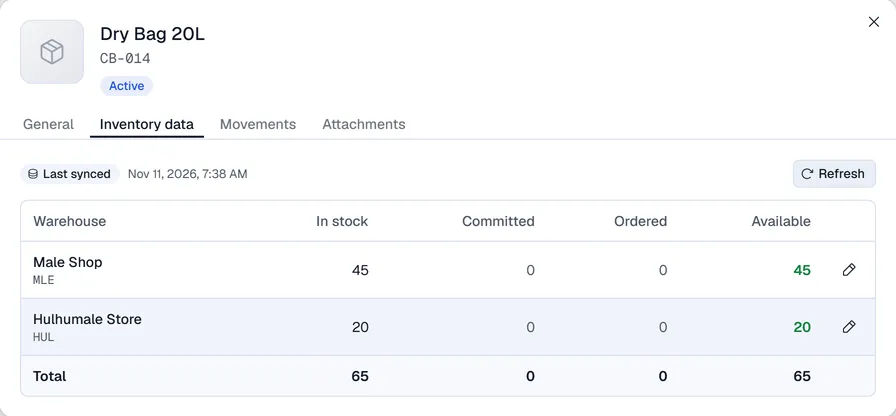
| Figure | Meaning |
|---|---|
| In stock | What is physically in the warehouse. |
| Committed | Reserved for open orders. |
| Ordered | On open purchase orders. |
| Available | What you can still sell. |
Click Refresh to read the figures again.
Stock comes from SAP. Live from SAP means the figures were just read from SAP; otherwise the tab shows when they were Last synced.
Stock moves when you sell, receive purchases, transfer between warehouses and make goods issues.
Correct the stock
Stock corrections are made in SAP (for example with a goods receipt or goods issue there). Adjust stock is not available.
Use a stock adjustment when the figure is wrong: choose Adjust stock in the … menu on the product row (or the pencil next to a warehouse on the Inventory data tab), pick the warehouse, type the counted quantity or the difference, give a reason and click Apply. Every adjustment is a numbered document with the before and after figures, and the item's Movements tab keeps the history.
To count many items at once, start a stock count. To move stock from one warehouse to another, use a transfer request instead.