SLA policies
Promise your customers a response time, and let the Helpdesk count down and flag the tickets that miss it.
What an SLA policy is
An SLA (service level agreement) policy says: tickets of this team, with at least this priority, must reach this stage within so many hours. For example "Urgent: solve within 8 hours" for two-star tickets, or "Reply within 24 hours" for every ticket.
The clock runs 24 hours a day, 7 days a week. Weekends and closing hours are not skipped.
Add a policy
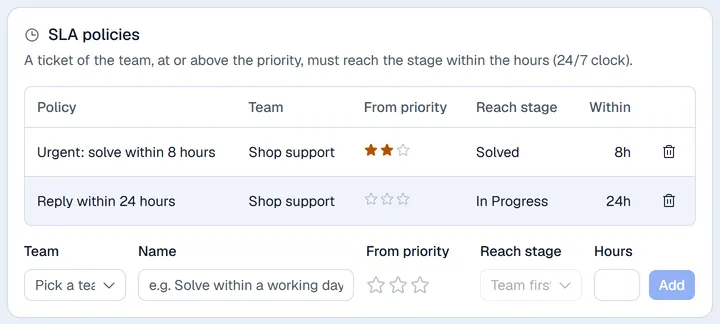
- 1Open Settings → Helpdesk, tab Teams and SLAs (managers and admins).
- 2Under SLA policies, choose the Team.
- 3Type a Name.
- 4Set the From priority with the stars. No star means the policy applies to every ticket.
- 5Choose the stage the ticket must reach under Reach stage.
- 6Type the hours in Hours and click Add.
Click the bin next to a policy to remove it.
How the deadline is set
When a ticket is created, the Helpdesk picks the strictest matching policy (the one with the fewest hours) for the ticket's team and priority, and sets the deadline from that moment. Changing the priority later does not change the deadline.
The SLA clock on a ticket
| Chip | Meaning |
|---|---|
| 24h left | Time remaining. Turns amber when less than 4 hours are left. |
| 2.5h overdue | The deadline has passed and the ticket has not reached the target stage yet. |
| SLA met | The ticket reached the target stage (or a solved stage) in time. |
| SLA breached | It got there late, or the deadline passed while it was still open. |
About every 5 minutes the Helpdesk checks for open tickets past their deadline, marks them SLA breached and writes "SLA deadline breached" in the conversation. The SLA breached card on the Overview counts these tickets and opens them as a list.