Quotations and sales orders
Save a cart as a quotation or sales order, change it later, and turn it into an invoice.
Show the steps for
The cart can make three kinds of document. Pick one with the switch at the top of the cart:
| Switch | Document | The main button |
|---|---|---|
| Invoice | A sale paid now (or on account). | Payment opens the payment screen. |
| Quotation | A price offer. No money is taken. | Save and Print saves and prints it. |
| SO | A sales order: the customer has agreed to buy, you invoice later. | Save and Print saves and prints it. |
The cart takes the colour of the document: orange for a quotation, teal for a sales order.
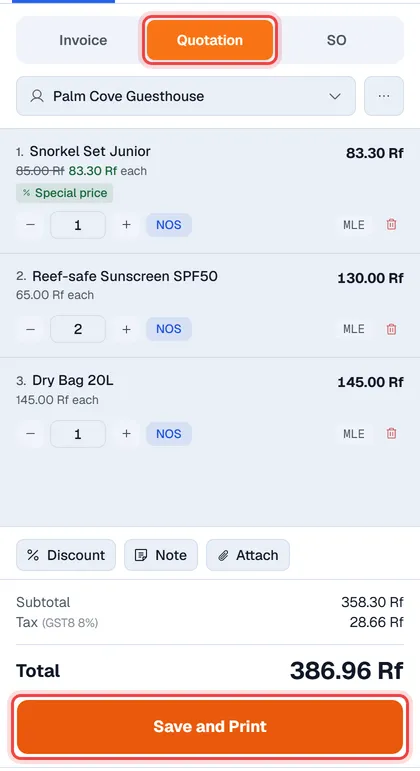
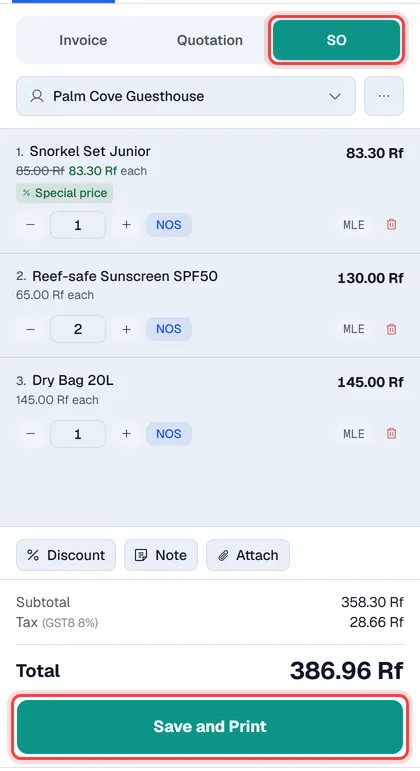
Make a quotation or sales order
- 1Click Quotation or SO at the top of the cart.
- 2Choose the customer. A quotation or sales order always needs a customer; the button stays greyed out until you pick one.
- 3Add the products, discounts and note as for a sale. See Make a sale.
- 4Click Save and Print (or press Ctrl+Space) and choose the paper size.
Voltix shows Quotation Created or Sales Order Created with the document number.
Note. The quotation or sales order is posted to SAP Business One as you save it. If SAP refuses it, nothing is saved and SAP's message is shown.
Find it again
Open Orders and click the Quotations or Sales Orders tab, then click the document. See The Orders screen.
Change a quotation
Open the quotation and click Edit Quotation. It is loaded into the cart; make your changes and click Update and Print.
Change a sales order
Open the sales order:
- Edit Details changes header details such as the PO number, sales employee and note.
- Edit Sales Order loads it into the cart so you can change the lines; click Update and Print to save.
Note. Once a sales order is in SAP, Edit Sales Order is not offered. Use Edit Details for the header.
Turn it into an invoice
- 1Open the quotation or sales order. It must still be open.
- 2Click Convert to Invoice. Its customer and lines are loaded into the cart.
- 3Take payment as usual. See Take payment.
The new invoice is linked to the quotation or sales order it came from.
Cancel or close
- An open quotation can be cancelled with Cancel Quotation.
- An open sales order can be closed with Close SO or cancelled with Cancel SO.