The Barcodes app at a glance
A scanning app for the warehouse floor on a phone, a handheld scanner or a desk computer. Receive, deliver, issue, transfer, pack and count by scanning.
What it is
Barcodes is the app made for scanning. Open it from your home page. Its menus sit in the top bar: Overview (the home screen), Queue (the work waiting, one list per kind) and Start (the screens without a document). It works on:
- a phone, with the camera button;
- a handheld scanner (Zebra, Honeywell and similar) that types the code like a keyboard;
- a desk computer with a USB scanner.
Everything you do in the app is posted through the same documents as the normal Inventory, Purchasing and Sales screens, with the same rules. A goods issue made by scanning is an ordinary goods issue.
Turning it on
- 1Your Voltix administrator switches the Barcodes app on for your company.
- 2In Settings → Users, tick Barcodes under the apps a person may open.
- 3What each person may do in the app follows their permissions (below).
Who may do what
| Menu entry or button | Needs |
|---|---|
| Receipts (receive against a purchase order) | The Purchasing app |
| Receive without order | Inventory: goods receipt |
| Goods issue | Allow goods issue (Goods Issue permission) |
| Transfers and Direct transfer | The Inventory app and Inventory Transfers (IT) → Create |
| Deliveries | The Sales app, with deliveries switched on in Settings → Sales |
| Counts | The stock count permissions (see Stock counts) |
| Pack | Any of transfer, delivery or goods issue |
| Moving stock between bins | Inventory Transfers (IT) → Create |
| Choosing an item's put-away bin | Inventory: manage bins |
Administrators may do everything. A menu entry or button you cannot use is not shown.
The home screen
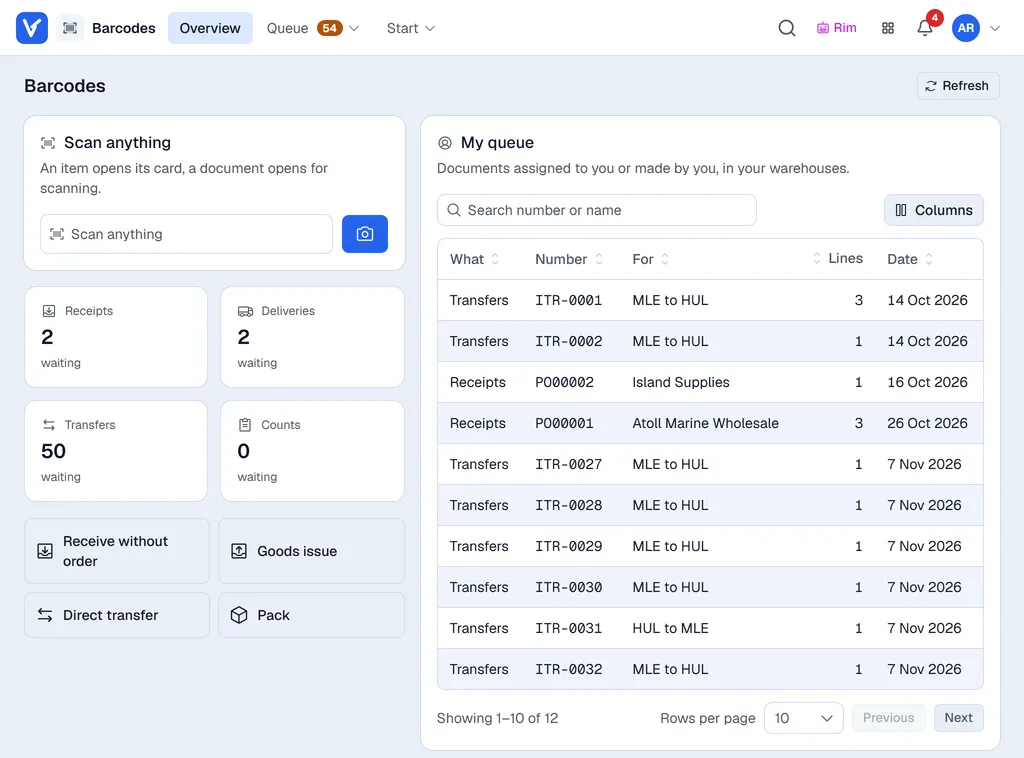
- Scan anything: an item opens its card, a document number or QR opens the document for scanning, a package shows what it holds.
- My queue: purchase orders, transfer requests, sales orders and counts waiting for you, yours first.
- The Receipts, Deliveries, Transfers and Counts cards show how many are waiting; click one to open its list (the same lists as under Queue). Each list has a search box, All / Mine, and a date filter.
- The buttons under them (Receive without order, Goods issue, Direct transfer, Pack) open the same screens as the Start menu.
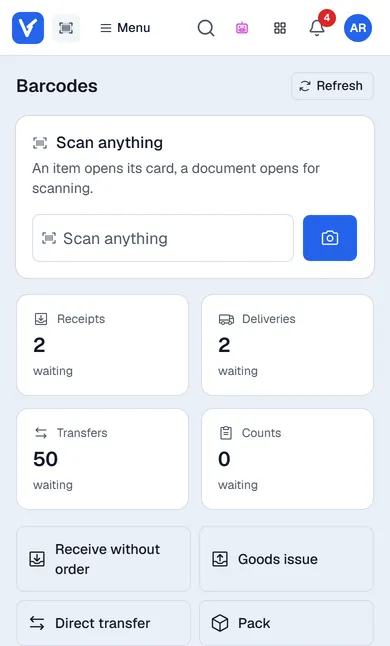
On a phone everything sits in one column with the scan box on top, and the menus fold into the Menu button. On a computer, My queue sits beside the scan box.
On a computer: the list beside the scanning screen
On a screen at least 1024 pixels wide, Receipts, Deliveries and Transfers open as two panes:
- on the left, the documents waiting, with a search box, the number and who it is for (Columns shows more);
- on the right, the document you picked, ready for scanning. The list stays where it is, and the open document is highlighted in it.
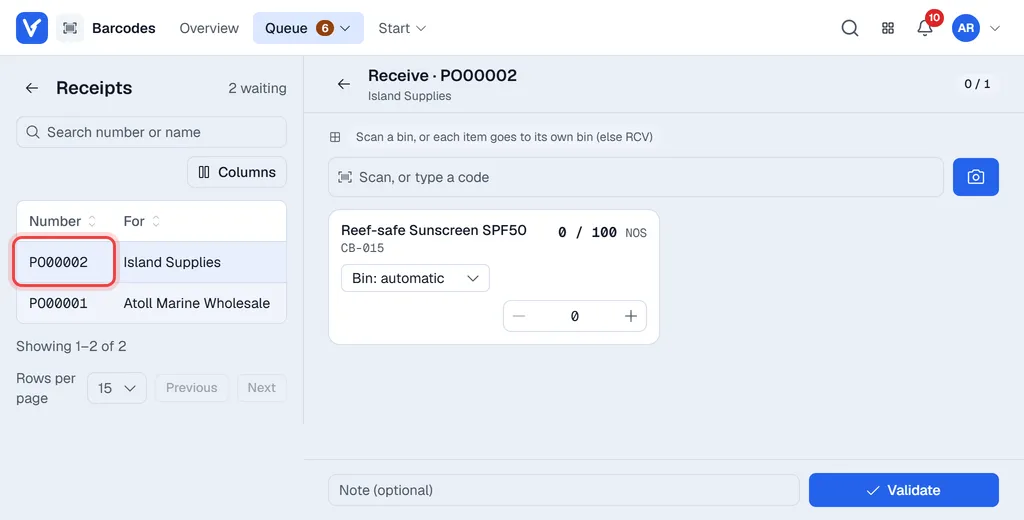
Pick another document in the list to move on. If the open one already holds scans, Voltix asks before it throws them away. After Validate, Back to the queue brings you back to the same list. A USB or handheld scanner works the same as on a phone: there is only one scan box on the screen, the one of the open document.
Counts keep their full-screen count mode on every screen size. On a phone or a narrow window, the lists and the scanning screen show one at a time, as before.
Counting in the app works exactly like counting in Inventory: see Stock counts and, for warehouses with bins, Bins.
When something could not be sent because the signal dropped, a card at the top shows it. See Working without a signal.
The item card
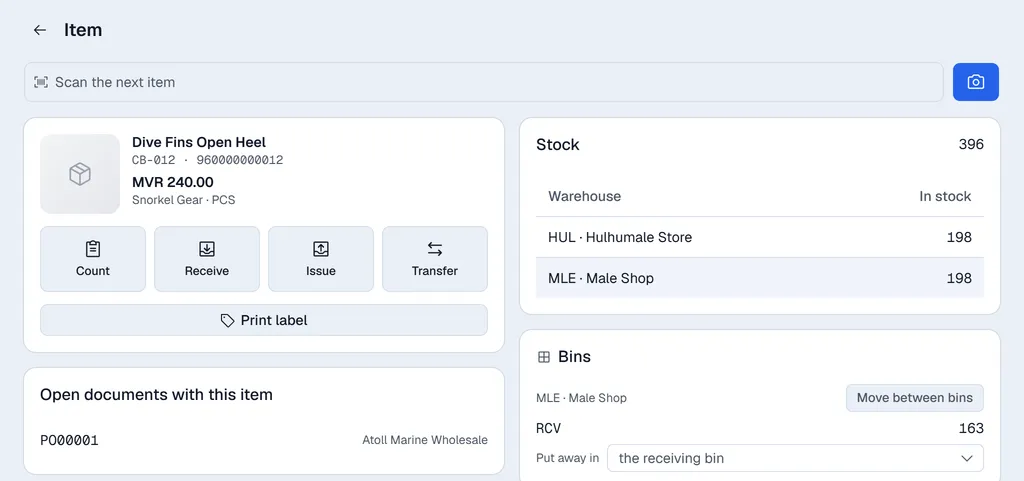
Scan an item on the home screen to see its card:
- stock per warehouse, and per bin where bins are used;
- its units and their barcodes;
- batches, soonest expiry first;
- open documents that mention it;
- buttons to Count, Receive, Issue, Transfer it and Print label.
Rim
The Rim button in the top bar, on the overview, the item card and the lists, answers questions about stock: where is the sunscreen, what expires this month in HUL, how many towels came in today. Rim only reads here. It never posts, moves or counts anything.