Handing over and accepting
Every handover is two steps: the holder hands over, the receiver accepts. That is how the Mailroom always knows who has an item.
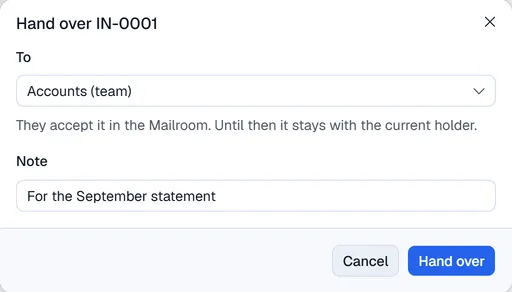
Hand an item over
- 1Open the item and press Hand over.
- 2Under To, pick a person or a team. Add a note if it helps ("left on your desk").
- 3Press Hand over.
The item now shows Waiting to be accepted. Until the receiver accepts, you still hold it. The receiver (or every member of the team) gets a notice.
Accept or decline
When something is handed to you, it is in My items under Waiting for me (the list opens there when something waits for you):
- Accept: you now hold it. The person who handed it over is told.
- Decline: say why. The item stays with the person who handed it over, and they see your reason.
You can also scan the item's label: it opens straight away, ready to accept.
Take a handover back
While nobody has accepted it, the person who handed it over can press Cancel handover (on the item, or in My items under Handed over). Reception can do it for them.
Reception handing over for someone
People with Mailroom: log items (reception) may hand over an item that someone else holds, for example when a colleague left it at the front desk. The timeline shows both: who pressed the button and on whose behalf.
Good to know
- Only one handover can wait at a time. Accept, decline or cancel it before handing the item on again.
- You cannot hand an item to yourself, to someone who does not use the Mailroom, or to a person in another company.
- A closed, sent, delivered or cancelled item cannot be handed over.
- Reminders: when your company sets a limit, a handover that waits too long reminds the receiver, with a copy to the person who handed it over. See Mailroom settings.