Reports at a glance
The Reports app keeps your company's saved reports in folders, runs them on your own data and lets Rim build new ones from a plain question.
What the Reports app is for
Use Reports when you need a figure or a list that the other screens do not show: sales by category for last quarter, the top 20 products this year, unpaid invoices by customer, stock below minimum. You can open a ready-made report, change its period, or ask Rim to build a new one.
The Point of Sale and Inventory have their own fixed reports as well. See Reports in other apps.
The Reports screen
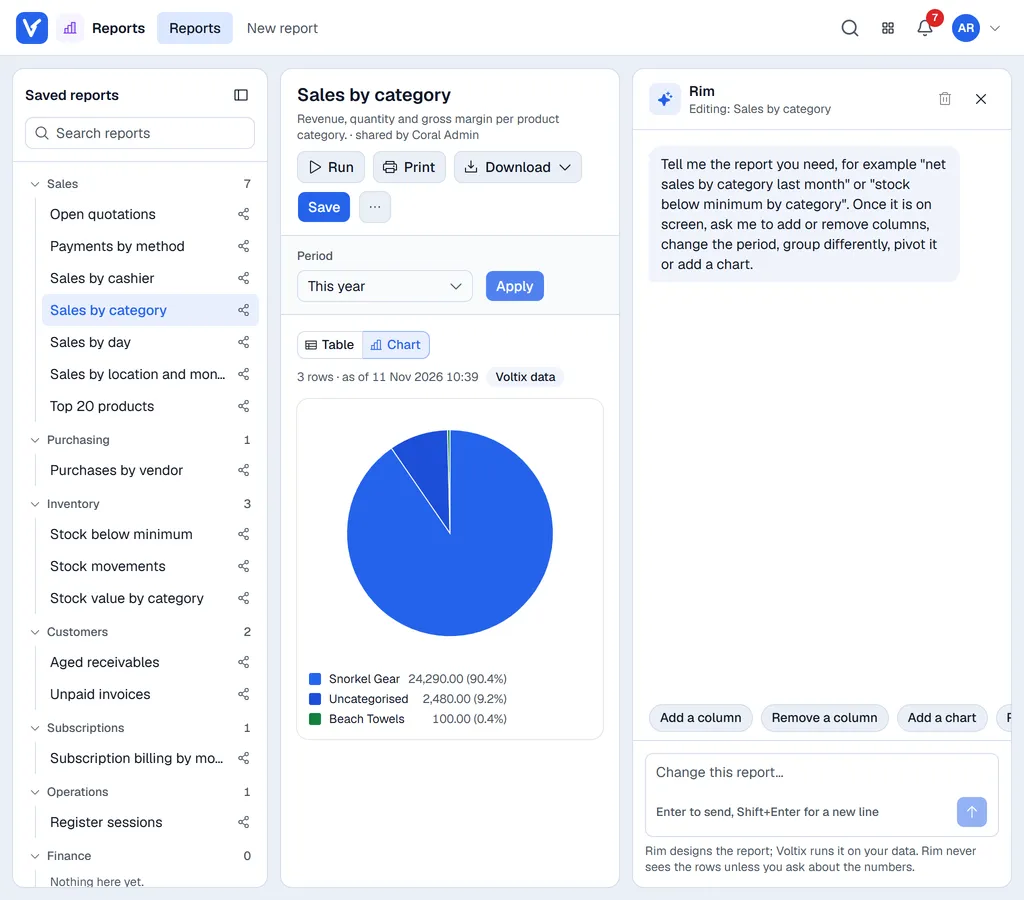
| Area | What it does |
|---|---|
| Left: Saved reports | Saved reports grouped in folders (Sales, Purchasing, Inventory, Customers, Subscriptions, Operations, Finance). Click a folder name to fold it. Search reports filters the list. |
| Middle: the report | The title, the action buttons, the parameters (for example Period) and the result as a table, pivot or chart. |
| Right: Rim | Describe the report you need, or ask Rim to change the one on screen. |
To give the report more room, the panel button next to Saved reports hides the list and the cross at the top of the Rim pane hides Rim. The panel button beside the report title and the Rim button bring them back. New report (in the menu at the top) clears the middle and opens Rim.
On a phone you see one thing at a time: the list of saved reports, then the report you opened (the back arrow returns to the list). The Rim button opens Rim over the report.
Starter reports
The first time someone in your company opens Reports, 15 ready-made reports are added and shared with everyone, for example Sales by day, Sales by category, Top 20 products, Payments by method, Unpaid invoices, Stock below minimum and Purchases by vendor. They are ordinary reports: run them, change them or save a copy.
What you can see
Every report runs with your access. A report shared by a colleague shows you only the data of the locations you are allowed to see, so two people can get different figures from the same report.
Who can use Reports
| Permission (Settings → Authorization) | Allows |
|---|---|
| Reports: use | Open the Reports app, ask Rim for reports, run and export them. |
| Reports: share | Share saved reports with everyone in the company. |
| Reports: schedule | E-mail saved reports on a schedule. |
The user also needs Reports switched on under App access in Settings → Users. Administrators have all three permissions.
Next: Run and export a report.