Rentals at a glance
Rent out equipment by the hour, day, week or month. Each rental moves from quotation to reserved, picked up and returned, with a deposit, late fees and a final invoice.
The Rental app keeps track of what you have rented out, to whom and until when. Coral Bay Traders, for example, rents snorkel sets, fins, wetsuits and camera cases to guesthouses and dive centres.
The four stages
| Stage | What it means |
|---|---|
| Quotation | An offer. Nothing is held back and no money is taken. |
| Reserved | The rental is confirmed. The units are held for the dates and the deposit is collected. |
| Picked up | The customer has the items. |
| Returned | Everything is back. The order is finished. |
A quotation or a reserved rental can still be cancelled. Cancelled rentals are listed under the Cancelled filter.
A red Late return (or Late pickup) status means the time has passed and the items are not back (or not collected) yet.
The menus
The Rental menus sit in the top bar (on a phone, under Menu):
- Overview: rental revenue, what is out right now, late fees, deposits held, the most rented items and a To do list. Click a figure to open the rentals it counts.
- Rentals: the list of rentals. Search by number or customer, filter with Active, Quotations, Reserved, Out, Late, To invoice, Returned, Cancelled or All, and pick a pickup date range. Click a rental to open it in a side panel; the arrow at the top opens it as a full page.
- Schedule: a month calendar of rentals that are quoted, reserved or out. See Schedule and reports.
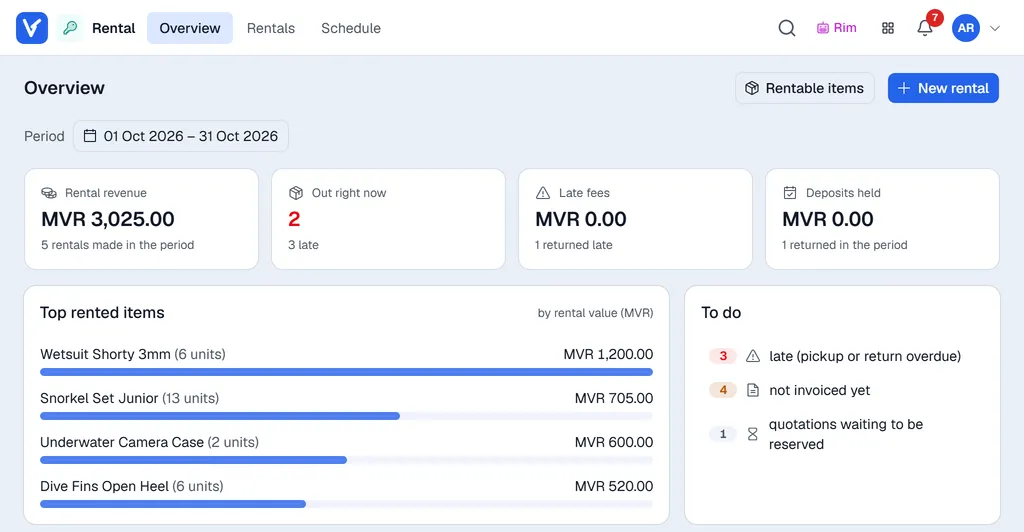
Rentable items (next to New rental) opens Inventory, where you choose which products can be rented and at what price. See Setting up Rentals.
Next steps
- 1Set up Rentals: periods, prices, deposits and late fees.
- 2Create a rental.
- 3Reserve and hand over.
- 4Take items back and invoice the rental.