Setting up Inventory
Categories, price lists, units of measure, warehouses, attributes and who may do what. For administrators and managers.
Show the steps for
Where the settings are
Open Settings → Inventory. The tabs are Categories, Price lists, Units of measure, Warehouses and Attributes.
With SAP Business One, categories, units and warehouses come from SAP and are read-only here (change them in SAP). Price lists can be changed here and are sent to SAP first (below). Two more things stay in Voltix: the Visible in setting of each warehouse (below) and the Transfer requests tab.
Categories
Categories group your products on the selling screen and in reports. Click Add category, enter the Category name, and optionally a Parent category to make it a subcategory, a Sort order, an icon and a colour.
Price lists
A price list holds a price for each product, for example a retail list and a resort list. Each list has a Currency and can have a Valid from / Valid to period. One list can be the Default. Add one with Add price list.
To change prices on a list:
- 1Click the price list row. The list of products opens with the Base price and the Price list price side by side.
- 2Type the new prices. Changed rows are counted on the save button.
- 3To change many prices at once, use Bulk action: choose Increase or Decrease, enter a percentage and click Apply.
- 4Click Save changes.
Changing price lists needs the Pricing: price lists permission (Settings → Authorization), unless you are an administrator. Without it the lists open view only.
Price lists are never deleted: the power button switches a list off (it stays on existing documents but can no longer be picked) and back on.
With SAP Business One, every change goes to SAP first and is saved in Voltix only when SAP accepts it:
- Add price list creates the list in SAP. Pick the list it is Based on and a Factor (1 = the same prices, 1.1 = 10% higher); SAP prices every item from the base list times the factor. The currency follows the base list.
- Renaming a list or switching it off changes it in SAP too.
- Prices you save on a list are sent to SAP item by item. A price SAP does not accept is not saved, stays marked as changed, and the reason is shown.
- The boxes icon on a product row sets its Prices per unit on that list, for example a case price.
Which price list a sale uses is set on the POS terminal or Sales profile. Automatic discounts per list or customer are special prices.
Units of measure
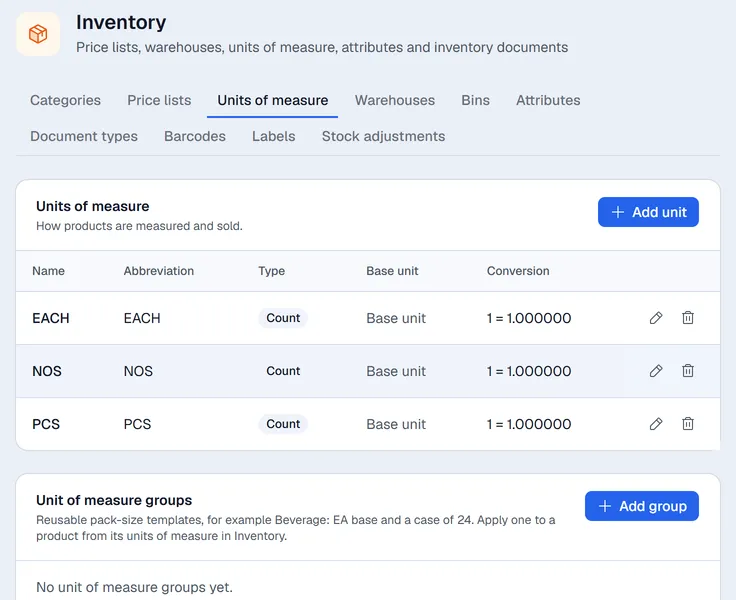
The Units of measure card lists the units you measure in (piece, kilogram, litre). Below it, Unit of measure groups are ready-made sets of pack sizes, for example Beverage Packs with a 6-pack and a 24-case. A group can be applied to a product in one click; see Units of measure and prices.
Warehouses
A warehouse is a place where stock is kept: a shop floor, a back store, another island. Click Add warehouse and enter a Name and a Code (both required), plus the address and contact if you like.
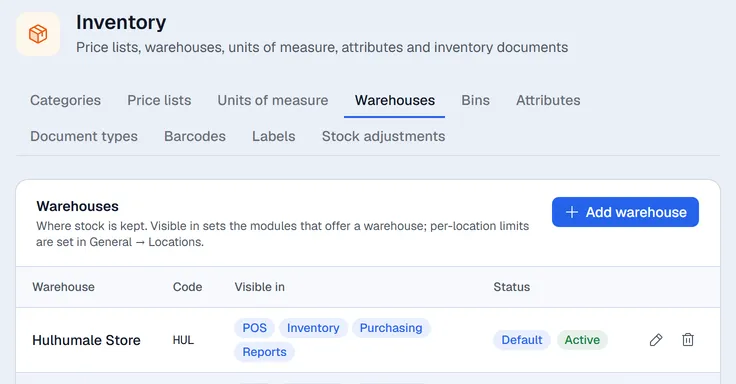
Visible in decides where a warehouse is offered: POS, Inventory, Purchasing and Reports. Click a chip to switch it. For example, switch POS off for a back store that never sells over the counter. You can narrow it further per shop under Settings → General → Locations: a user then only sees the warehouses allowed for their locations.
Attributes
Attributes such as Color or Size and their values (White, Black; S, M, L) are defined once here and used to create product variants. See Variants.
Transfer request approval
The Transfer requests tab has one switch: Transfer requests need approval. When it is on, a new transfer request is saved in SAP as a draft and must be approved in SAP before anyone can fulfil it in Voltix.
Transfer requests do not need approval; they can be fulfilled as soon as they are created.
Who may do what
Permissions are set per auth group in Settings → Authorization:
| Section | Choices |
|---|---|
| Goods Issue | Allow goods issue. Without it the Goods issues menu is hidden. |
| Inventory Transfer Requests (ITR) | View, Create / Fulfill, Close. |
| Inventory Transfers (IT) | View, Create. Fulfilling a request needs Create here as well. |
Administrators can do everything. Adding and changing products, flags and settings needs a manager or administrator. Reports is for managers and administrators.
For batch and serial numbers see Batches and serial numbers.