Open the register
Pick your terminal and count the cash in the drawer before your first sale.
Pick your terminal
Open Point of Sale from the home page. Pick a till shows the terminals assigned to you; type in Search tills to find one when you have many.
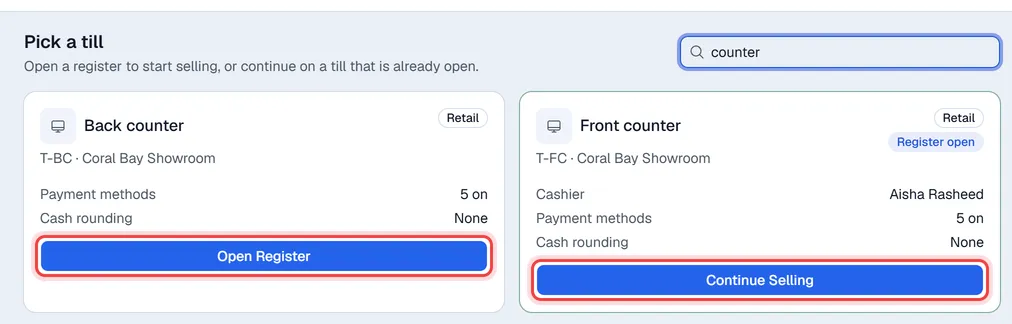
| What the card shows | What it means |
|---|---|
| Open Register | Nobody is using this terminal. Click to start. |
| Register open and Continue Selling | Your own register is open here. Click to carry on selling. |
| In use and In use by someone else | Another cashier has the register open. Ask them to close it first. |
Note. Do not see your terminal? Ask your administrator to assign it to you in Settings → Point of Sale → Assignments.
Count the opening cash
- 1Click Open Register on your terminal.
- 2Enter the Opening cash in the drawer: the cash in the drawer now.
- 3To count note by note, click Count notes, enter how many of each note and coin you have, and click Use this total. The total is filled in for you.
- 4Click Open Register.
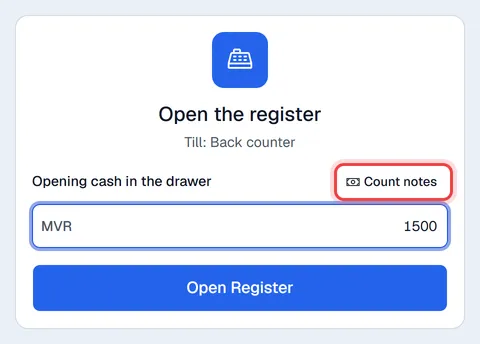
The selling screen opens. (Back to the tills under the card returns to the list without opening.) Any carts you left on this terminal earlier come back as they were.
Rules
- One register per cashier. You cannot open a second terminal while your register is open on another. Close the first one, then open the new one.
- One cashier per register. Only the cashier who opened a register can sell on it and close it.
- If a register was left open by someone who is not available, contact your Voltix support contact. They can force-close it from the terminal card. It closes with zero cash, so count the drawer separately.
Leave the POS without closing
Backend in your menu (your initials at the top right) takes you back to the terminal list without closing the register. Your register stays open and your carts are kept on this device.