Receive Payments at a glance
Collect money from customers for invoices they did not pay at the time of sale.
Show the steps for
What it is for
When a sale is put on the customer's account (a credit invoice from the POS, or an invoice posted On credit in Sales), the customer still owes the money. Receive Payments is where you take that money later: you pick the customer, choose which of their open invoices they are paying, and record the payment. Voltix prints a payment receipt (also called a payment voucher) for the customer.
One payment can settle several invoices at once, or only part of one.
Where to find it
Receive Payments lives inside the Point of Sale, because every payment is recorded on a register session, exactly like a sale.
- 1Open Point of Sale and pick your terminal. The register must be open (see Open the register).
- 2In the top bar, open Payments. It has two screens: - Receive payments to take a new payment. - Completed payments to see, reprint, send or cancel earlier payments.
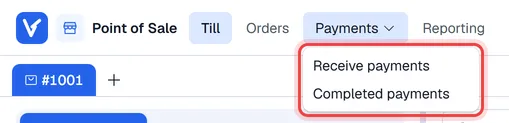
On a phone, tap Menu in the top bar and choose Receive payments or Completed payments.
The screen
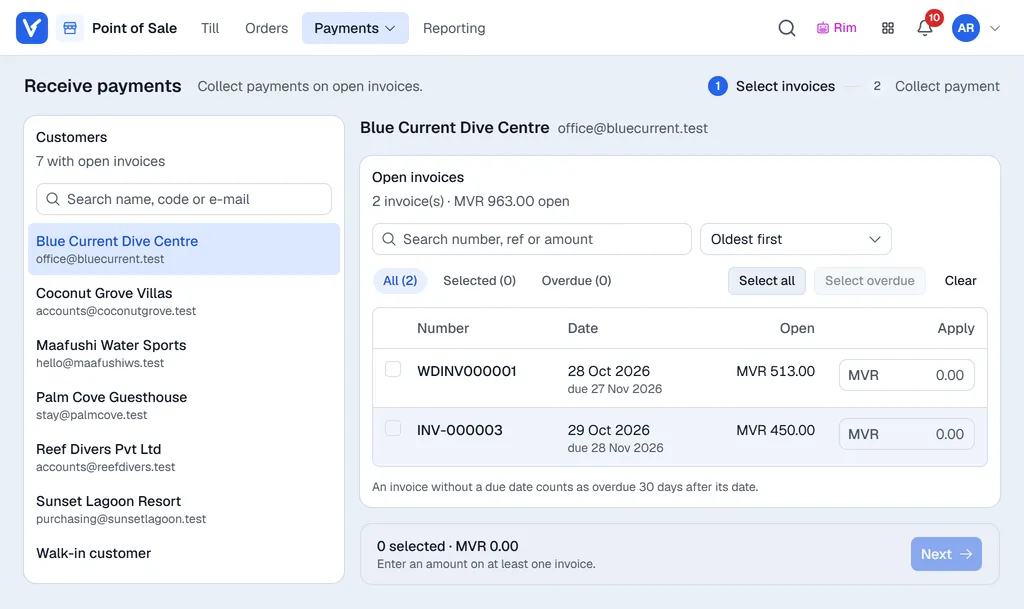
A payment is taken in two steps. Select invoices: Customers on the left lists the customers who owe you money, and the chosen customer's Open invoices are on the right, with a bar at the bottom showing what is selected and Next. Collect payment: the selected invoices on the left (Back changes them), the Payment and the Totals on the right.
The open invoices are read from Voltix.
The open invoices are read live from SAP Business One.