Menus and theme
Set the main menu and footer links, and give the whole website its colours, fonts, buttons, header and footer.
Menus
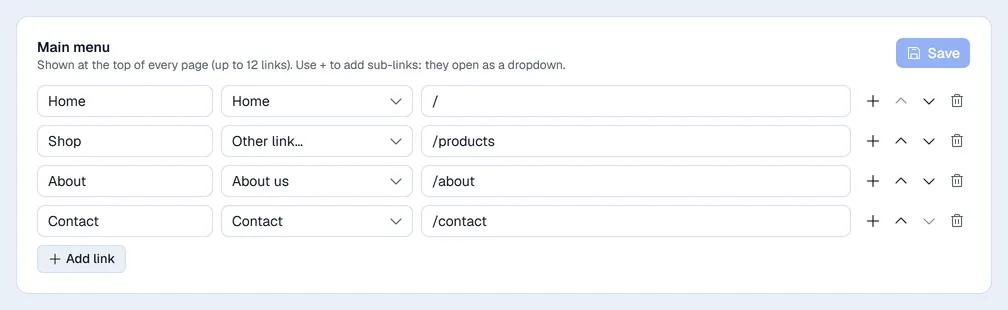
Site settings → Menus has two lists:
- Main menu: shown at the top of every page, up to 12 links.
- Footer links: shown at the bottom of every page.
For each link, type the label, then pick a page from the list, or Other link… and type an address (/page, #anchor or https://…).
- + adds a sub-link. In the main menu, sub-links open as a dropdown. In the footer, a link with sub-links becomes a column with that heading (pick No link (heading only) for the heading).
- The arrows move a link up or down; the bin removes it.
- Add link adds a new line.
Click Save on the list you changed.
When the website has extra languages, buttons above the lists switch to each language's own menus. Until you save one, pages in that language show the main menu.
Theme
You need the Websites: settings permission. Site settings → Theme shows a preview of the home page: on the right on a wide screen, under the settings on a smaller one. Nothing is live until you click Save theme.
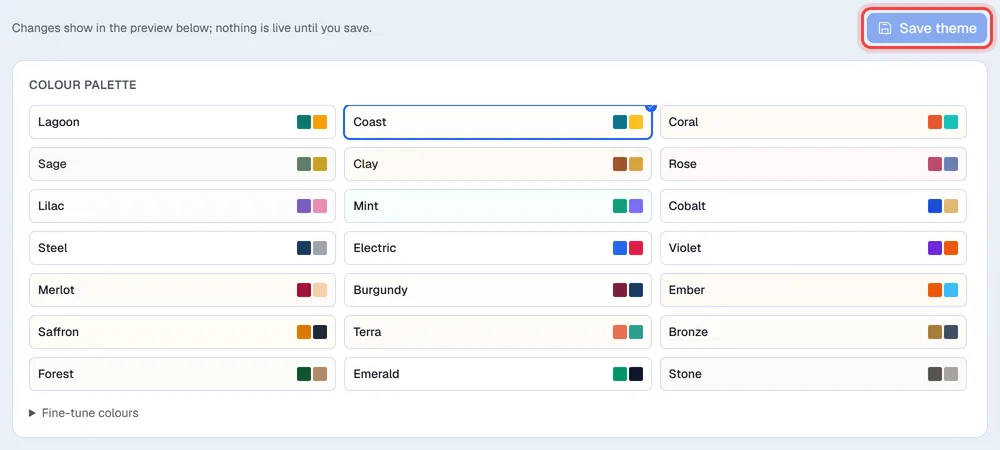
- Colour palette: pick a ready-made palette, or open Fine-tune colours.
- Logo and Browser tab icon.
- Type: Heading font, Text font, Heading size, Heading weight, Text size, Headings in capitals and how Links in text look.
- Buttons: Button shape, the Main button style and Button text in capitals.
- Header: the layout (for example Logo left, menu right or Logo in the middle, menu below), Stays on top while scrolling, Search button, Show phone (the number comes from the business details in Settings), a Call to action button and an Announcement bar (above the header).
- Footer: the layout. Its columns come from the footer menu.
Switch the preview between Computer and Phone to check both.