Forms and live chat
Collect enquiries with contact forms that create Helpdesk tickets or CRM leads, and chat with visitors from the Helpdesk.
Add a contact form
- 1In the page editor, add a design from Contact & Forms, or drag the Contact form piece into a section's column.
- 2Click the form and set it up on the right: - Title, Text above the form, Button text and Thank-you message. - Fields: for each one a Label, a Type (Short text, Email, Phone, Long text, Choice list, Tick box, Date, Number), Required and Width. - Send submissions to: Website inbox only, Helpdesk ticket, CRM lead, or Helpdesk ticket and CRM lead. Pick the Helpdesk team when it goes to the Helpdesk. - Also email each submission to (optional). The e-mail lists every field the visitor filled in. You can change its wording under Forms (see below).
- 3Publish the page. The form works on the published page only.
Forms are protected against spam automatically.
Change the wording of the form e-mail
At the bottom of Forms, the E-mail text: Website form notice card holds the Subject and Message of the e-mail sent to the Also email each submission to address. It is the same for every website of your company. Words in double braces are filled in when the e-mail is sent: {{site}} the website name, {{form}} the form title, {{who}} the visitor and {{fields}} the answers as a table. Click Save. Use the default throws your version away and goes back to the standard text.
You need the Websites: settings permission (administrators always have it).
Read the messages
Every message is kept in Forms, whatever Send submissions to says. The filters are Inbox, New, Done and Spam. Click a message to open it in a side panel.
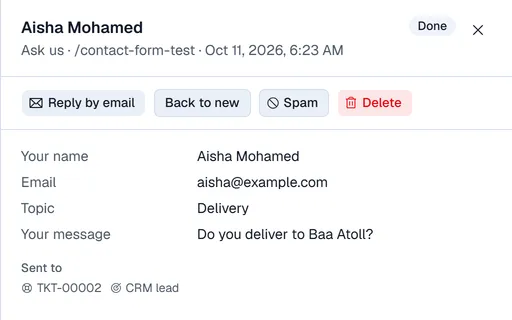
A message shows the ticket number and CRM lead it created, emailed when it was emailed, or not delivered when something went wrong (the reason is shown). The buttons are Reply by email, Mark done, Back to new, Spam and Delete.
Live chat
Live chat needs the Helpdesk app.
- 1In Site settings → General, under Live chat, tick Show a chat button on the website.
- 2Pick the Helpdesk team that answers, and set the Button text and Greeting.
- 3Click Save.
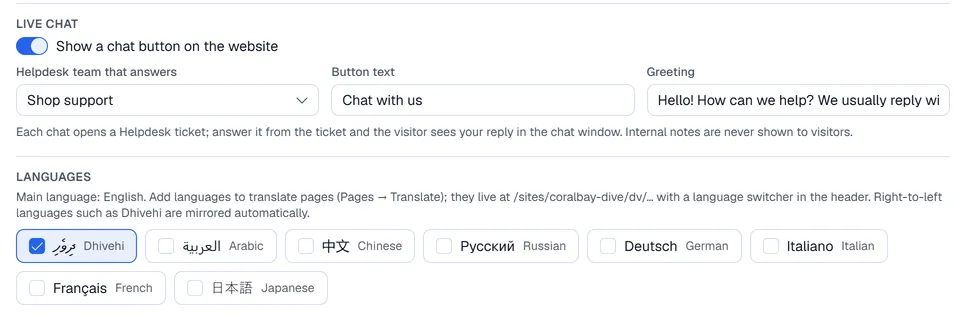
Each chat opens a Helpdesk ticket. Answer it from the ticket and the visitor sees your reply in the chat window. Internal notes are never shown to visitors.